AR Marker Image AR Marker Image
Overview
In this tutorial you will make an image that a phone camera recognises and replaces with something else: another image, a video or a 3D object, placed on top of the original and following it as you move. The technique is called marker tracking or image tracking. It is behind AR posters, museum guides, product packaging and print campaigns.
Early AR systems relied on fiducial markers, black-and-white square patterns designed to be easy for a computer to find, as in the ARToolKit library developed by Hirokazu Kato at the end of the 1990s. Today’s tools do not need a special pattern. They analyse your image in advance, store its distinctive features (corners, edges, areas of contrast) and look for them in the camera feed. Almost any image with enough detail can become a marker, which is why the choice of image matters (see “Before you start”).
The two tools in this tutorial do the same job on different platforms. Follow the one that fits your phone and accounts, or try both and compare.
| Lens Studio | Effect House | |
|---|---|---|
| Runs in | Snapchat | TikTok |
| You need | A Snapchat account on your phone | A TikTok account on your phone |
| Code | None needed | Visual scripting, little or no code |
| Sharing | Publish as a Lens, reviewed by Snap | Submit as an effect, reviewed by TikTok |
| Cost | Free | Free |
By the end you will be able to:
- choose and prepare an image that tracks well
- replace that image with another one in Lens Studio or Effect House
- test the result on your phone with a printout or a second screen
- compare how the two platforms handle the same idea
Software & Tools
- Lens Studio (macOS, Windows): Snap’s free tool for making Snapchat Lenses. You test your Lens on your phone in the Snapchat app.
- Effect House (macOS, Windows): TikTok’s free tool for making TikTok effects. You need a TikTok account to log in. Its marker tracking object is called
Target Tracker.
Alternatives:
- 8th Wall (macOS, Windows, web): a free, open source toolset for web AR that runs in the phone’s browser, with no app to install. The hosted platform closed on 28 February 2026, and the open source engine continues at 8thwall.org.
- MindAR (web): an open source JavaScript library for image tracking in the browser.
- Vuforia (iOS, Android, Unity): a long-established engine with “image targets”.
Before you start
- Choose a marker with a lot of detail and contrast. Photographs with varied texture work well. Avoid repetitive patterns, large empty areas and low-resolution images.
- Do not rely on colour. Detection works on contrast and detail, not on colour. Images that differ only in colour may not be told apart.
- Prepare your files. Lens Studio recommends a PNG or JPG of 2048 × 2048 pixels or less for the marker.
- Match the replacement to the marker. Give the replacement image the same proportions as the marker, so that it covers the marker exactly instead of being stretched.
- Mind the surface and the light. Flat, matte paper in even light tracks best. Glossy surfaces and reflections on a screen lower the tracking quality. Detection is fastest when the marker is in the centre of the camera view.
- Print it or show it on a second screen. Your phone’s camera needs to see the marker while the AR runs, so you cannot use the screen of the same phone. A printout gives the most stable result.
- Use images responsibly. You can use your own images or appropriate existing ones. Part of the power of AR marker images is reclaiming an image by laying your own over it. However, make sure the result does not become offensive.
AR marker image in Lens Studio -> Snapchat
Lens Studio is Snap’s free tool for making Lenses. You need a Snapchat account on your phone.
Install and set up
- Go to ar.snap.com/lens-studio and download Lens Studio.
- Make sure you have Snapchat on your phone. If you don’t, download the app and sign up for an account.
- Open Lens Studio and close the Home window. You will be in your default project window.
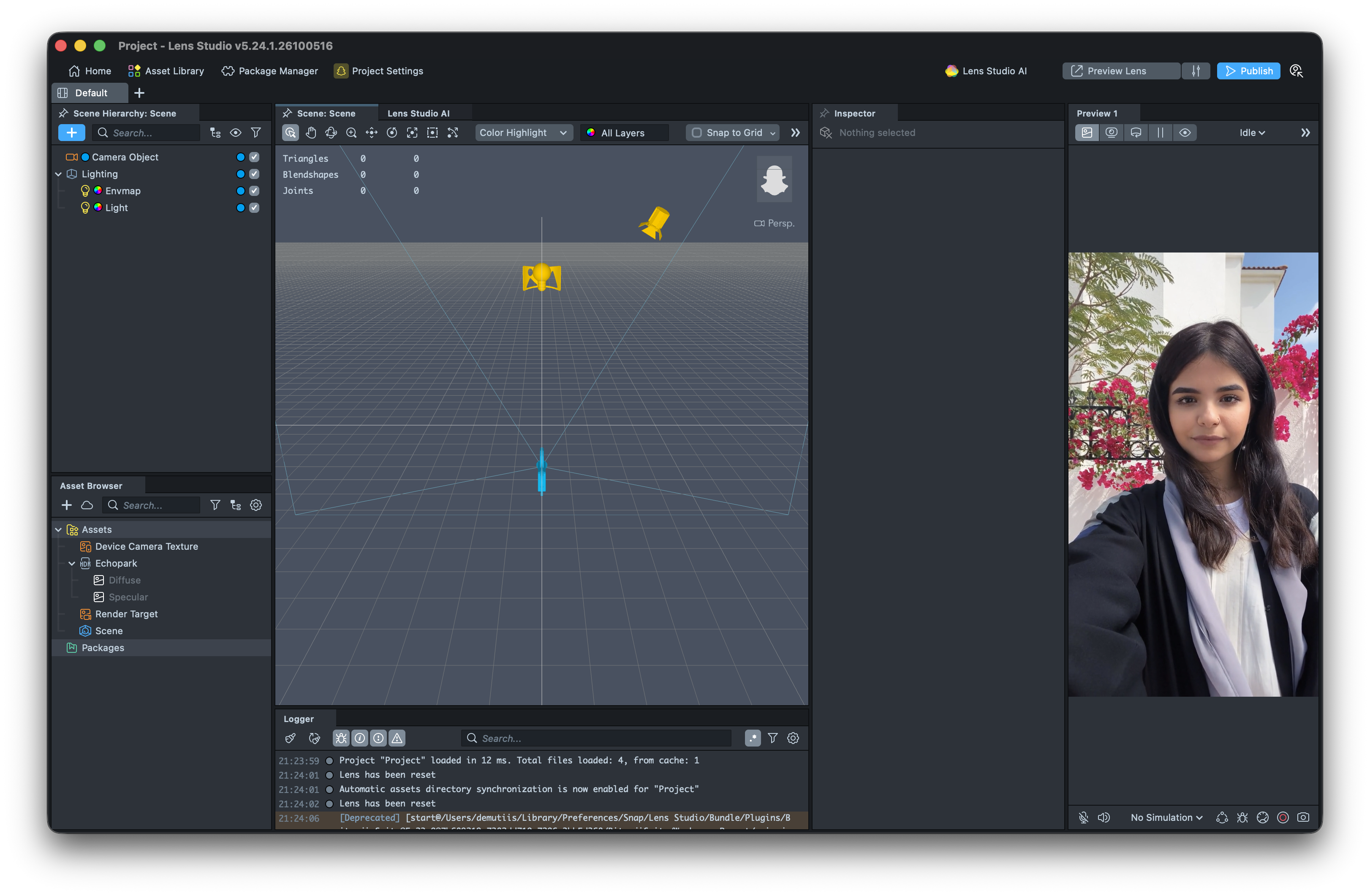
By default, the interface is divided into six panels: Scene Hierarchy, Asset Browser, Scene, Logger, Inspector and Preview.
Create the effect
- In the top menu, click
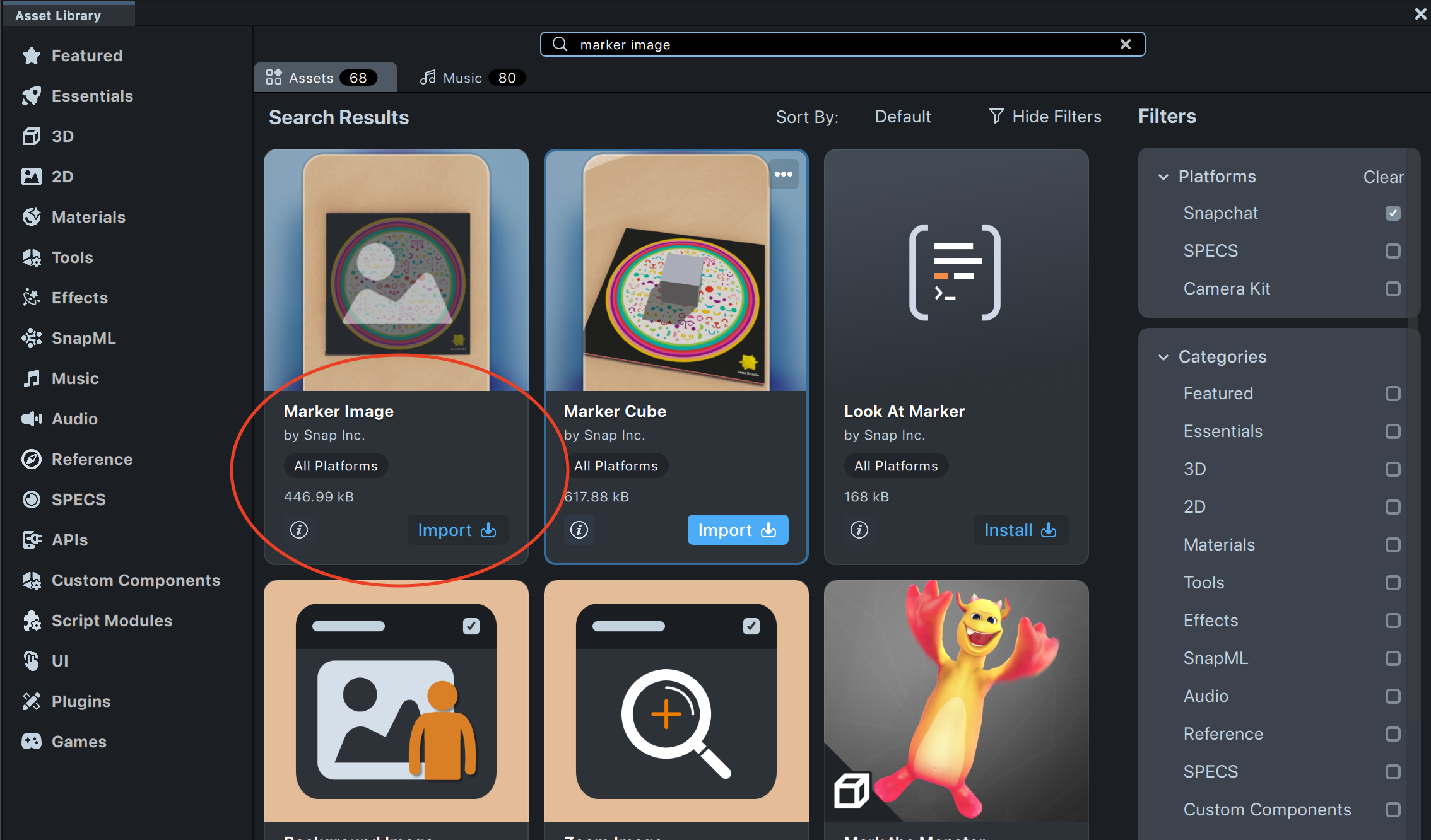
Asset Libraryand search for “marker image”. On the first result,Marker Image, clickImport, then close the Asset Library window.
- Drag the image you want to use as a marker from your computer into the Asset Browser panel.
- In the Asset Browser panel, click the
>sign next toMarker Image.lspkgand selectImage Marker [EDIT_ME]. - In the Inspector panel, find the
Marker Texturefield, click the image icon and select your marker image. You can also drag the image onto the field.
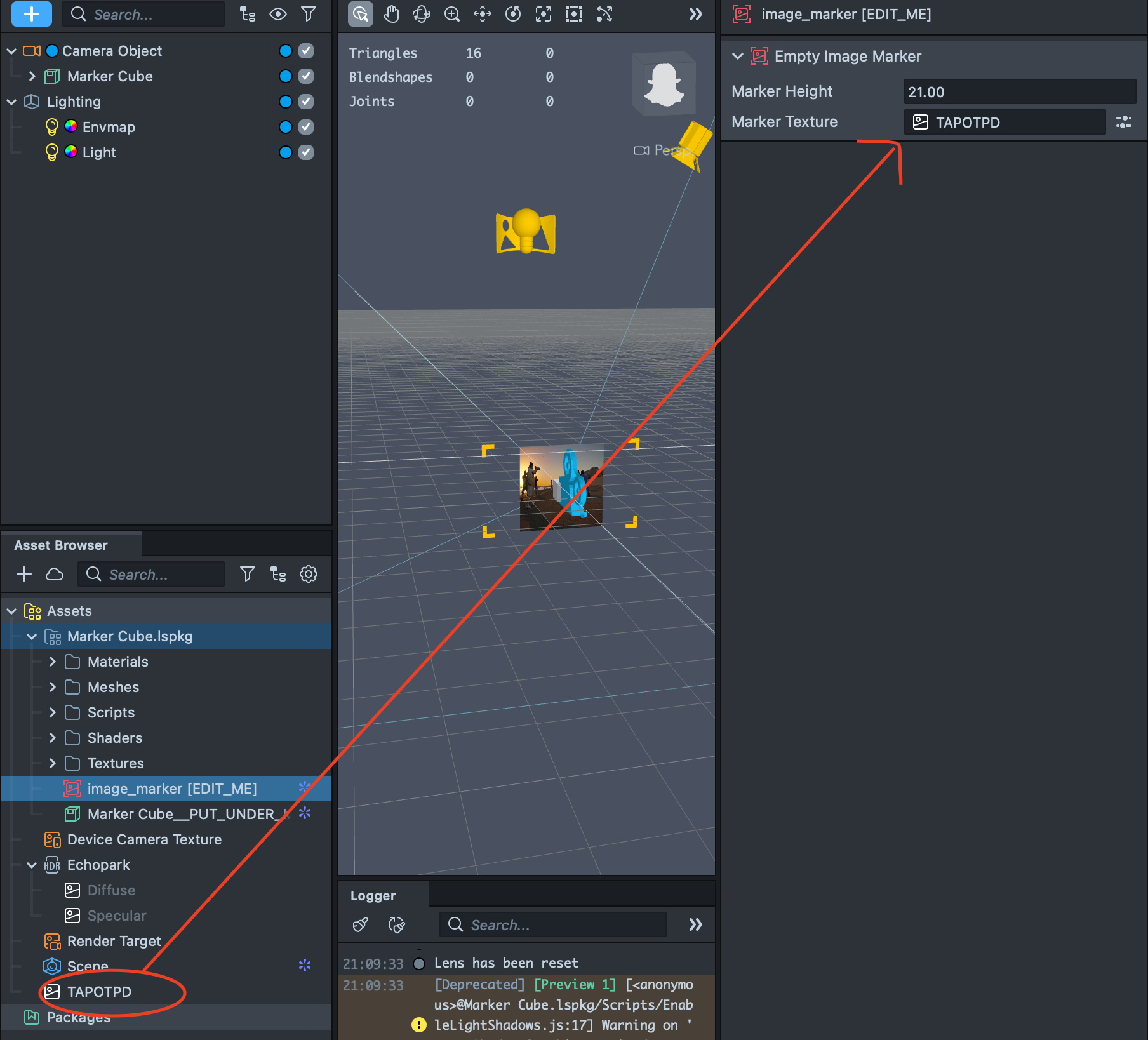
- Still in the Inspector panel, set
Marker Heightto the real height of your printed image in centimetres. This makes the size of the marker in the Scene panel match its size in the physical world. - In the Scene Hierarchy panel, click the
>sign next toMarker Imageand selectTracked Image [REPLACE_ME]. - In the Inspector panel, change its image to your replacement image. You can also drag the image onto the texture field.
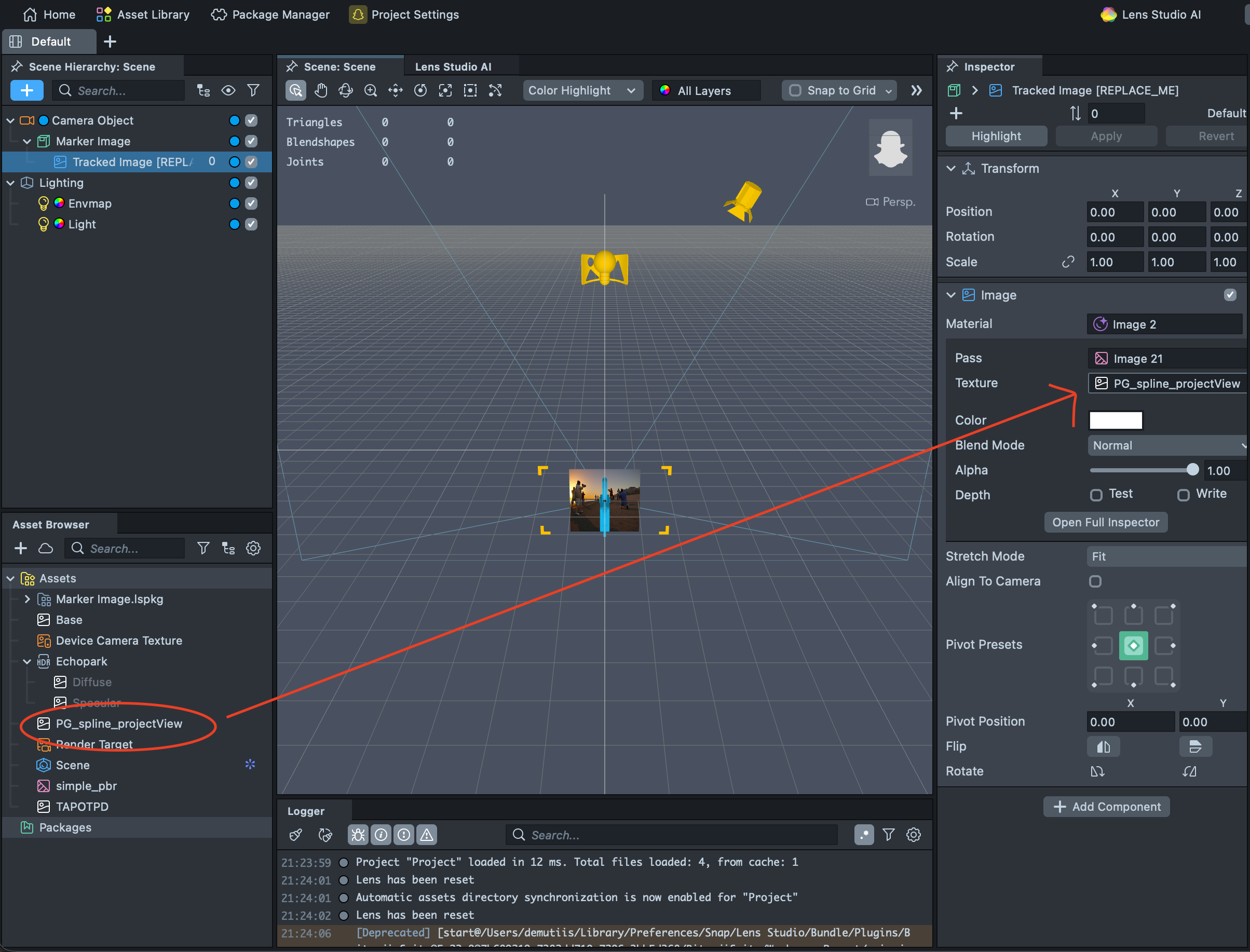
Because Tracked Image [REPLACE_ME] is attached to the marker, it follows the marker when the camera or the print moves. You can attach other objects to the marker in the same way, for example a video, a text or a 3D object. A single Lens can contain up to 10 markers, each with its own content.
Test the effect
- Click
Preview Lens. - Open Snapchat on your phone and scan the code.
- Point the camera at your printed marker, or at the marker on a second screen. Your replacement image should appear on top of it.
If the Lens does not appear on your phone, check that Lens Studio and your phone are paired to the same Snapchat account (see Snap’s Pairing to Snapchat guide).
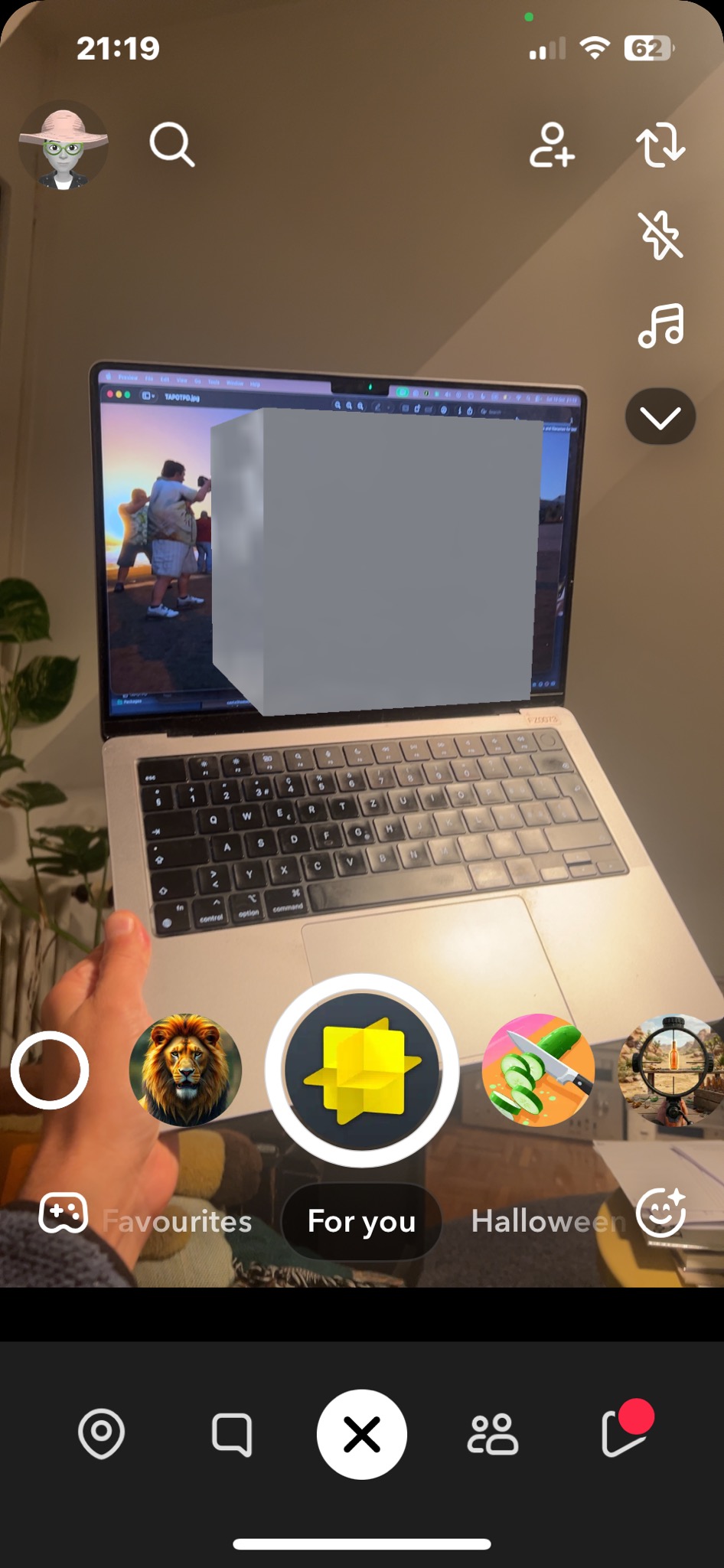
The Preview panel in Lens Studio cannot see your marker unless you import a video of it. To test the tracking with your phone’s camera, preview the Lens in Snapchat.
Publish your effect (optional)
When you are happy with your Lens, you can submit it to Snap for review. You do not need to publish to finish this tutorial, since previewing on your phone is enough. See Snap’s guide to submitting your Lens.
AR marker image in Effect House -> TikTok
Effect House is TikTok’s free tool for making effects. You need a TikTok account on your phone.
Install and set up
- Go to effecthouse.tiktok.com, then click
Downloadat the top of the page. Install the app. - Open Effect House. It asks you to log in with your TikTok account and shows a QR code.
- On your phone, open TikTok, go to
Profile, tapAdd friendsand tap the scanner icon. Scan the code and tapConfirm. You can also clickLog in with other methods.
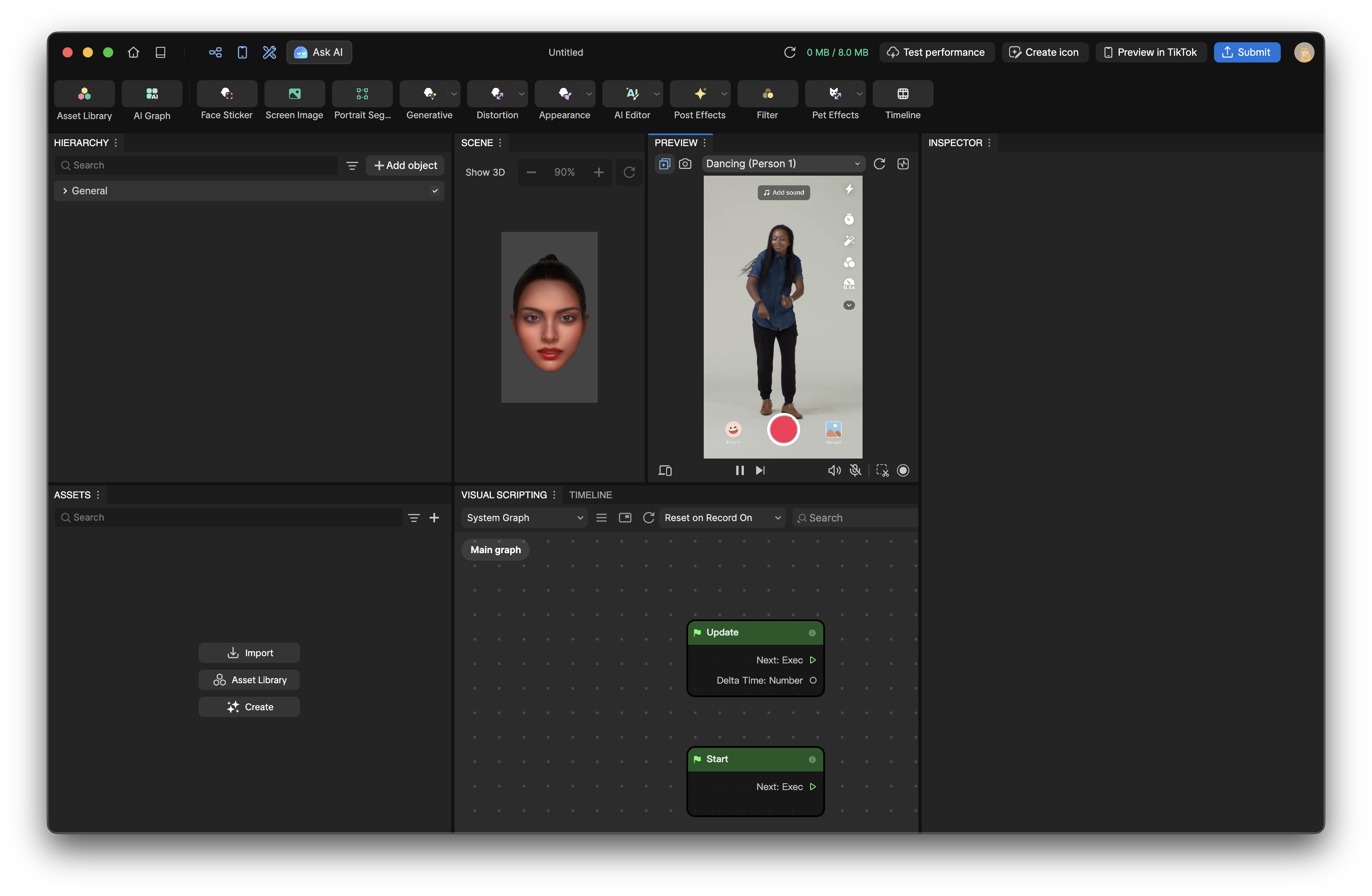
The Effect House window has a Title Bar at the top and six panels: Hierarchy, Assets, Scene, Visual Scripting, Preview and Inspector.
Create the effect
- Drag your marker image and your replacement image into the Assets panel. Select each one and, in the Inspector panel, set
Compression TypetoNone. - Click
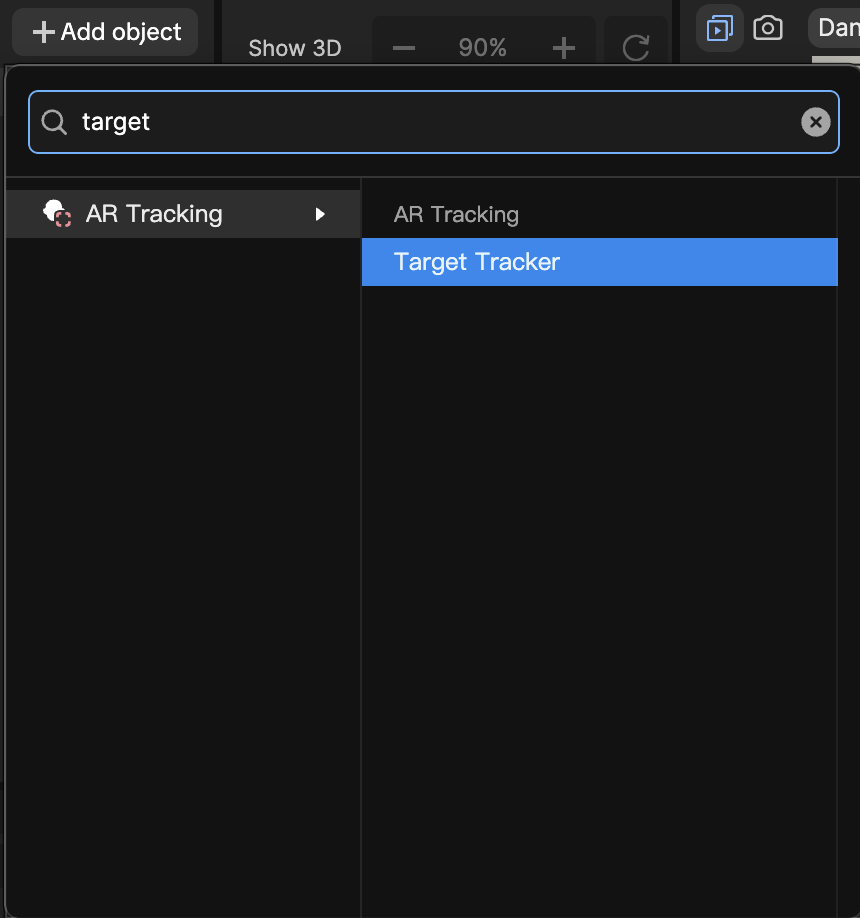
+ Add objectand selectAR Tracking>Target Tracker. Effect House adds aTarget Trackerwith a default image and a cube inside it. You can use the cube to test your setup first.
- Select
Target Trackerin the Hierarchy panel. In the Inspector panel, find theTarget Trackercomponent and replace the default texture in theTarget Texturefield with your marker image. - Preview the cube on your phone (see “Test the effect” below).
- If it works, delete the cube. Click
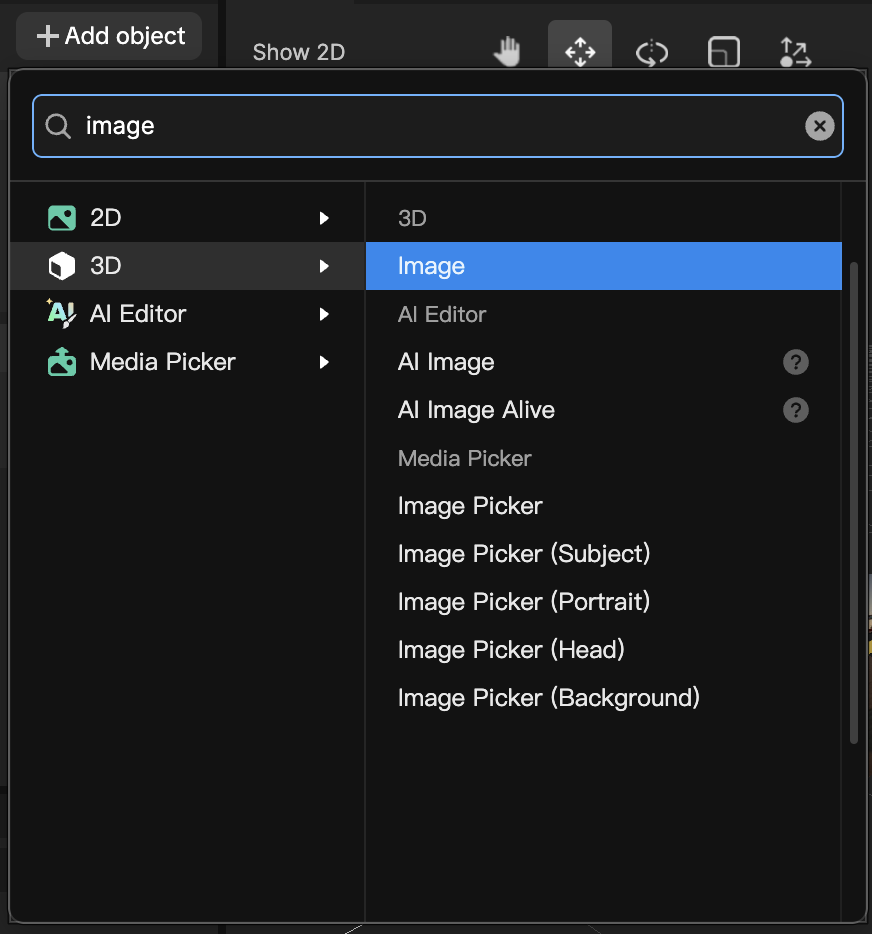
+ Add objectand select3D Image. Drag the3D ImageontoTarget Trackerin the Hierarchy panel, so that it is nested inside it. In the Inspector panel, set its texture to your replacement image.
- Rotate the
3D Imageuntil it is parallel to your marker image (Rotate X: -90), and adjust its size. If the marker image and the replacement image have the same size and you want the replacement to be the same size, useSize X: 2, Y: 2, Z: 2. The preview can be misleading, so you may have to test several times.
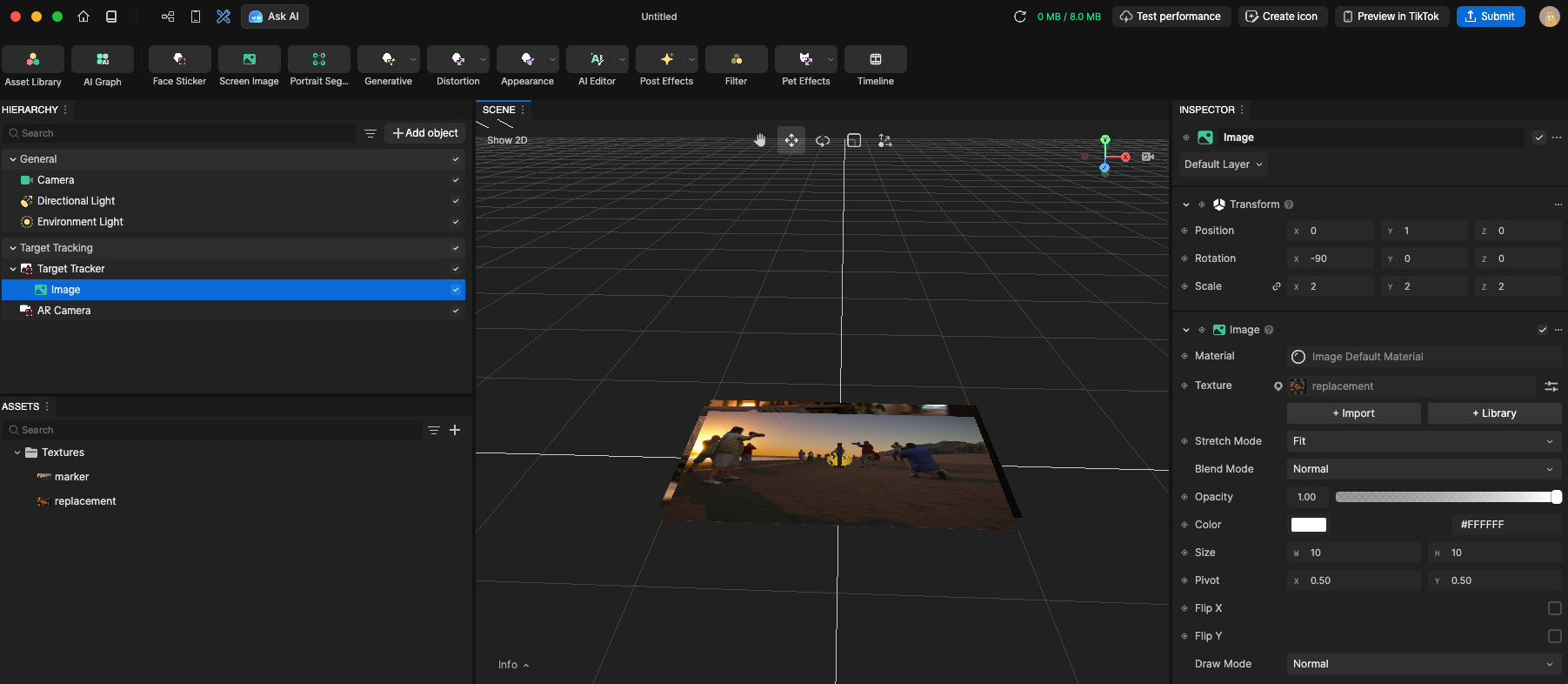
- Preview the effect on your phone again.
Because the 3D Image is nested inside the Target Tracker, it follows the marker when the camera or the print moves. You can nest other objects in the same way.
Test the effect
- Click
Preview in TikTokat the top right of the window to generate a QR code. - On your phone, open TikTok and go to
Profile. Tap the menu icon at the top right, tapMy QR code, then tap the scan icon at the top right and scan the code. - Point the camera at your printed marker, or at the marker on a second screen. Your replacement image should appear on top of it.
The Preview panel in Effect House can test your effect with your own images and videos (click + Add media). To try the tracking with your phone’s camera, preview the effect in TikTok.
Publish your effect (optional)
When you are happy with your effect, click Submit in the toolbar and complete the publishing flow. TikTok reviews effects before they become public. You do not need to publish to finish this tutorial, since previewing on your phone is enough. See the Effect House guide to submitting your effect.
Troubleshooting
- The marker is not detected. Check the image against the guidelines above: low contrast, repetitive patterns and large empty areas all make detection harder. Try a different image.
- Detection is slow or flickers. Reduce glare, use matte paper and even light, hold the phone still, and keep the marker in the centre of the view.
- The replacement is too big, too small or misaligned. In Lens Studio, check
Marker Heightagainst the printed size. In Effect House, adjust the size of the3D Image. In both, make sure the replacement has the same proportions as the marker. - The experience does not appear on the phone. In Lens Studio, check that your phone is paired to the same Snapchat account. In Effect House, check that you scanned the preview QR code with the TikTok app. In both, check that the app has permission to use the camera.
- A second marker triggers the wrong content. Images that look similar may be confused. Make your markers clearly different in shape and detail, not only in colour.
Exercise: overwrite an image
Choose an image that you have made or may use, and make it the marker. Then make a replacement that changes how the viewer reads the original. For example:
- the same image at another moment in time, before and after
- the same image with the hidden part revealed, or the visible part removed
- another image or a caption that contradicts what the image seems to show
Print the marker, build the overlay in Lens Studio or Effect House and test it on your phone. If you have time, build the same overlay in the other app and compare: how long did it take, how stable is the tracking, and who can see the result?
Think about what changes when the authority of a printed image can be overwritten at the moment of viewing, and who controls the layer on top.
Resources
Überblick
In diesem Tutorial erstellt ihr ein Bild, das eine Smartphone-Kamera erkennt und durch etwas anderes ersetzt: ein anderes Bild, ein Video oder ein 3D-Objekt, das über dem Original liegt und ihm folgt, wenn ihr euch bewegt. Die Technik heißt Marker-Tracking oder Image Tracking. Sie steckt hinter AR-Postern, Museumsführungen, Produktverpackungen und Printkampagnen.
Frühe AR-Systeme beruhten auf Fiducial Markers, schwarz-weißen quadratischen Mustern, die für Computer leicht zu finden sind, etwa in der Bibliothek ARToolKit, die Hirokazu Kato Ende der 1990er-Jahre entwickelte. Heutige Werkzeuge brauchen kein spezielles Muster. Sie analysieren euer Bild im Voraus, speichern seine charakteristischen Merkmale (Ecken, Kanten, Kontrastflächen) und suchen sie im Kamerabild. Fast jedes Bild mit genügend Details kann zum Marker werden. Deshalb ist die Wahl des Bildes wichtig (siehe „Vor dem Start“).
Die beiden Werkzeuge in diesem Tutorial leisten dasselbe auf verschiedenen Plattformen. Folgt dem, das zu eurem Smartphone und euren Accounts passt, oder probiert beide aus und vergleicht sie.
| Lens Studio | Effect House | |
|---|---|---|
| Läuft in | Snapchat | TikTok |
| Ihr braucht | Einen Snapchat-Account auf eurem Smartphone | Einen TikTok-Account auf eurem Smartphone |
| Code | Keiner nötig | Visual Scripting, wenig oder kein Code |
| Veröffentlichen | Als Lens veröffentlichen, Prüfung durch Snap | Als Effekt einreichen, Prüfung durch TikTok |
| Kosten | Kostenlos | Kostenlos |
Am Ende könnt ihr:
- ein Bild auswählen und vorbereiten, das sich gut tracken lässt
- dieses Bild in Lens Studio oder Effect House durch ein anderes ersetzen
- das Ergebnis mit einem Ausdruck oder einem zweiten Bildschirm auf eurem Smartphone testen
- vergleichen, wie die beiden Plattformen dieselbe Idee umsetzen
Software & Tools
- Lens Studio (macOS, Windows): Snaps kostenloses Werkzeug zum Erstellen von Snapchat Lenses. Ihr testet eure Lens auf dem Smartphone in der Snapchat-App.
- Effect House (macOS, Windows): TikToks kostenloses Werkzeug zum Erstellen von TikTok-Effekten. Zum Einloggen braucht ihr einen TikTok-Account. Das Objekt für Marker-Tracking heißt
Target Tracker.
Alternativen:
- 8th Wall (macOS, Windows, Web): ein kostenloses, quelloffenes Toolset für Web-AR, das im Browser des Smartphones läuft, ohne dass eine App installiert werden muss. Die gehostete Plattform wurde am 28. Februar 2026 eingestellt, die quelloffene Engine wird auf 8thwall.org weitergeführt.
- MindAR (Web): eine quelloffene JavaScript-Bibliothek für Image Tracking im Browser.
- Vuforia (iOS, Android, Unity): eine etablierte Engine mit „Image Targets“.
Vor dem Start
- Wählt einen Marker mit vielen Details und hohem Kontrast. Fotografien mit abwechslungsreicher Textur funktionieren gut. Vermeidet sich wiederholende Muster, große leere Flächen und Bilder mit niedriger Auflösung.
- Verlasst euch nicht auf Farbe. Die Erkennung beruht auf Kontrast und Details, nicht auf Farbe. Bilder, die sich nur in der Farbe unterscheiden, werden möglicherweise nicht auseinandergehalten.
- Bereitet eure Dateien vor. Lens Studio empfiehlt für den Marker eine PNG- oder JPG-Datei mit höchstens 2048 × 2048 Pixeln.
- Passt das Ersatzbild an den Marker an. Gebt dem Ersatzbild dieselben Proportionen wie dem Marker, damit es den Marker genau abdeckt und nicht verzerrt wird.
- Achtet auf Oberfläche und Licht. Flaches, mattes Papier bei gleichmäßigem Licht funktioniert am besten. Glänzende Oberflächen und Spiegelungen auf einem Bildschirm verschlechtern das Tracking. Die Erkennung ist am schnellsten, wenn der Marker in der Mitte des Kamerabilds liegt.
- Druckt ihn aus oder zeigt ihn auf einem zweiten Bildschirm. Die Kamera eures Smartphones muss den Marker sehen, während die AR läuft. Ihr könnt also nicht den Bildschirm desselben Smartphones verwenden. Ein Ausdruck liefert das stabilste Ergebnis.
- Geht verantwortungsvoll mit Bildern um. Ihr könnt eigene Bilder verwenden oder euch vorhandene Bilder aneignen. Ein Teil der Kraft von AR-Markerbildern liegt darin, ein Bild zurückzugewinnen, indem man ein eigenes darüberlegt. Achtet aber darauf, dass das Ergebnis nicht verletzend wird.
AR Marker Image in Lens Studio -> Snapchat
Lens Studio ist Snaps kostenloses Werkzeug zum Erstellen von Lenses. Ihr braucht einen Snapchat-Account auf eurem Smartphone.
Installation und Einrichtung
- Geht auf ar.snap.com/lens-studio und ladet Lens Studio herunter.
- Stellt sicher, dass Snapchat auf eurem Smartphone installiert ist. Falls nicht, ladet die App herunter und legt einen Account an.
- Öffnet Lens Studio und schließt das Home-Fenster. Ihr seht nun das Standard-Projektfenster.
Standardmäßig ist die Oberfläche in sechs Panels unterteilt: Scene Hierarchy, Asset Browser, Scene, Logger, Inspector und Preview.
Den Effekt erstellen
- Klickt im oberen Menü auf
Asset Libraryund sucht nach „marker image“. Klickt beim ersten Ergebnis,Marker Image, aufImportund schließt dann das Asset-Library-Fenster.
- Zieht das Bild, das ihr als Marker verwenden wollt, von eurem Computer in das Asset-Browser-Panel.
- Klickt im Asset-Browser-Panel auf das
>nebenMarker Image.lspkgund wähltImage Marker [EDIT_ME]. - Sucht im Inspector-Panel das Feld
Marker Texture, klickt auf das Bildsymbol und wählt euer Markerbild. Ihr könnt das Bild auch auf das Feld ziehen.
- Stellt, weiterhin im Inspector-Panel,
Marker Heightauf die tatsächliche Höhe eures ausgedruckten Bildes in Zentimetern ein. So entspricht die Größe des Markers im Scene-Panel seiner Größe in der physischen Welt. - Klickt im Scene-Hierarchy-Panel auf das
>nebenMarker Imageund wähltTracked Image [REPLACE_ME]. - Ändert im Inspector-Panel das Bild auf euer Ersatzbild. Ihr könnt das Bild auch auf das Texturfeld ziehen.
Weil Tracked Image [REPLACE_ME] am Marker befestigt ist, folgt es dem Marker, wenn sich die Kamera oder der Ausdruck bewegt. Auf dieselbe Weise könnt ihr weitere Objekte am Marker befestigen, zum Beispiel ein Video, einen Text oder ein 3D-Objekt. Eine einzelne Lens kann bis zu 10 Marker enthalten, jeder mit eigenem Inhalt.
Den Effekt testen
- Klickt auf
Preview Lens. - Öffnet Snapchat auf eurem Smartphone und scannt den Code.
- Richtet die Kamera auf euren ausgedruckten Marker oder auf den Marker auf einem zweiten Bildschirm. Euer Ersatzbild sollte darüber erscheinen.
Falls die Lens nicht auf eurem Smartphone erscheint, prüft, ob Lens Studio und euer Smartphone mit demselben Snapchat-Account gekoppelt sind (siehe Snaps Anleitung Pairing to Snapchat, auf Englisch).
Das Preview-Panel in Lens Studio sieht euren Marker nur, wenn ihr ein Video davon importiert. Um das Tracking mit der Kamera eures Smartphones zu testen, startet die Vorschau der Lens in Snapchat.
Den Effekt veröffentlichen (optional)
Wenn ihr mit eurer Lens zufrieden seid, könnt ihr sie zur Prüfung bei Snap einreichen. Für dieses Tutorial müsst ihr nichts veröffentlichen, die Vorschau auf dem Smartphone genügt. Siehe Snaps Anleitung zum Einreichen einer Lens (auf Englisch).
AR Marker Image in Effect House -> TikTok
Effect House ist TikToks kostenloses Werkzeug zum Erstellen von Effekten. Ihr braucht einen TikTok-Account auf eurem Smartphone.
Installation und Einrichtung
- Geht auf effecthouse.tiktok.com und klickt oben auf der Seite auf
Download. Installiert die App. - Öffnet Effect House. Es fordert euch auf, euch mit eurem TikTok-Account anzumelden, und zeigt einen QR-Code.
- Öffnet auf eurem Smartphone TikTok, geht zu
Profile, tippt aufAdd friendsund dann auf das Scanner-Symbol. Scannt den Code und tippt aufConfirm. Alternativ könnt ihr aufLog in with other methodsklicken.
Das Effect-House-Fenster hat oben eine Title Bar und sechs Panels: Hierarchy, Assets, Scene, Visual Scripting, Preview und Inspector.
Den Effekt erstellen
- Zieht euer Markerbild und euer Ersatzbild in das Assets-Panel. Wählt jedes Bild aus und setzt im Inspector-Panel
Compression TypeaufNone. - Klickt auf
+ Add objectund wähltAR Tracking>Target Tracker. Effect House fügt einenTarget Trackermit einem Standardbild und einem Würfel darin hinzu. Mit dem Würfel könnt ihr zuerst euer Setup testen.
- Wählt
Target Trackerim Hierarchy-Panel aus. Sucht im Inspector-Panel die KomponenteTarget Trackerund ersetzt im FeldTarget Texturedie Standardtextur durch euer Markerbild. - Testet den Würfel auf eurem Smartphone (siehe „Den Effekt testen“ unten).
- Wenn es funktioniert, löscht den Würfel. Klickt auf
+ Add objectund wählt3D Image. Zieht das3D Imageim Hierarchy-Panel aufTarget Tracker, sodass es darin verschachtelt ist. Setzt im Inspector-Panel seine Textur auf euer Ersatzbild.
- Dreht das
3D Image, bis es parallel zu eurem Markerbild liegt (Rotate X: -90), und passt seine Größe an. Haben Markerbild und Ersatzbild dieselbe Größe und soll das Ersatzbild gleich groß sein, verwendetSize X: 2, Y: 2, Z: 2. Die Vorschau kann irreführend sein, deshalb müsst ihr möglicherweise mehrmals testen.
- Testet den Effekt erneut auf eurem Smartphone.
Weil das 3D Image im Target Tracker verschachtelt ist, folgt es dem Marker, wenn sich die Kamera oder der Ausdruck bewegt. Auf dieselbe Weise könnt ihr weitere Objekte verschachteln.
Den Effekt testen
- Klickt oben rechts im Fenster auf
Preview in TikTok, um einen QR-Code zu erzeugen. - Öffnet auf eurem Smartphone TikTok und geht zu
Profile. Tippt oben rechts auf das Menüsymbol, tippt aufMy QR code, tippt dann oben rechts auf das Scan-Symbol und scannt den Code. - Richtet die Kamera auf euren ausgedruckten Marker oder auf den Marker auf einem zweiten Bildschirm. Euer Ersatzbild sollte darüber erscheinen.
Im Preview-Panel von Effect House könnt ihr euren Effekt mit eigenen Bildern und Videos testen (klickt auf + Add media). Um das Tracking mit der Kamera eures Smartphones auszuprobieren, startet die Vorschau in TikTok.
Den Effekt veröffentlichen (optional)
Wenn ihr mit eurem Effekt zufrieden seid, klickt in der Toolbar auf Submit und durchlauft den Veröffentlichungsprozess. TikTok prüft Effekte, bevor sie öffentlich werden. Für dieses Tutorial müsst ihr nichts veröffentlichen, die Vorschau auf dem Smartphone genügt. Siehe die Effect-House-Anleitung zum Einreichen eures Effekts (auf Englisch).
Fehlerbehebung
- Der Marker wird nicht erkannt. Prüft das Bild anhand der Hinweise oben: Geringer Kontrast, sich wiederholende Muster und große leere Flächen erschweren die Erkennung. Probiert ein anderes Bild.
- Die Erkennung ist langsam oder flackert. Reduziert Spiegelungen, verwendet mattes Papier und gleichmäßiges Licht, haltet das Smartphone ruhig und lasst den Marker in der Mitte des Bildes.
- Das Ersatzbild ist zu groß, zu klein oder verschoben. Prüft in Lens Studio
Marker Heightanhand der gedruckten Größe. Passt in Effect House die Größe des3D Imagean. Achtet in beiden darauf, dass das Ersatzbild dieselben Proportionen wie der Marker hat. - Die AR-Erfahrung erscheint nicht auf dem Smartphone. Prüft in Lens Studio, ob euer Smartphone mit demselben Snapchat-Account gekoppelt ist. Prüft in Effect House, ob ihr den Vorschau-QR-Code mit der TikTok-App gescannt habt. Prüft in beiden, ob die App die Berechtigung hat, die Kamera zu verwenden.
- Ein zweiter Marker löst falsche Inhalte aus. Ähnlich aussehende Bilder können verwechselt werden. Macht eure Marker in Form und Details deutlich unterschiedlich, nicht nur in der Farbe.
Übung: ein Bild überschreiben
Wählt ein Bild, das ihr selbst gemacht habt oder verwenden dürft, und macht es zum Marker. Erstellt dann ein Ersatzbild, das verändert, wie die Betrachter:innen das Original lesen. Zum Beispiel:
- dasselbe Bild zu einem anderen Zeitpunkt, davor und danach
- dasselbe Bild, bei dem das Verborgene sichtbar wird oder das Sichtbare entfernt ist
- ein anderes Bild oder eine Bildunterschrift, die dem widerspricht, was das Bild zu zeigen scheint
Druckt den Marker aus, baut das Overlay in Lens Studio oder Effect House und testet es auf eurem Smartphone. Wenn ihr Zeit habt, baut dasselbe Overlay in der anderen App und vergleicht: Wie lange hat es gedauert, wie stabil ist das Tracking und wer kann das Ergebnis sehen?
Überlegt, was sich verändert, wenn die Autorität eines gedruckten Bildes im Moment des Betrachtens überschrieben werden kann, und wer die Ebene darüber kontrolliert.