In-Game Photography In-Game Photography
Overview
In-game photography brings together two media that are usually kept apart: the video game and photography. The term covers what Möring and De Mutiis describe as “photographic practices with and within video games”, from simulated cameras and built-in photo modes to screenshots and modified games. In this tutorial you will explore a game as a photographer, learning to control the game camera and work with light and composition, but also modifying the game software and installing mods.
The tutorial uses Grand Theft Auto V as its main example, but the techniques and logics of in-game photography carry over to other games.
By the end of this tutorial you will be able to:
- describe the main ways photography and video games meet: simulation, photo modes, screenshotting and modification
- set up a game for photography and play it with a photographer’s attention
- frame and light a scene with in-game and free cameras
- change the look of your images with ReShade
- export your images at full quality
Playing Photographically
Playing as a photographer means ignoring, circumventing and sometimes resisting what the game wants you to do, and following your own photographic project instead. You avoid the missions, neglect the plot, and explore the virtual world with a photographic goal and mindset.
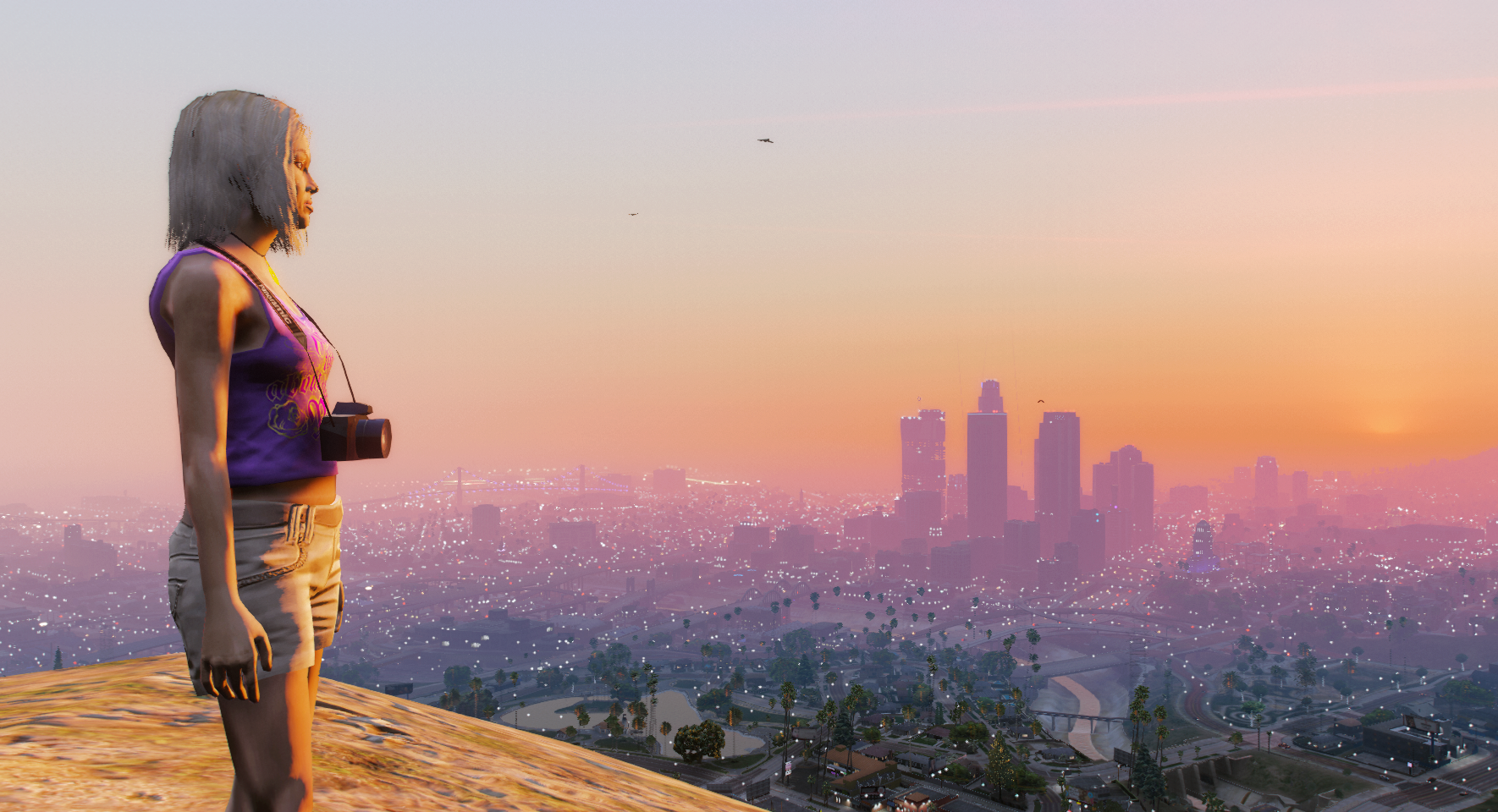
This is harder than it sounds, because games are built to resist, forcing you to push back with enemies, obstacles and risk. In GTA V, the photographic act does not happen in an isolated moment safe from game consequences: even the in-game smartphone camera does not pause the world. Traffic keeps moving, and a character who stops in the middle of a road to take a picture can easily be run over. Other games incorporate photography as a game mechanic, making the act of taking pictures the goal of the game. Some photographers take screenshots as pockets of limited freedom during gameplay, while others modify the game to take control of the virtual world for free image-making.
Four ways photography and games meet
Möring and De Mutiis distinguish four types of in-game photography, according to how each relates to the gameplay condition (Leino, 2012), the way a game gives you freedom while pushing back with enemies, obstacles and risk.
| Photography is… | Example | Gameplay condition | |
|---|---|---|---|
| Simulated photography | the point of the game: the camera is a game mechanic, often scored | Afrika (2008), Pokémon Snap (1999) | Central |
| Photo mode | an added feature that freezes the action and offers camera controls | The Last of Us Remastered (2014), Gran Turismo 6 (2013) | Suspended |
| Artistic screenshotting | something you do to the game, with screenshots or a camera pointed at the screen | A screenshot of a nice vista or a memorable moment, shortly before resuming play | Still applies |
| Photo modification | made possible by changing the game: mods, scripts or edited files | Kent Sheely, DoD (2009–13) | Rewritten by the modification |
In this tutorial you will work mostly with the last two types. You start from the game’s own cameras and screenshots, then add the photo mode of the NVIDIA app (which needs an NVIDIA graphics card) and mods that give you more freedom to operate the camera, and control over time of day, weather and post-processing filters. Further examples of projects and manuals for in-game photography in GTA V can be found on the dedicated website gta5.photography
Sources:
- Möring, S., & De Mutiis, M. (2019). Camera Ludica: Reflections on Photography in Video Games. In M. Fuchs & J. Thoss (Eds.), Intermedia Games—Games Inter Media. Bloomsbury Academic, 69–94.
- Leino, O. T. (2012). Death Loop as a Feature. Game Studies, 12(2).
Software & Tools
You will need a PC, the game, and a few free tools. Each tool does a different job, and you do not need all of them for every image.
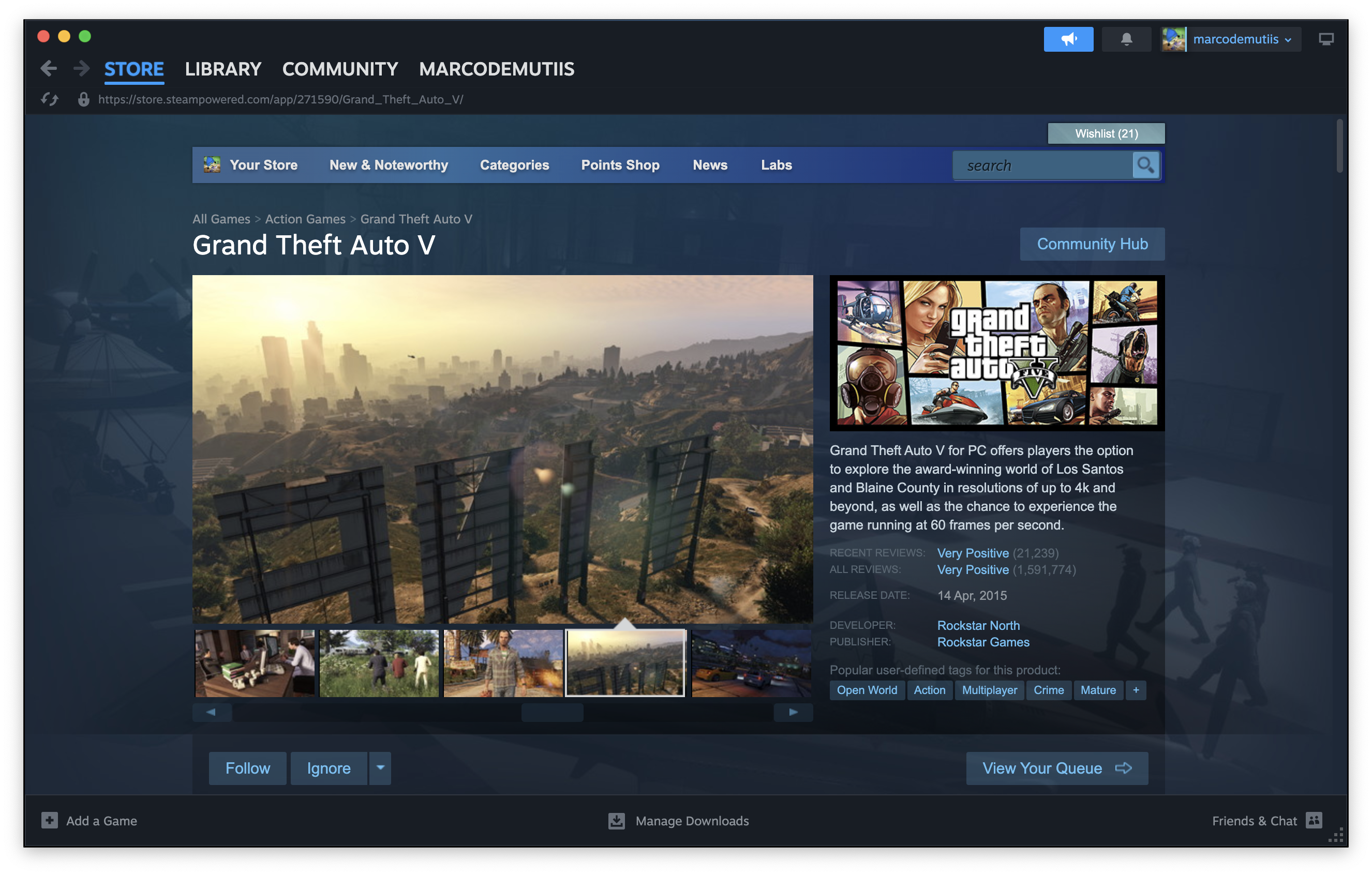
- Grand Theft Auto V (PC): the game and the main example of this tutorial. It comes in two editions, Legacy and Enhanced.
- NVIDIA app (Windows, NVIDIA graphics card): adds a photo mode and filters to supported games, including GTA V, and captures screenshots.
- Camera mods: free cameras that detach the view from your character, for more control than the NVIDIA photo mode gives you.
- Menyoo: a trainer that also offers camera, time and weather controls.
- Otis_Inf’s camera tools (this requires a subscription to the creator’s Patreon).
- A short script of your own, for those who want to code: the Custom Cameras manual of The Photographer’s Guide to Los Santos includes example scripts in C#.
- Most camera mods need Script Hook V, and C# scripts also need Script Hook V .NET.
- ReShade: a post-processing tool that adds filters, depth of field, sharpening and grain to the image before you capture it.
- DLSS 5 (optional): NVIDIA’s AI rendering layer, which has been added as a mod for ReShade. See this manual for installation.
You need a PC to follow the whole tutorial. Consoles let you use the in-game cameras and the capture button, but not mods, and Macs cannot run most of the tools above. GTA V is a large download of over 100 GB, so plan for time and disk space.
Alternatives for other games:
- Check the game’s own photo mode first. Many games include one.
- Otis_Inf makes photo-mode tools for a range of PC games, and a Universal Unreal Engine Unlocker that offers a free camera in a large number of Unreal Engine games.
- ReShade works with most PC games.
Before you play
If you have not installed the game yet, follow the Getting Started manual first. It covers Steam, the Rockstar launcher and your account.
- Choose the edition. GTA V on PC comes in two editions: Legacy, the original 2015 version, and Enhanced, which adds ray tracing and DLSS. Buying Enhanced also gives you a copy of Legacy. Most camera mods and tools were built for Legacy, and Enhanced support is still growing, so check what each mod supports. Legacy is recommended for this tutorial.
- Play offline, in Story Mode only. Mods are not allowed in GTA Online, and using them there can get your account banned. Never start Online with mods installed.
- Switch off the anti-cheat for single-player. The game’s anti-cheat, BattlEye, conflicts with Script Hook V, the foundation of most mods. You can disable it in your launcher’s settings or with the launch option
-nobattleye. Menu names differ between Steam, the Rockstar launcher and the Epic launcher, so check your launcher’s current options. - Expect updates to break things. Each time Rockstar updates the game, Script Hook V and your mods may stop working until their authors update them. Turn off automatic updates if your launcher allows it, and keep a note of the versions that work.
- Keep track of what you install. Mods are copied into the game folder. Write down which files you add, so that you can remove them if something goes wrong.
Installing the tools
First play the basic version of the game and get familiar with it. To use mods, follow the instructions on each tool’s own page, as file names and steps change between versions. The usual order is:
- Install Script Hook V by copying its files into the game folder, next to the game’s executable.
- Install Script Hook V .NET in the same way.
- Install Menyoo by extracting the downloaded zip file to the game root folder. Check its page for requirements: Menyoo needs an ASI loader (from OpenIV for Legacy, from OpenRPF for Enhanced), and on Windows 11 a DirectStorage fix.
- Run the ReShade installer, browse to the game’s executable (
GTA5.exefor Legacy,GTA5_Enhanced.exefor Enhanced), leave Direct3D 10/11/12 selected, and add the recommended shader packages when asked. - Start the game in Story Mode and check that each tool appears. Test one at a time, so that you know which one is the problem.
Game settings
- Hide the interface. Turn off the HUD and the radar in the game’s display settings. Exact names depend on the version.
- Use your screen’s full resolution. Set the game to borderless or windowed fullscreen at your monitor’s native resolution, so that screenshots come out at full size.
- Check your graphics settings. Higher texture and shadow quality gives you cleaner images, but can slow the game down. Find a balance that your computer can hold.
In-Game Cameras
Before you add any mods, explore what the game already offers. GTA V has several built-in cameras and modes, and each one gives you a different amount of control over the scene. As you move down this list, the game resists you less.
The default cameras
The game’s regular views, in first and third person, are the starting point. They are the least flexible: the camera follows your character, and the world keeps moving around you. Press V to cycle through the different camera views. Hold C to point the camera back at the main character.
The in-game smartphone
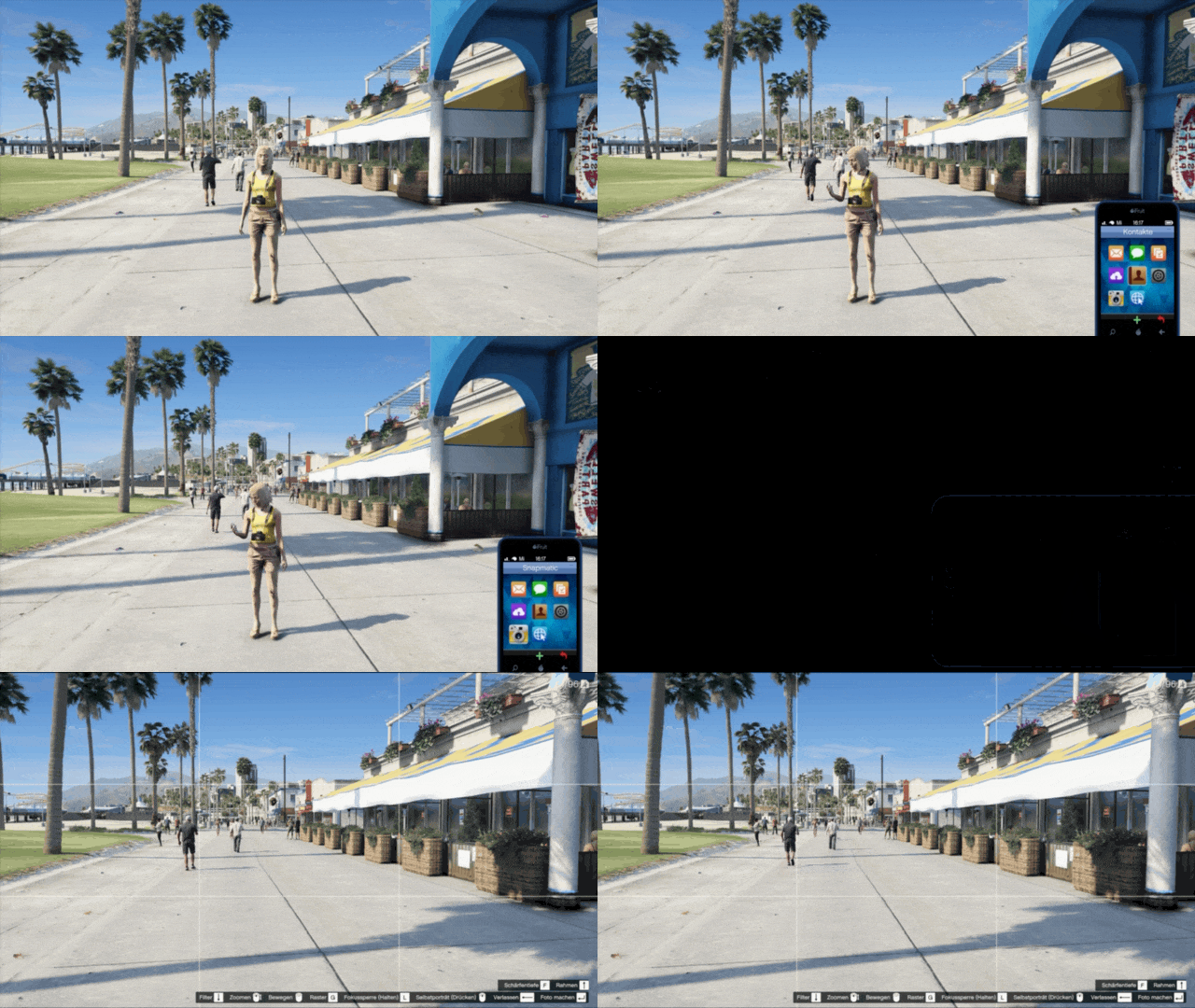
Snapmatic is the photo app on the in-game phone.
- Press the Up arrow key to bring up the phone, and open the Snapmatic app at the bottom left of the home screen.
- Move the camera with the mouse, and zoom with the mouse wheel.
- Browse filters with Down and borders with Up.
- Press the mouse wheel button to turn the camera on yourself for a selfie.
- Press Enter to take the photo, and press it again to save it to the gallery.
The gallery is inside the game. To get your photos out, upload them to your Rockstar Social Club profile by pressing Left Ctrl in the gallery, or screenshot them. The phone does not pause the world, so traffic and other characters keep moving, and you need to choose a safe spot before you start.
Director Mode
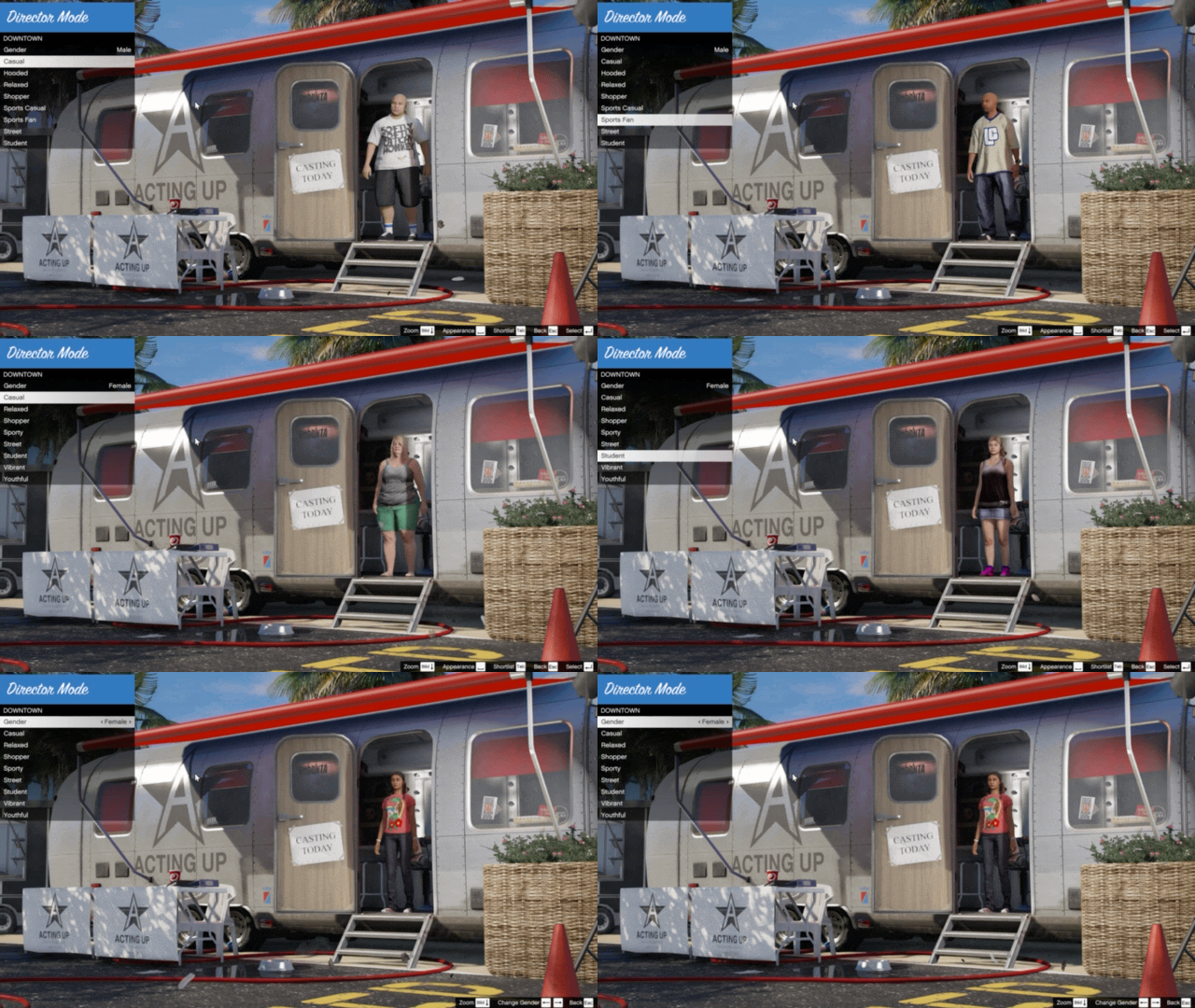
Director Mode turns the game into a film set. It lets you choose your character, and control the time of day, the weather, and the density of pedestrians and vehicles. Setting the density to none is a quick way to reduce the game’s resistance, and is useful for empty streets and quiet scenes.
You can open it in three ways: from the Rockstar Editor tab of the pause menu, from the Interaction Menu (press M on PC), or by dialling the code from the in-game phone (see the manual for the number). It is not available when you are in a vehicle, wanted by the police, or on a mission.
Inside Director Mode, the Scene Creator lets you place props from the game’s library to build a scene, and save it. The manual lists all the options and controls.
Rockstar Editor
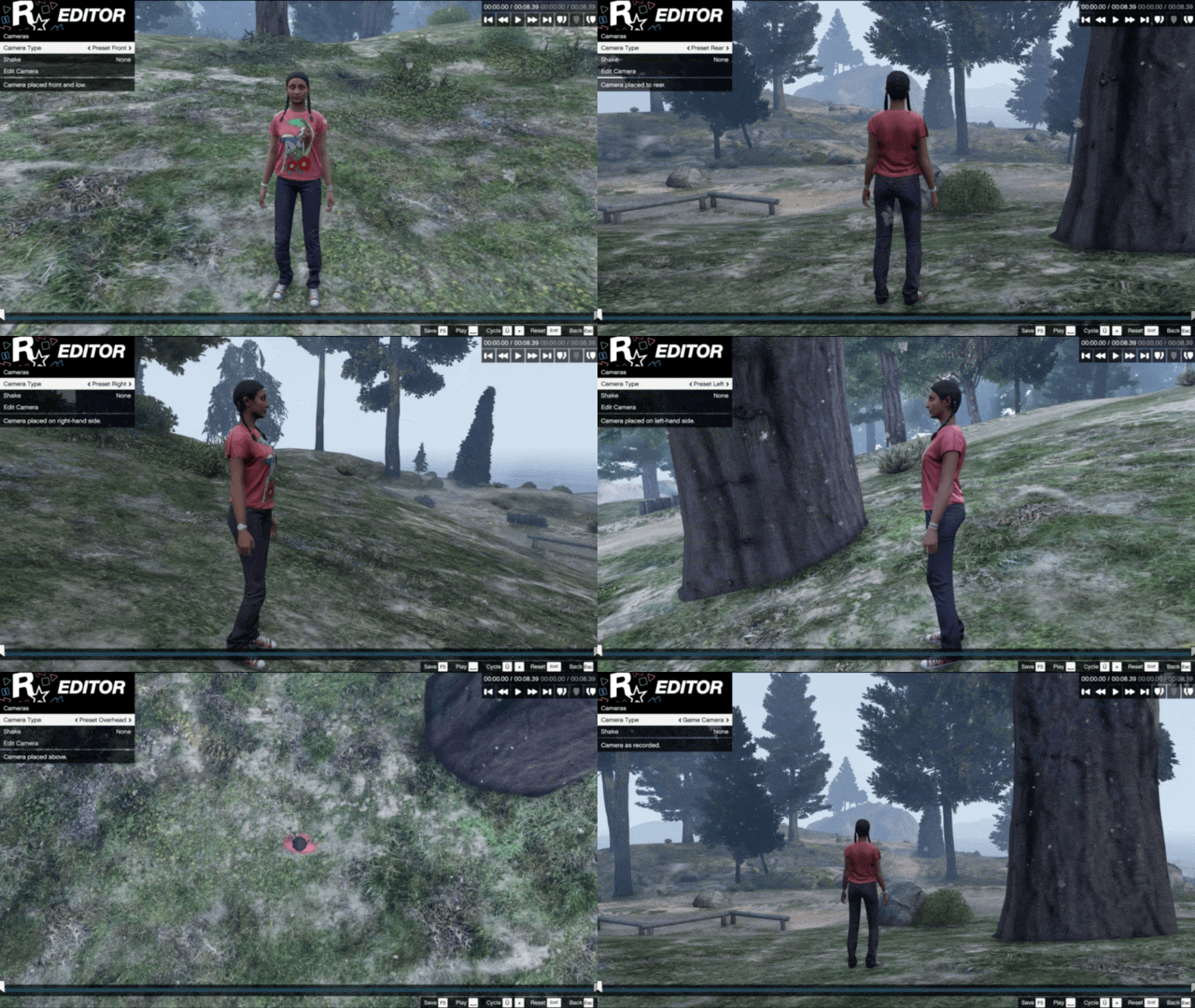
The Rockstar Editor is made for video, but it works as a photo mode because it lets you move the camera after the moment has happened.
- Record a few seconds of gameplay at the place you want to photograph. Hold Alt + F1 to start a manual recording, and press Alt + F1 again to save it, or Alt + F3 to cancel. Alternatively, press F2 to buffer gameplay in the background, and press Alt + F1 to save what has just happened.
- Open the Rockstar Editor tab in the pause menu, choose Create New Project, and add your clip.
- Double-click the clip to edit it, and open the Camera function. You can choose the game camera, preset angles around the character, or a free camera that you can place anywhere within a defined area around the character.
- Scrub through the clip to find the frame, and press Tab to take a screenshot. It is saved in the game’s gallery, and can leave the game only through Rockstar Social Club.
You cannot change the camera angle in footage recorded in first person. Press F5 to save your project and the camera position.
Photo mode in the NVIDIA app
If you have an NVIDIA graphics card, the NVIDIA app adds a photo mode to supported games, including GTA V. Open the NVIDIA overlay while playing with Alt + Z, and choose Photo Mode (Alt + F2). It offers a free camera, filters and high-resolution capture. Features such as depth of field and interface removal may not work equally well in every game, so test them before you rely on them.
Comparing the cameras
| Pauses the game? | Camera freedom | Good for | |
|---|---|---|---|
| Default cameras | No | Low | Quick snapshots |
| Smartphone | No | Low | Selfies, spontaneous shots |
| Director Mode | No | Low (but you control the scene) | Choosing the time, weather and crowds |
| Rockstar Editor | Works on a recording | Medium: free within an area | Framing a precise moment |
| NVIDIA photo mode | Yes | Medium to high | High-resolution captures with filters |
Even the freest of these has limits. In the next section you will install a free camera that removes most of them.
Free Camera
The in-game cameras are tied to your character. A free camera cuts that link: the view detaches, and you can fly it to any position and angle, as a photographer would move around a subject. This tutorial uses the free camera in Menyoo, a trainer, or mod menu, for single-player GTA V. Menyoo does much more than camera work, but you only need a few of its menus.
Opening Menyoo
- Start the game in Story Mode and press F8 to open the menu.
- Navigate with the arrow keys, select with Enter and go back with Backspace. Press F8 again to close the menu.
Turning on the free camera
- In the menu, go to
Misc Optionand pressEnter. SelectFreeCam (No-Clip)and pressEnterto turn it on. PressF3to toggle the FreeCam on/off. - Move and look with
WASD, andQandEto move up or down, and change speed by pressing or releasing theLeft Shiftkey.
Using it as a photographer
- Move slowly. Fast movement makes framing difficult. Lower the camera speed until you can nudge the view a little at a time.
- Leave the eye-level view. The free camera is most useful for positions the game’s own cameras cannot reach: very low, very high, tight against a wall, or far away.
- Check the edges. Look around the frame for things you did not intend: characters walking in, repeated textures, objects cut off by the frame.
- Control the scene. Menyoo also lets you change the time of day and the weather, and teleport to other places. The Light and Composition section explains how to use these.
Other free cameras
Menyoo is one option. If it does not work with your version of the game, or you want more features, you can use another free camera:
- Simple Camera is a free-camera plugin for photography and filmmaking.
- Otis_Inf camera tools (see Software & Tools).
- If you want to code your own, the Custom Cameras manual shows how to build one in C#, step by step.
Light and Composition
The game gives you good tools for both. You can choose the time of day and the weather, and with a free camera you can place yourself anywhere in the scene.
Light
The game world has its own sun, clouds, streetlights and interiors, and they all behave like real light. Your job is to find the right light for your subject, instead of taking whatever the game gives you.
Time of day. Director Mode lets you choose between midnight, pre-dawn, dawn, morning, midday, afternoon, sunset and dusk. Menyoo also has time options in its menu. A few starting points:
- Dawn and sunset give long shadows, warm colour and a low sun. They are the classic times for landscapes and cityscapes.
- Midday gives harsh, high light and short shadows. It is difficult for portraits, but works for graphic, high-contrast architecture.
- Dusk and night put artificial light in the foreground: streetlights, neon, windows and car headlights. Look for pools of light against dark surroundings.
Weather. Director Mode offers clear, overcast, hazy, smog, fog, rain, thunder and snow, among other conditions. Overcast gives soft, even light with few shadows. Fog and haze separate the scene into layers of distance. Rain creates reflections on the ground. Menyoo also has weather options in its menu.
Direction. Walk around your subject and watch how the light changes. Light from the front is flat, light from the side shows shape and texture, and light from behind creates silhouettes and glare. Because the free camera is not tied to your character, you can choose the angle that fits the light.
Waiting. The sun moves as time passes in the game. If you like the light you have, work quickly or freeze the time in Menyoo.
Composition
You decide what to include in the frame, and what to leave out.
- Viewpoint. Height changes meaning. A low camera makes a subject look monumental, and a high camera makes it look small or exposed. Try the same subject from three heights.
- Distance. Move closer to simplify the image, and further away to show the setting. Moving closer changes what is in the frame, not only its size.
- Structure. Place the main subject on one of the thirds of the frame, not always in the centre. Look for lines that lead the eye, and for layers of foreground, middle ground and background.
- Horizon and verticals. Keep the camera level unless you tilt it on purpose. Tilted verticals make buildings look as if they are falling over.
- Edges. Check every side of the frame for unwanted elements: pedestrians walking in, cars, cut-off objects.
- Game artefacts. Objects and textures may need a moment to load after you move or teleport, and distant objects can appear in low detail. Wait a few seconds before you shoot.
- Depth of field. Blurring the background to isolate a subject is done with ReShade, covered in the next section.
Starting points by genre
| Genre | Light | Composition |
|---|---|---|
| Landscape | Dawn or sunset, with clear or hazy weather | Layers of distance, a clear horizon, a strong foreground |
| Architecture | Side light that shows form, or overcast for even light | A level camera, straight verticals, symmetry or strong diagonals |
| Portrait | Soft light: overcast or low sun | A character in the frame at a comfortable distance, simple background |
| Street | Any light, but look for strong shadows | Wait for a moment, and frame people with their surroundings |
| Night | Night, with clear weather | Pools of artificial light, reflections after rain |
ReShade
Out of the box, GTA V looks the way its developers made it in 2013. ReShade lets you change that look. It is a post-processing injector developed by crosire: it sits between the game and your screen, and applies a stack of filters to the finished image, much as editing software does. It works with most PC games, supporting Direct3D 9 to 12, OpenGL and Vulkan.
Because ReShade works on the final image, it can change colour, contrast, sharpness, grain and focus, but it cannot change what is in the frame. Composition and light still come from the game, and from where you place the camera.
Installing ReShade
If you have not installed ReShade yet, follow the steps in Before you play. For the ReShade setup, you need to:
- Download the latest version from reshade.me and run the setup.
- Browse to your Grand Theft Auto V folder and select the game’s executable:
GTA5.exefor Legacy, orGTA5_Enhanced.exefor Enhanced. Leave Direct3D 10/11/12 selected. - When asked which effect packages to install, select SweetFX by CeeJay.dk and any others you want. OtisFX by Otis_Inf and CobraFX by SirCobra are good for simulating analogue photography, including depth of field. You can also install all of them and explore.
Choosing and building a look
- Start the game and press
Hometo open the ReShade menu. The first time, it offers a short tutorial on choosing and creating presets. - Start from the default preset. It lets you switch each filter on and off, and adjust its parameters at the bottom of the panel.
- Create your own preset by duplicating the default one and giving it a name. Experiment with it, and save it as you go.
- Change one effect at a time. Switch it on and off to compare, so that you can see what it contributes.
Effects that photographers use most:
- Colour and tone: shift the overall colour, contrast and saturation, as in a colour grade.
- Sharpening: brings back detail that the game’s smoothing removes.
- Depth of field: blurs the background to isolate a subject. It uses the game’s depth information, so it needs a free camera and a still scene to work well.
- Grain and vignette: add texture and draw the eye to the centre, and recall analogue film.
Tips
- Compose first, then add effects. Some effects slow down the game. Frame your shot, then turn on the heavier filters.
- Use presets as a record. A preset is a file that stores your settings. Keep one per project, so that you can return to a look or share it. Share the preset files, never the ReShade files themselves.
- ReShade is for single-player. It switches off depth information in multiplayer to prevent cheating, and modified files should not be used in GTA Online.
DLSS 5 (optional)
DLSS is NVIDIA’s family of AI techniques for games. Earlier versions used machine learning to upscale a low-resolution image or to generate extra frames. DLSS 5, announced at NVIDIA’s GTC conference in 2026, goes further: NVIDIA describes it as real-time neural rendering. It takes information from the game’s own rendering, such as colour, depth and motion, and uses an AI model running on your graphics card to rework the image with more photoreal lighting, shadows and materials, for example the way light behaves on skin, hair and fabric.
This makes it different from every other tool in this tutorial. The camera, ReShade and the game’s own settings change how you see the world, but DLSS 5 adds to the picture itself. The result can differ noticeably from the look the developers and artists intended, which is why the technology is controversial, and why it is interesting for image-making.
What you need to know first
- It is not officially supported by GTA V. The method in the manual is an unofficial community mod that connects DLSS 5 to the game through a ReShade add-on.
- It is experimental and demanding. Results vary between setups, and the frame rate drops sharply. NVIDIA officially limits DLSS 5 to GeForce RTX 50 series cards, and while the mod can run on older RTX cards, it is slower and less stable.
- It needs a different ReShade. You need the version of ReShade with full add-on support, not the standard one.
- Single-player only. Remove the modified files, or use a separate copy of the game, before you start GTA Online.
If your computer cannot run it, you can skip this section and still complete the tutorial. For the installation steps, follow the Graphic Mods and Post-Processing Tools manual.
Photographing with it
- Compose first. Frame your shot with DLSS 5 off, then switch it on to capture the image. This keeps the frame rate usable while you work.
- Compare. Photograph the same scene with and without it, and look at where the two images differ. Look at faces, skin, fabric and surfaces in particular.
- Ask whose image it is. If an AI model decides how light falls on a surface, what is left of the game’s lighting, and of your choices as a photographer? Decide whether the result is still a game image, and note your answer in your caption.
Export your images
Everything you have done so far happens on screen, and the last step is to get a file out of the game. The method you choose decides the quality of the file, so choose it before you start shooting, not after.
| Method | What it captures | Good for | Limits |
|---|---|---|---|
| Game Bar | The game window | Quick, clean captures | Only at the resolution of your screen |
| Snipping Tool | Any part of the screen | Cropped captures | Also captures anything else that is on screen |
| NVIDIA app | The game, through its overlay and photo mode | Higher-resolution captures with filters | Needs an NVIDIA graphics card |
Game Bar
On Windows 10 and 11, the Game Bar takes screenshots and records video of a game.
- Press the Windows key + G to open the Game Bar while the game is running.
- Press the camera icon to take a screenshot of the game window.
- Click See my captures to open the folder with your images.
You can also press the Windows key + PrtScn to save a screenshot of the whole screen automatically. The files go to the Pictures > Screenshots folder.
Snipping Tool
The Snipping Tool is useful when you only want part of the screen. Press the Windows key + Shift + S, drag over the area you want, and save the image from the notification that appears. Because it captures whatever is on screen, close all menus first.
NVIDIA app
If you have an NVIDIA graphics card, the NVIDIA app can capture your game, and its photo mode (see In-Game Cameras) lets you capture at a higher resolution than your screen.
- Open the NVIDIA overlay while the game is running with Alt + Z.
- Press Alt + F1 to take a screenshot, or Alt + F2 to open Photo Mode and use its capture options.
- Find your images in the Gallery of the overlay. By default, the files are saved in a Captures folder inside your Windows Videos folder, but check the app’s settings.
Alt + F1 is also the shortcut for recording in the Rockstar Editor. If the two clash, change the shortcut in the NVIDIA overlay settings, or take the screenshot with the mouse from the overlay.
Higher-resolution capture and interface removal do not work equally well in every game, so test them with a trial shot first.
Before you capture
- Close the menus. Close the Menyoo menu, the ReShade overlay and any other windows, or they will appear in your image.
- Hide the interface. Turn off the HUD and radar, as in Before you play.
- Check the resolution. A screenshot has the resolution of your screen or game window. For a larger image, use the NVIDIA app’s photo mode.
- Capture the effects. Screen captures include ReShade filters, because they are applied before the image reaches your screen.
- Take several versions. Shoot the same frame a few times, with small changes in framing, light or effects, and choose the best one later.
After you capture
- Keep the originals. Edit copies, and never the original files.
- Name your files. Use clear names, such as project, place and time, so that you can find them later.
- Note your settings. Record the time of day, weather, camera and ReShade preset you used. This helps you repeat a look, and helps your readers understand your images.
- Check the files. Open each image at full size and look for stray menus, cut-off objects and artefacts before you submit.
If something goes wrong
Modded games are fragile, so expect a problem or two. Change one thing at a time, and test after each change, so that you know what caused it.
- Menyoo does not open with F8. Check that the Menyoo files are in the game folder, next to the game’s executable, and that Script Hook V and an ASI loader are installed and up to date. Check also that BattlEye is disabled. On Windows 11, Menyoo’s page lists a DirectStorage fix as a requirement.
- The game crashes, or the mods stop working after an update. Updates can break Script Hook V and the mods that depend on it. Wait for new versions, or go back to the files you noted as working.
- The free camera does not switch on. Open Menyoo with F8, go to
Misc Option, and check thatFreeCam (No-Clip)is selected. Press F3 to toggle the camera. - The ReShade menu does not appear when you press
Home. Check that ReShade was installed for the right executable (GTA5.exefor Legacy,GTA5_Enhanced.exefor Enhanced), and run the setup again if not. Try the game in borderless windowed mode. - Depth of field does nothing or looks wrong. Depth effects need the game’s depth information, which ReShade switches off in multiplayer. Check that you are in Story Mode, and adjust the effect’s settings in the ReShade panel.
- The NVIDIA overlay does not open. Check that the overlay is enabled in the NVIDIA app’s settings, and restart the game after changing it. If Alt + Z clashes with another program, change the shortcut in the overlay settings.
- A shortcut does something unexpected. In GTA V, Alt + F1 starts a Rockstar Editor recording, and it is also the NVIDIA overlay’s default screenshot shortcut. Change one of them.
- The Game Bar does not capture anything. Make sure the game window is in focus and that the Game Bar is enabled in the Windows settings. If it still fails, use Windows key + PrtScn or the Snipping Tool.
- The interface is still visible. Turn off the HUD and radar in the game’s settings. The game filters of the NVIDIA app may also be able to remove it, but test them in your game.
- The game runs slowly. Lower the resolution or the graphics settings, and switch off heavy effects, including DLSS 5, until you have framed your shot.
- Objects are missing or low in detail. Wait a few seconds after you move or teleport, so that the game can load them.
Other games
The same approach works in other PC games:
- Look for a photo mode in the game’s menus first.
- Check whether the photo mode of the NVIDIA app supports the game.
- Search for a free camera. Community tools such as Otis_Inf’s exist for many games, and the Universal Unreal Engine Unlocker covers a large number of Unreal Engine games. The game’s mod page is a good place to start.
- Install ReShade for the game. You can reuse your presets as a starting point, but each game needs its own installation.
- Read the game’s rules on mods and online play before you install anything.
On consoles, use the game’s own photo mode and the capture button.
Exercises
Core exercise: one subject, three setups
- Choose a single subject in the game: a building, a character, a landscape or an object. Choose the time of day and the weather before you start.
- Photograph it with the default camera or the smartphone.
- Photograph it with the free camera, from a position that the default cameras cannot reach.
- Photograph it again with the free camera and a ReShade preset that you have built.
- Compare the three images. What changed in the subject, the light and the mood? What did the game allow you to do, and what did it prevent? Which of the four types of in-game photography does each setup belong to?
Exercises by genre
Choose the genre that suits your course or your interests, and make a series of three to five images.
| Genre | Task | What it trains |
|---|---|---|
| Landscape | Photograph one vista at two different times of day, or in two kinds of weather | Light, atmosphere, patience |
| Architecture | Photograph one building straight on, then from a free-camera angle that no player would choose | Perspective, verticals, viewpoint |
| Portrait | Photograph one character at three distances, with and without depth of field | Distance, background, focus |
| Street | Stay at one spot and photograph the scene as it unfolds | Timing, composition in motion |
| Interior or still life | Photograph one room or object in soft light, then in hard light | Light direction, mood |
| Night | Photograph a lit scene after dark, and again after rain | Contrast, artificial light, reflections |
Record the settings you used for each image (place, time, weather, camera and preset), so that you can explain your choices.
Optional challenge: break it. Make a limit of the game the subject of your work: clipping through walls, repeated textures, characters frozen in a pose, objects that load late. Decide whether to crop it, exaggerate it or leave it as it is.
Überblick
In-Game-Fotografie bringt zwei Medien zusammen, die üblicherweise getrennt gedacht werden: das Videospiel und die Fotografie. Der Begriff umfasst das, was Möring und De Mutiis als „photographic practices with and within video games“ beschreiben, von simulierten Kameras und eingebauten Fotomodi bis zu Screenshots und modifizierten Spielen. In diesem Tutorial erkundet ihr ein Spiel als Fotograf:innen, lernt, die Spielkamera zu steuern und mit Licht und Komposition zu arbeiten, aber auch, die Spielsoftware zu verändern und Mods zu installieren.
Das Tutorial nutzt Grand Theft Auto V als zentrales Beispiel, aber die Techniken und Logiken der In-Game-Fotografie lassen sich auf andere Spiele übertragen.
Am Ende dieses Tutorials könnt ihr:
- die wichtigsten Arten beschreiben, wie Fotografie und Videospiele sich begegnen: Simulation, Fotomodi, Screenshots und Modifikation
- ein Spiel für die Fotografie einrichten und mit der Aufmerksamkeit einer Fotografin oder eines Fotografen spielen
- eine Szene mit Spielkameras und freien Kameras gestalten und ausleuchten
- den Look eurer Bilder mit ReShade verändern
- eure Bilder in voller Qualität exportieren
Fotografisch spielen
Als Fotograf:in zu spielen bedeutet, das zu ignorieren, zu umgehen und manchmal zu unterlaufen, was das Spiel von euch will, und stattdessen eurem eigenen fotografischen Projekt zu folgen. Ihr meidet die Missionen, vernachlässigt die Handlung und erkundet die virtuelle Welt mit einem fotografischen Ziel und einer fotografischen Haltung.
Das ist schwieriger, als es klingt, denn Spiele sind darauf angelegt, Widerstand zu leisten: Sie schlagen mit Gegnern, Hindernissen und Risiko zurück. In GTA V geschieht der fotografische Akt nicht in einem isolierten Moment, der vor den Folgen des Spiels geschützt wäre: Selbst die Smartphone-Kamera im Spiel hält die Welt nicht an. Der Verkehr rollt weiter, und eine Figur, die mitten auf der Straße stehen bleibt, um ein Foto zu machen, kann leicht überfahren werden. Andere Spiele machen Fotografie zu einer Spielmechanik, sodass das Aufnehmen von Bildern das Ziel des Spiels ist. Manche Fotograf:innen nutzen Screenshots als Inseln begrenzter Freiheit während des Spielens, während andere das Spiel modifizieren, um die Kontrolle über die virtuelle Welt für freies Bildermachen zu übernehmen.
Vier Wege, wie Fotografie und Spiele sich begegnen
Möring und De Mutiis unterscheiden vier Typen der In-Game-Fotografie, danach, wie sie sich jeweils zur Gameplay Condition (Spielbedingung; Leino, 2012) verhalten, also dazu, wie ein Spiel euch Freiheit gibt und zugleich mit Gegnern, Hindernissen und Risiko zurückschlägt.
| Fotografie ist … | Beispiel | Gameplay Condition | |
|---|---|---|---|
| Simulierte Fotografie | der Sinn des Spiels: Die Kamera ist eine Spielmechanik, oft mit Punktewertung | Afrika (2008), Pokémon Snap (1999) | Zentral |
| Fotomodus | eine zusätzliche Funktion, die die Handlung anhält und Kamerasteuerung bietet | The Last of Us Remastered (2014), Gran Turismo 6 (2013) | Ausgesetzt |
| Künstlerisches Screenshotten | etwas, das ihr mit dem Spiel macht, mit Screenshots oder einer auf den Bildschirm gerichteten Kamera | Ein Screenshot einer schönen Aussicht oder eines denkwürdigen Moments, kurz bevor das Spiel weitergespielt wird | Gilt weiter |
| Foto-Modifikation | möglich durch Veränderung des Spiels: Mods, Skripte oder bearbeitete Dateien | Kent Sheely, DoD (2009–13) | Durch die Modifikation neu geschrieben |
In diesem Tutorial arbeitet ihr hauptsächlich mit den letzten beiden Typen. Ihr beginnt mit den spieleigenen Kameras und Screenshots und fügt dann den Fotomodus der NVIDIA-App hinzu (der eine NVIDIA-Grafikkarte voraussetzt) sowie Mods, die euch mehr Freiheit bei der Kamerasteuerung geben und Kontrolle über Tageszeit, Wetter und Post-Processing-Filter. Weitere Beispiele für Projekte und Manuals zur In-Game-Fotografie in GTA V findet ihr auf der Website gta5.photography
Quellen:
- Möring, S., & De Mutiis, M. (2019). Camera Ludica: Reflections on Photography in Video Games. In M. Fuchs & J. Thoss (Eds.), Intermedia Games—Games Inter Media. Bloomsbury Academic, 69–94.
- Leino, O. T. (2012). Death Loop as a Feature. Game Studies, 12(2).
Software & Tools
Ihr braucht einen PC, das Spiel und ein paar kostenlose Tools. Jedes Tool erfüllt eine andere Aufgabe, und ihr braucht nicht alle für jedes Bild.
- Grand Theft Auto V (PC): das Spiel und das zentrale Beispiel dieses Tutorials. Es gibt zwei Editionen, Legacy und Enhanced.
- NVIDIA-App (Windows, NVIDIA-Grafikkarte): fügt unterstützten Spielen, darunter GTA V, einen Fotomodus und Filter hinzu und nimmt Screenshots auf.
- Kamera-Mods: freie Kameras, die die Ansicht von eurer Figur lösen und mehr Kontrolle bieten, als der Fotomodus von NVIDIA euch gibt.
- Menyoo: ein Trainer, der auch Kamera-, Zeit- und Wettersteuerung bietet.
- Die Kamera-Tools von Otis_Inf (dafür ist ein Abonnement beim Patreon des Entwicklers nötig).
- Ein kurzes eigenes Skript für alle, die programmieren möchten: Das Custom-Cameras-Manual des Photographer’s Guide to Los Santos enthält Beispielskripte in C#.
- Die meisten Kamera-Mods benötigen Script Hook V, und C#-Skripte brauchen zusätzlich Script Hook V .NET.
- ReShade: ein Post-Processing-Tool, das dem Bild Filter, Tiefenschärfe, Schärfung und Filmkorn hinzufügt, bevor ihr es aufnehmt.
- DLSS 5 (optional): NVIDIAs KI-Rendering-Schicht, die als Mod für ReShade umgesetzt wurde. Die Installation findet ihr in diesem Manual.
Für das gesamte Tutorial braucht ihr einen PC. Auf Konsolen könnt ihr die Kameras im Spiel und die Aufnahmetaste nutzen, aber keine Mods, und auf Macs laufen die meisten der oben genannten Tools nicht. GTA V ist ein großer Download von über 100 GB, plant also Zeit und Speicherplatz ein.
Alternativen für andere Spiele:
- Prüft zuerst den Fotomodus des Spiels selbst. Viele Spiele haben einen.
- Otis_Inf entwickelt Fotomodus-Tools für eine Reihe von PC-Spielen sowie einen Universal Unreal Engine Unlocker, der in sehr vielen Unreal-Engine-Spielen eine freie Kamera bietet.
- ReShade funktioniert mit den meisten PC-Spielen.
Bevor ihr spielt
Falls ihr das Spiel noch nicht installiert habt, folgt zuerst dem Manual Getting Started. Es behandelt Steam, den Rockstar-Launcher und euren Account.
- Wählt die Edition. GTA V gibt es auf dem PC in zwei Editionen: Legacy, die ursprüngliche Version von 2015, und Enhanced, die Raytracing und DLSS hinzufügt. Mit dem Kauf von Enhanced erhaltet ihr auch eine Kopie von Legacy. Die meisten Kamera-Mods und Tools wurden für Legacy entwickelt, und die Unterstützung für Enhanced wächst noch, prüft also, was jeder Mod unterstützt. Für dieses Tutorial wird Legacy empfohlen.
- Spielt offline, nur im Story-Modus. Mods sind in GTA Online nicht erlaubt, und ihre Nutzung dort kann zur Sperrung eures Accounts führen. Startet Online niemals mit installierten Mods.
- Schaltet den Anti-Cheat für den Einzelspielermodus aus. Der Anti-Cheat des Spiels, BattlEye, kollidiert mit Script Hook V, der Grundlage der meisten Mods. Ihr könnt ihn in den Einstellungen eures Launchers oder mit der Startoption
-nobattleyedeaktivieren. Die Menünamen unterscheiden sich zwischen Steam, dem Rockstar-Launcher und dem Epic-Launcher, prüft also die aktuellen Optionen eures Launchers. - Rechnet damit, dass Updates etwas kaputt machen. Jedes Mal, wenn Rockstar das Spiel aktualisiert, können Script Hook V und eure Mods nicht mehr funktionieren, bis ihre Entwickler:innen sie aktualisieren. Schaltet automatische Updates aus, falls euer Launcher das erlaubt, und notiert euch die Versionen, die funktionieren.
- Behaltet den Überblick über das, was ihr installiert. Mods werden in den Spielordner kopiert. Notiert, welche Dateien ihr hinzufügt, damit ihr sie wieder entfernen könnt, falls etwas schiefgeht.
Die Tools installieren
Spielt zuerst die Grundversion des Spiels und macht euch damit vertraut. Um Mods zu nutzen, folgt den Anleitungen auf der jeweiligen Seite der Tools, denn Dateinamen und Schritte ändern sich zwischen Versionen. Die übliche Reihenfolge ist:
- Installiert Script Hook V, indem ihr seine Dateien in den Spielordner kopiert, neben die ausführbare Datei des Spiels.
- Installiert Script Hook V .NET auf dieselbe Weise.
- Installiert Menyoo, indem ihr die heruntergeladene Zip-Datei in den Hauptordner des Spiels entpackt. Prüft auf der Seite die Voraussetzungen: Menyoo braucht einen ASI-Loader (von OpenIV für Legacy, von OpenRPF für Enhanced) und unter Windows 11 einen DirectStorage-Fix.
- Startet das ReShade-Installationsprogramm, navigiert zur ausführbaren Datei des Spiels (
GTA5.exefür Legacy,GTA5_Enhanced.exefür Enhanced), lasst Direct3D 10/11/12 ausgewählt und fügt die empfohlenen Shader-Pakete hinzu, wenn ihr danach gefragt werdet. - Startet das Spiel im Story-Modus und prüft, ob jedes Tool erscheint. Testet eines nach dem anderen, damit ihr wisst, welches das Problem ist.
Spieleinstellungen
- Blendet die Benutzeroberfläche aus. Schaltet HUD und Radar in den Anzeigeeinstellungen des Spiels aus. Die genauen Bezeichnungen hängen von der Version ab.
- Nutzt die volle Auflösung eures Bildschirms. Stellt das Spiel auf Vollbild ohne Rahmen oder Fenstervollbild in der nativen Auflösung eures Monitors, damit Screenshots in voller Größe entstehen.
- Prüft eure Grafikeinstellungen. Höhere Textur- und Schattenqualität ergibt sauberere Bilder, kann das Spiel aber verlangsamen. Findet ein Gleichgewicht, das euer Computer halten kann.
Kameras im Spiel
Bevor ihr Mods hinzufügt, erkundet, was das Spiel bereits bietet. GTA V hat mehrere eingebaute Kameras und Modi, und jede gibt euch ein anderes Maß an Kontrolle über die Szene. Je weiter ihr in dieser Liste kommt, desto weniger Widerstand leistet das Spiel.
Die Standardkameras
Die regulären Ansichten des Spiels, in der Ich- und der Third-Person-Perspektive, sind der Ausgangspunkt. Sie sind am wenigsten flexibel: Die Kamera folgt eurer Figur, und die Welt bewegt sich weiter um euch herum. Mit V schaltet ihr durch die verschiedenen Kameraansichten. Haltet C gedrückt, um die Kamera wieder auf die Hauptfigur zu richten.
Das Smartphone im Spiel
Snapmatic ist die Foto-App auf dem Smartphone im Spiel.
- Drückt die Pfeiltaste nach oben, um das Smartphone hervorzuholen, und öffnet die Snapmatic-App unten links auf dem Startbildschirm.
- Bewegt die Kamera mit der Maus und zoomt mit dem Mausrad.
- Blättert mit Pfeil nach unten durch die Filter und mit Pfeil nach oben durch die Rahmen.
- Drückt auf die Mausradtaste, um die Kamera auf euch selbst zu richten und ein Selfie zu machen.
- Drückt die Eingabetaste, um das Foto aufzunehmen, und noch einmal, um es in der Galerie zu speichern.
Die Galerie befindet sich im Spiel. Um eure Fotos herauszubekommen, ladet sie in der Galerie mit der linken Strg-Taste in euer Rockstar-Social-Club-Profil hoch oder macht Screenshots davon. Das Smartphone hält die Welt nicht an, Verkehr und andere Figuren bewegen sich also weiter, und ihr solltet vorab einen sicheren Ort wählen.
Director Mode
Der Director Mode verwandelt das Spiel in ein Filmset. Er lässt euch eure Figur wählen und die Tageszeit, das Wetter und die Dichte von Fußgänger:innen und Fahrzeugen steuern. Die Dichte auf null zu setzen ist ein schneller Weg, den Widerstand des Spiels zu verringern, und nützlich für leere Straßen und ruhige Szenen.
Ihr könnt ihn auf drei Wegen öffnen: über den Reiter Rockstar Editor im Pausenmenü, über das Interaktionsmenü (am PC mit M) oder indem ihr den Code über das Smartphone im Spiel wählt (die Nummer steht im Manual). Er ist nicht verfügbar, wenn ihr in einem Fahrzeug sitzt, von der Polizei gesucht werdet oder in einer Mission seid.
Im Director Mode könnt ihr mit dem Scene Creator Props aus der Bibliothek des Spiels platzieren, um eine Szene zu bauen, und sie speichern. Das Manual listet alle Optionen und Steuerungen auf.
Rockstar Editor
Der Rockstar Editor ist für Video gemacht, funktioniert aber als Fotomodus, weil ihr die Kamera bewegen könnt, nachdem der Moment bereits geschehen ist.
- Nehmt ein paar Sekunden Gameplay an dem Ort auf, den ihr fotografieren wollt. Haltet Alt + F1 gedrückt, um eine manuelle Aufnahme zu starten, und drückt Alt + F1 erneut, um sie zu speichern, oder Alt + F3, um sie abzubrechen. Alternativ drückt ihr F2, um das Gameplay im Hintergrund zu puffern, und dann Alt + F1, um zu speichern, was gerade geschehen ist.
- Öffnet den Reiter Rockstar Editor im Pausenmenü, wählt Create New Project und fügt euren Clip hinzu.
- Doppelklickt auf den Clip, um ihn zu bearbeiten, und öffnet die Funktion Camera. Ihr könnt die Spielkamera wählen, voreingestellte Winkel um die Figur oder eine freie Kamera, die ihr überall innerhalb eines definierten Bereichs um die Figur platzieren könnt.
- Scrollt durch den Clip, um das Bild zu finden, und drückt Tab, um einen Screenshot aufzunehmen. Er wird in der Galerie des Spiels gespeichert und kann das Spiel nur über den Rockstar Social Club verlassen.
In Aufnahmen aus der Ich-Perspektive lässt sich der Kamerawinkel nicht ändern. Drückt F5, um euer Projekt und die Kameraposition zu speichern.
Fotomodus in der NVIDIA-App
Wenn ihr eine NVIDIA-Grafikkarte habt, fügt die NVIDIA-App unterstützten Spielen, darunter GTA V, einen Fotomodus hinzu. Öffnet während des Spielens mit Alt + Z das NVIDIA-Overlay und wählt Photo Mode (Alt + F2). Er bietet eine freie Kamera, Filter und hochauflösende Aufnahmen. Funktionen wie Tiefenschärfe und das Ausblenden der Benutzeroberfläche funktionieren nicht in jedem Spiel gleich gut, testet sie also, bevor ihr euch darauf verlasst.
Die Kameras im Vergleich
| Hält das Spiel an? | Kamerafreiheit | Gut für | |
|---|---|---|---|
| Standardkameras | Nein | Gering | Schnelle Schnappschüsse |
| Smartphone | Nein | Gering | Selfies, spontane Aufnahmen |
| Director Mode | Nein | Gering (aber ihr steuert die Szene) | Tageszeit, Wetter und Menschenmengen wählen |
| Rockstar Editor | Arbeitet mit einer Aufnahme | Mittel: frei innerhalb eines Bereichs | Einen präzisen Moment einfangen |
| NVIDIA-Fotomodus | Ja | Mittel bis hoch | Hochauflösende Aufnahmen mit Filtern |
Auch die freieste dieser Kameras hat Grenzen. Im nächsten Abschnitt installiert ihr eine freie Kamera, die die meisten davon aufhebt.
Freie Kamera
Die Kameras im Spiel sind an eure Figur gebunden. Eine freie Kamera trennt diese Verbindung: Die Ansicht löst sich, und ihr könnt sie an jede Position und in jeden Winkel fliegen lassen, so wie sich eine Fotograf:in um ein Motiv bewegt. Dieses Tutorial nutzt die freie Kamera in Menyoo, einem Trainer oder Mod-Menü für GTA V im Einzelspielermodus. Menyoo kann weit mehr als Kameraarbeit, aber ihr braucht nur wenige seiner Menüs.
Menyoo öffnen
- Startet das Spiel im Story-Modus und drückt F8, um das Menü zu öffnen.
- Navigiert mit den Pfeiltasten, wählt mit der Eingabetaste aus und geht mit der Rücktaste zurück. Drückt erneut F8, um das Menü zu schließen.
Die freie Kamera einschalten
- Geht im Menü zu
Misc Optionund drücktEnter. WähltFreeCam (No-Clip)und drücktEnter, um sie einzuschalten. MitF3schaltet ihr die FreeCam ein und aus. - Bewegt und blickt euch mit
WASDum, mitQundEbewegt ihr euch nach oben oder unten, und die Geschwindigkeit ändert ihr, indem ihr die linke Umschalttaste (Shift) drückt oder loslasst.
Als Fotograf:in nutzen
- Bewegt euch langsam. Schnelle Bewegung erschwert das Bildgestalten. Verringert die Kamerageschwindigkeit, bis ihr die Ansicht in kleinen Schritten verschieben könnt.
- Verlasst die Augenhöhe. Die freie Kamera ist am nützlichsten für Positionen, die die Kameras des Spiels nicht erreichen: sehr tief, sehr hoch, dicht an einer Wand oder weit entfernt.
- Prüft die Bildränder. Schaut euch im Bildrahmen nach Dingen um, die ihr nicht beabsichtigt habt: hereinlaufende Figuren, sich wiederholende Texturen, angeschnittene Objekte.
- Kontrolliert die Szene. Mit Menyoo könnt ihr auch Tageszeit und Wetter ändern und euch an andere Orte teleportieren. Wie ihr das nutzt, erklärt der Abschnitt Licht und Komposition.
Weitere freie Kameras
Menyoo ist eine Option. Wenn es mit eurer Version des Spiels nicht funktioniert oder ihr mehr Funktionen möchtet, könnt ihr eine andere freie Kamera verwenden:
- Simple Camera ist ein Free-Camera-Plugin für Fotografie und Filmarbeit.
- Die Kamera-Tools von Otis_Inf (siehe Software & Tools).
- Wenn ihr eine eigene programmieren möchtet, zeigt euch das Manual Custom Cameras Schritt für Schritt, wie das in C# geht.
Licht und Komposition
Das Spiel gibt euch gute Werkzeuge für beides. Ihr könnt Tageszeit und Wetter wählen, und mit einer freien Kamera könnt ihr euch an jeden Ort der Szene stellen.
Licht
Die Spielwelt hat ihre eigene Sonne, Wolken, Straßenlaternen und Innenräume, und sie alle verhalten sich wie echtes Licht. Eure Aufgabe ist es, das richtige Licht für euer Motiv zu finden, statt das zu nehmen, was das Spiel euch gibt.
Tageszeit. Im Director Mode könnt ihr zwischen Mitternacht, Vor-der-Dämmerung, Morgengrauen, Morgen, Mittag, Nachmittag, Sonnenuntergang und Abenddämmerung wählen. Auch Menyoo hat in seinem Menü Zeitoptionen. Ein paar Ausgangspunkte:
- Morgengrauen und Sonnenuntergang geben lange Schatten, warme Farben und eine tiefstehende Sonne. Das sind die klassischen Zeiten für Landschaften und Stadtansichten.
- Mittag gibt hartes, hohes Licht und kurze Schatten. Das ist schwierig für Porträts, funktioniert aber für grafische, kontrastreiche Architektur.
- Abenddämmerung und Nacht rücken künstliches Licht in den Vordergrund: Straßenlaternen, Neon, Fenster und Autoscheinwerfer. Sucht nach Lichtinseln vor dunkler Umgebung.
Wetter. Der Director Mode bietet unter anderem klar, bedeckt, dunstig, Smog, Nebel, Regen, Gewitter und Schnee. Bedecktes Wetter gibt weiches, gleichmäßiges Licht mit wenigen Schatten. Nebel und Dunst gliedern die Szene in Ebenen der Entfernung. Regen erzeugt Spiegelungen auf dem Boden. Auch Menyoo hat in seinem Menü Wetteroptionen.
Richtung. Geht um euer Motiv herum und beobachtet, wie sich das Licht verändert. Licht von vorn wirkt flach, Licht von der Seite zeigt Form und Textur, und Licht von hinten erzeugt Silhouetten und Blendung. Weil die freie Kamera nicht an eure Figur gebunden ist, könnt ihr den Winkel wählen, der zum Licht passt.
Warten. Die Sonne bewegt sich, während im Spiel Zeit vergeht. Wenn euch das Licht gefällt, das ihr habt, arbeitet schnell oder friert die Zeit in Menyoo ein.
Komposition
Ihr entscheidet, was in den Bildrahmen kommt und was draußen bleibt.
- Blickpunkt. Die Höhe verändert die Bedeutung. Eine tiefe Kamera lässt ein Motiv monumental wirken, eine hohe lässt es klein oder ausgesetzt erscheinen. Probiert dasselbe Motiv aus drei Höhen.
- Abstand. Geht näher heran, um das Bild zu vereinfachen, und weiter weg, um die Umgebung zu zeigen. Näher heranzugehen verändert, was im Bild ist, nicht nur seine Größe.
- Struktur. Platziert das Hauptmotiv auf einem der Drittel des Bildrahmens, nicht immer in der Mitte. Sucht nach Linien, die den Blick führen, und nach Ebenen aus Vordergrund, Mittelgrund und Hintergrund.
- Horizont und senkrechte Linien. Haltet die Kamera gerade, es sei denn, ihr kippt sie absichtlich. Stürzende Linien lassen Gebäude aussehen, als würden sie umfallen.
- Ränder. Prüft jede Seite des Bildrahmens auf unerwünschte Elemente: hereinlaufende Passant:innen, Autos, angeschnittene Objekte.
- Spielartefakte. Objekte und Texturen brauchen nach einer Bewegung oder Teleportation manchmal einen Moment zum Laden, und ferne Objekte können detailarm erscheinen. Wartet ein paar Sekunden, bevor ihr aufnehmt.
- Tiefenschärfe. Den Hintergrund zu verwischen, um ein Motiv freizustellen, erledigt ihr mit ReShade, das im nächsten Abschnitt behandelt wird.
Ausgangspunkte nach Genre
| Genre | Licht | Komposition |
|---|---|---|
| Landschaft | Morgengrauen oder Sonnenuntergang, bei klarem oder dunstigem Wetter | Ebenen der Entfernung, ein klarer Horizont, ein starker Vordergrund |
| Architektur | Seitenlicht, das die Form zeigt, oder bedeckter Himmel für gleichmäßiges Licht | Eine gerade Kamera, senkrechte Linien, Symmetrie oder starke Diagonalen |
| Porträt | Weiches Licht: bedeckt oder tiefstehende Sonne | Eine Figur im Bild in angenehmem Abstand, ruhiger Hintergrund |
| Straße | Beliebiges Licht, aber sucht nach starken Schatten | Auf einen Moment warten und Menschen mit ihrer Umgebung ins Bild setzen |
| Nacht | Nacht, bei klarem Wetter | Inseln aus künstlichem Licht, Spiegelungen nach Regen |
ReShade
Out of the box sieht GTA V so aus, wie seine Entwickler:innen es 2013 gemacht haben. Mit ReShade könnt ihr diesen Look verändern. Es ist ein Post-Processing-Injector, entwickelt von crosire: Es sitzt zwischen dem Spiel und eurem Bildschirm und wendet einen Stapel von Filtern auf das fertige Bild an, ähnlich wie eine Bildbearbeitungssoftware. Es funktioniert mit den meisten PC-Spielen und unterstützt Direct3D 9 bis 12, OpenGL und Vulkan.
Weil ReShade auf das fertige Bild wirkt, kann es Farbe, Kontrast, Schärfe, Filmkorn und Fokus verändern, aber nicht das, was im Bildrahmen ist. Komposition und Licht kommen weiterhin vom Spiel und von der Position eurer Kamera.
ReShade installieren
Falls ihr ReShade noch nicht installiert habt, folgt den Schritten im Abschnitt Bevor ihr spielt. Für das ReShade-Setup müsst ihr:
- Die neueste Version von reshade.me herunterladen und das Setup starten.
- Zu eurem Ordner Grand Theft Auto V navigieren und die ausführbare Datei des Spiels auswählen:
GTA5.exefür Legacy oderGTA5_Enhanced.exefür Enhanced. Lasst Direct3D 10/11/12 ausgewählt. - Wenn ihr gefragt werdet, welche Effektpakete installiert werden sollen, wählt SweetFX von CeeJay.dk und alle weiteren, die ihr möchtet. OtisFX von Otis_Inf und CobraFX von SirCobra eignen sich gut, um analoge Fotografie zu simulieren, einschließlich Tiefenschärfe. Ihr könnt auch alle installieren und sie erkunden.
Einen Look auswählen und aufbauen
- Startet das Spiel und drückt die Taste
Home(auf deutschen TastaturenPos1), um das ReShade-Menü zu öffnen. Beim ersten Mal bietet es ein kurzes Tutorial zum Auswählen und Erstellen von Presets an. - Beginnt mit dem Default-Preset. Damit könnt ihr jeden Filter ein- und ausschalten und seine Parameter unten im Panel anpassen.
- Erstellt euer eigenes Preset, indem ihr das Default-Preset dupliziert und ihm einen Namen gebt. Experimentiert damit und speichert zwischendurch.
- Ändert jeweils nur einen Effekt. Schaltet ihn ein und aus, um zu vergleichen, damit ihr seht, was er beiträgt.
Effekte, die Fotograf:innen am häufigsten nutzen:
- Farbe und Tonwerte: verändern Gesamtfarbe, Kontrast und Sättigung, wie bei einem Color Grading.
- Schärfung: bringt Details zurück, die die Glättung des Spiels entfernt.
- Tiefenschärfe: verwischt den Hintergrund, um ein Motiv freizustellen. Sie nutzt die Tiefeninformationen des Spiels und funktioniert daher am besten mit einer freien Kamera und einer ruhigen Szene.
- Filmkorn und Vignette: fügen Textur hinzu, lenken den Blick zur Mitte und erinnern an analogen Film.
Tipps
- Erst komponieren, dann Effekte hinzufügen. Manche Effekte verlangsamen das Spiel. Gestaltet zuerst euren Bildausschnitt und schaltet dann die aufwendigeren Filter ein.
- Nutzt Presets als Protokoll. Ein Preset ist eine Datei, die eure Einstellungen speichert. Legt pro Projekt eines an, damit ihr zu einem Look zurückkehren oder ihn teilen könnt. Teilt die Preset-Dateien, niemals die ReShade-Dateien selbst.
- ReShade ist für den Einzelspielermodus. Es schaltet die Tiefeninformationen im Mehrspielermodus ab, um Betrug zu verhindern, und modifizierte Dateien sollten nicht in GTA Online verwendet werden.
DLSS 5 (optional)
DLSS ist NVIDIAs Familie von KI-Techniken für Spiele. Frühere Versionen nutzten maschinelles Lernen, um ein niedrig aufgelöstes Bild hochzuskalieren oder zusätzliche Bilder zu erzeugen. DLSS 5, auf NVIDIAs Konferenz GTC 2026 angekündigt, geht weiter: NVIDIA beschreibt es als neuronales Rendering in Echtzeit. Es nimmt Informationen aus dem eigenen Rendering des Spiels, etwa Farbe, Tiefe und Bewegung, und nutzt ein KI-Modell, das auf eurer Grafikkarte läuft, um das Bild mit fotorealistischerem Licht, Schatten und Materialien zu überarbeiten, etwa dem Verhalten von Licht auf Haut, Haaren und Stoff.
Das unterscheidet es von allen anderen Tools in diesem Tutorial. Die Kamera, ReShade und die eigenen Einstellungen des Spiels verändern, wie ihr die Welt seht, aber DLSS 5 fügt dem Bild selbst etwas hinzu. Das Ergebnis kann sich spürbar von dem Look unterscheiden, den die Entwickler:innen und Künstler:innen beabsichtigt haben, weshalb die Technologie umstritten ist und weshalb sie für die Bildproduktion interessant ist.
Was ihr vorher wissen solltet
- Es wird von GTA V nicht offiziell unterstützt. Die Methode im Manual ist ein inoffizieller Community-Mod, der DLSS 5 über ein ReShade-Add-on mit dem Spiel verbindet.
- Es ist experimentell und anspruchsvoll. Die Ergebnisse variieren zwischen Setups, und die Bildrate sinkt stark. NVIDIA beschränkt DLSS 5 offiziell auf GeForce-RTX-50-Karten, und obwohl der Mod auf älteren RTX-Karten laufen kann, ist er dort langsamer und weniger stabil.
- Es braucht ein anderes ReShade. Ihr benötigt die ReShade-Version mit vollständiger Add-on-Unterstützung, nicht die Standardversion.
- Nur Einzelspielermodus. Entfernt die modifizierten Dateien oder nutzt eine separate Kopie des Spiels, bevor ihr GTA Online startet.
Wenn euer Computer es nicht ausführen kann, könnt ihr diesen Abschnitt überspringen und das Tutorial trotzdem abschließen. Die Installationsschritte findet ihr im Manual Graphic Mods and Post-Processing Tools.
Damit fotografieren
- Erst komponieren. Gestaltet euren Bildausschnitt mit ausgeschaltetem DLSS 5 und schaltet es erst zur Aufnahme ein. So bleibt die Bildrate beim Arbeiten nutzbar.
- Vergleichen. Fotografiert dieselbe Szene mit und ohne DLSS 5 und schaut, wo sich die beiden Bilder unterscheiden. Achtet besonders auf Gesichter, Haut, Stoffe und Oberflächen.
- Fragt, wessen Bild es ist. Wenn ein KI-Modell entscheidet, wie Licht auf eine Oberfläche fällt, was bleibt dann von der Beleuchtung des Spiels und von euren Entscheidungen als Fotograf:in? Entscheidet, ob das Ergebnis noch ein Spielbild ist, und haltet eure Antwort in eurer Bildunterschrift fest.
Bilder exportieren
Alles, was ihr bisher getan habt, geschieht auf dem Bildschirm, und der letzte Schritt ist, eine Datei aus dem Spiel zu bekommen. Die Methode, die ihr wählt, bestimmt die Qualität der Datei, wählt sie also, bevor ihr mit dem Fotografieren beginnt, nicht danach.
| Methode | Was sie aufnimmt | Gut für | Grenzen |
|---|---|---|---|
| Game Bar | Das Spielfenster | Schnelle, saubere Aufnahmen | Nur in der Auflösung eures Bildschirms |
| Snipping Tool | Einen beliebigen Teil des Bildschirms | Zugeschnittene Aufnahmen | Nimmt auch alles andere auf, was auf dem Bildschirm ist |
| NVIDIA-App | Das Spiel, über ihr Overlay und ihren Fotomodus | Höher aufgelöste Aufnahmen mit Filtern | Braucht eine NVIDIA-Grafikkarte |
Game Bar
Unter Windows 10 und 11 nimmt die Game Bar Screenshots und Videos eines Spiels auf.
- Drückt die Windows-Taste + G, um die Game Bar zu öffnen, während das Spiel läuft.
- Klickt auf das Kamerasymbol, um einen Screenshot des Spielfensters aufzunehmen.
- Klickt auf Meine Aufnahmen anzeigen (See my captures), um den Ordner mit euren Bildern zu öffnen.
Ihr könnt auch die Windows-Taste + Druck drücken, um automatisch einen Screenshot des gesamten Bildschirms zu speichern. Die Dateien landen im Ordner Bilder > Screenshots.
Snipping Tool
Das Snipping Tool ist nützlich, wenn ihr nur einen Teil des Bildschirms braucht. Drückt die Windows-Taste + Umschalt + S, zieht einen Rahmen über den gewünschten Bereich und speichert das Bild über die Benachrichtigung, die erscheint. Weil es alles aufnimmt, was auf dem Bildschirm ist, schließt zuerst alle Menüs.
NVIDIA-App
Wenn ihr eine NVIDIA-Grafikkarte habt, kann die NVIDIA-App euer Spiel aufnehmen, und mit ihrem Fotomodus (siehe Kameras im Spiel) könnt ihr in höherer Auflösung als eure Bildschirmauflösung aufnehmen.
- Öffnet das NVIDIA-Overlay, während das Spiel läuft, mit Alt + Z.
- Drückt Alt + F1, um einen Screenshot aufzunehmen, oder Alt + F2, um den Fotomodus zu öffnen und seine Aufnahmeoptionen zu nutzen.
- Eure Bilder findet ihr in der Galerie des Overlays. Standardmäßig werden die Dateien in einem Ordner Captures innerhalb eures Windows-Ordners Videos gespeichert, prüft aber die Einstellungen der App.
Alt + F1 ist auch die Tastenkombination für die Aufnahme im Rockstar Editor. Wenn sich die beiden in die Quere kommen, ändert die Tastenkombination in den Einstellungen des NVIDIA-Overlays oder nehmt den Screenshot mit der Maus über das Overlay auf.
Hochauflösende Aufnahmen und das Ausblenden der Benutzeroberfläche funktionieren nicht in jedem Spiel gleich gut, testet sie also zuerst mit einer Probeaufnahme.
Vor der Aufnahme
- Schließt die Menüs. Schließt das Menyoo-Menü, das ReShade-Overlay und alle anderen Fenster, sonst erscheinen sie in eurem Bild.
- Blendet die Benutzeroberfläche aus. Schaltet HUD und Radar aus, wie in Bevor ihr spielt.
- Prüft die Auflösung. Ein Screenshot hat die Auflösung eures Bildschirms oder Spielfensters. Für ein größeres Bild nutzt den Fotomodus der NVIDIA-App.
- Nehmt die Effekte mit auf. Bildschirmaufnahmen enthalten die ReShade-Filter, weil sie angewendet werden, bevor das Bild euren Bildschirm erreicht.
- Macht mehrere Versionen. Nehmt dasselbe Bild mehrmals auf, mit kleinen Änderungen bei Ausschnitt, Licht oder Effekten, und wählt später die beste aus.
Nach der Aufnahme
- Behaltet die Originale. Bearbeitet Kopien, niemals die Originaldateien.
- Benennt eure Dateien. Nutzt klare Namen, etwa Projekt, Ort und Zeit, damit ihr sie später wiederfindet.
- Notiert eure Einstellungen. Haltet Tageszeit, Wetter, Kamera und das verwendete ReShade-Preset fest. Das hilft euch, einen Look zu wiederholen, und hilft euren Leser:innen, eure Bilder zu verstehen.
- Prüft die Dateien. Öffnet jedes Bild in voller Größe und achtet auf verirrte Menüs, angeschnittene Objekte und Artefakte, bevor ihr abgebt.
Wenn etwas schiefgeht
Modifizierte Spiele sind empfindlich, rechnet also mit ein oder zwei Problemen. Ändert jeweils nur eine Sache und testet nach jeder Änderung, damit ihr wisst, was die Ursache war.
- Menyoo öffnet sich nicht mit F8. Prüft, ob die Menyoo-Dateien im Spielordner neben der ausführbaren Datei des Spiels liegen und ob Script Hook V und ein ASI-Loader installiert und aktuell sind. Prüft außerdem, ob BattlEye deaktiviert ist. Unter Windows 11 nennt die Seite von Menyoo einen DirectStorage-Fix als Voraussetzung.
- Das Spiel stürzt ab, oder die Mods funktionieren nach einem Update nicht mehr. Updates können Script Hook V und die davon abhängigen Mods beschädigen. Wartet auf neue Versionen oder geht zu den Dateien zurück, die ihr als funktionierend notiert habt.
- Die freie Kamera schaltet sich nicht ein. Öffnet Menyoo mit F8, geht zu
Misc Optionund prüft, obFreeCam (No-Clip)ausgewählt ist. Mit F3 schaltet ihr die Kamera um. - Das ReShade-Menü erscheint nicht, wenn ihr
Home(Pos1) drückt. Prüft, ob ReShade für die richtige ausführbare Datei installiert wurde (GTA5.exefür Legacy,GTA5_Enhanced.exefür Enhanced), und führt das Setup erneut aus, falls nicht. Probiert das Spiel im Fenstervollbild aus. - Die Tiefenschärfe bewirkt nichts oder sieht falsch aus. Tiefeneffekte brauchen die Tiefeninformationen des Spiels, die ReShade im Mehrspielermodus abschaltet. Prüft, ob ihr im Story-Modus seid, und passt die Einstellungen des Effekts im ReShade-Panel an.
- Das NVIDIA-Overlay öffnet sich nicht. Prüft, ob das Overlay in den Einstellungen der NVIDIA-App aktiviert ist, und startet das Spiel nach einer Änderung neu. Wenn Alt + Z mit einem anderen Programm kollidiert, ändert die Tastenkombination in den Overlay-Einstellungen.
- Eine Tastenkombination tut etwas Unerwartetes. In GTA V startet Alt + F1 eine Aufnahme im Rockstar Editor, und es ist auch die Standardtastenkombination des NVIDIA-Overlays für Screenshots. Ändert eine von beiden.
- Die Game Bar nimmt nichts auf. Stellt sicher, dass das Spielfenster im Fokus ist und dass die Game Bar in den Windows-Einstellungen aktiviert ist. Wenn es weiterhin nicht klappt, nutzt Windows-Taste + Druck oder das Snipping Tool.
- Die Benutzeroberfläche ist noch sichtbar. Schaltet HUD und Radar in den Spieleinstellungen aus. Auch die Spielfilter der NVIDIA-App können sie möglicherweise ausblenden, testet sie aber in eurem Spiel.
- Das Spiel läuft langsam. Verringert die Auflösung oder die Grafikeinstellungen und schaltet aufwendige Effekte, einschließlich DLSS 5, aus, bis ihr euren Bildausschnitt gestaltet habt.
- Objekte fehlen oder sind detailarm. Wartet nach einer Bewegung oder Teleportation ein paar Sekunden, damit das Spiel sie laden kann.
Andere Spiele
Derselbe Ansatz funktioniert auch in anderen PC-Spielen:
- Sucht zuerst in den Menüs des Spiels nach einem Fotomodus.
- Prüft, ob der Fotomodus der NVIDIA-App das Spiel unterstützt.
- Sucht nach einer freien Kamera. Community-Tools wie die von Otis_Inf gibt es für viele Spiele, und der Universal Unreal Engine Unlocker deckt sehr viele Unreal-Engine-Spiele ab. Die Mod-Seite des Spiels ist ein guter Anfang.
- Installiert ReShade für das Spiel. Ihr könnt eure Presets als Ausgangspunkt wiederverwenden, aber jedes Spiel braucht seine eigene Installation.
- Lest die Regeln des Spiels zu Mods und Online-Spiel, bevor ihr etwas installiert.
Auf Konsolen nutzt ihr den Fotomodus des Spiels selbst und die Aufnahmetaste.
Übungen
Kernübung: ein Motiv, drei Setups
- Wählt ein einzelnes Motiv im Spiel: ein Gebäude, eine Figur, eine Landschaft oder einen Gegenstand. Wählt Tageszeit und Wetter, bevor ihr beginnt.
- Fotografiert es mit der Standardkamera oder dem Smartphone.
- Fotografiert es mit der freien Kamera, von einer Position, die die Standardkameras nicht erreichen.
- Fotografiert es noch einmal mit der freien Kamera und einem ReShade-Preset, das ihr selbst gebaut habt.
- Vergleicht die drei Bilder. Was hat sich im Motiv, im Licht und in der Stimmung verändert? Was hat das Spiel euch erlaubt, und was hat es verhindert? Zu welchem der vier Typen der In-Game-Fotografie gehört jedes Setup?
Übungen nach Genre
Wählt das Genre, das zu eurem Kurs oder euren Interessen passt, und macht eine Serie von drei bis fünf Bildern.
| Genre | Aufgabe | Was sie trainiert |
|---|---|---|
| Landschaft | Fotografiert eine Aussicht zu zwei verschiedenen Tageszeiten oder bei zwei Wetterlagen | Licht, Atmosphäre, Geduld |
| Architektur | Fotografiert ein Gebäude frontal und dann aus einem Winkel der freien Kamera, den kein Spieler wählen würde | Perspektive, senkrechte Linien, Blickpunkt |
| Porträt | Fotografiert eine Figur aus drei Entfernungen, mit und ohne Tiefenschärfe | Abstand, Hintergrund, Fokus |
| Straße | Bleibt an einem Ort und fotografiert die Szene, während sie sich entfaltet | Timing, Komposition in Bewegung |
| Interieur oder Stillleben | Fotografiert einen Raum oder Gegenstand bei weichem Licht und dann bei hartem Licht | Lichtrichtung, Stimmung |
| Nacht | Fotografiert eine beleuchtete Szene nach Einbruch der Dunkelheit und noch einmal nach Regen | Kontrast, künstliches Licht, Spiegelungen |
Haltet die Einstellungen fest, die ihr für jedes Bild verwendet habt (Ort, Zeit, Wetter, Kamera und Preset), damit ihr eure Entscheidungen erklären könnt.
Optionale Zusatzaufgabe: Break it. Macht eine Grenze des Spiels zum Gegenstand eurer Arbeit: Durchdringen von Wänden, sich wiederholende Texturen, in einer Pose eingefrorene Figuren, Objekte, die spät laden. Entscheidet, ob ihr es zuschneidet, übertreibt oder so belasst, wie es ist.