Machine Vision Machine Vision
Overview
This tutorial is an introduction to programming in p5.js, geared toward understanding how machine vision systems operate: software that reads bodies, faces and objects in the images of contemporary public and private cameras. You will start with the basics of scripting in p5.js, move on to pretrained models through ml5.js, and finish by training your own models with Teachable Machine.
By the end of the tutorial you will be able to:
- write and edit simple interactive sketches in the p5.js web editor
- use a webcam as an input in p5.js
- use ml5.js models to detect bodies, hands, faces and objects in a video stream
- turn detection data (positions, distances, confidence) into images and sounds
- train a simple classification model with Teachable Machine and use it in a sketch
- reflect on what these systems can and cannot “see”, and on what they infer from images of people
Software and Tools
- p5.js and the p5.js web editor
- ml5.js (version 1.x: BodyPose, HandPose, FaceMesh, ObjectDetection, ImageClassifier, SoundClassifier)
- Teachable Machine
Before you start
- You do not need any prior coding experience.
- You need a laptop with a webcam and a recent version of Chrome or Firefox.
- Allow camera (and, for the sound examples, microphone) access when the browser asks. Without it, the webcam sketches will not run.
- Create a free account on the p5.js web editor so you can save and duplicate sketches.
- All sketches below can be opened, edited and run in the editor. Use File → Duplicate to make your own copy before changing anything.
Introduction to p5.js
p5js is a JavaScript library for creative coding.
JavaScript is the programming language of the web: it is what makes web pages interactive, and it runs directly in your browser, so you do not need to install anything. A library is a collection of ready-made functions that you can use in your own code: p5.js adds functions for drawing shapes, loading images, using the webcam and reacting to the mouse and keyboard.
Creative coding means using code as a medium for art, design and play, rather than to build conventional software. The goal is not an efficient program but something you can see, hear and interact with, and the code is often a way of experimenting. p5.js was started in 2013 by the artist Lauren Lee McCarthy, based on the ideas of Processing, and is maintained by the Processing Foundation and a community of artists and developers. It is made for beginners.
Sign up and setup
On p5js.org click on Start Coding. This takes you to the web editor, where you can write, run and share code in the browser. Sign up for a free account, so you will be able to duplicate the sketches from this tutorial, edit them and save them on your account.
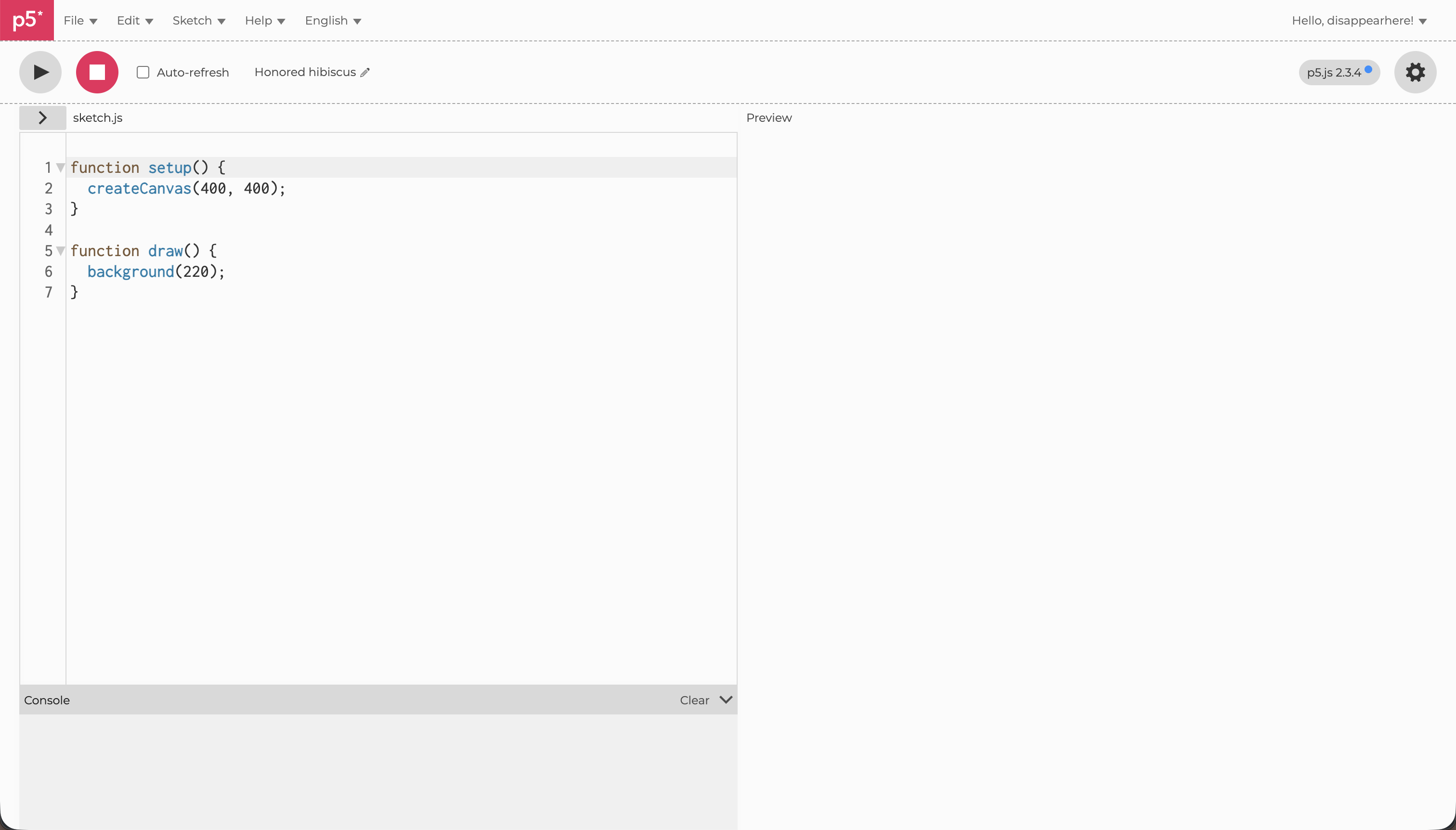
The editor has a code area on the left, a preview on the right and a Play button above them that runs your sketch. A few things are worth knowing before you start:
- The console at the bottom of the editor shows messages and error messages. Read it when something does not work: it usually says which line has the problem. You can also print values with
console.log(). - Saving and duplicating: with an account you can save a sketch (
Ctrl+SorCmd+S). Use File → Duplicate to make your own copy of someone else’s sketch. - Uploading files: the sketches with images, sounds and videos need files in the sketch folder. Open the sidebar with the arrow next to the sketch name, then use Upload file.
- The reference at p5js.org/reference lists every function used in this tutorial, with a short example for each one. When you see an unfamiliar function, look it up there.
- Sharing and exporting: the File menu lets you share a link to your sketch or download it as a folder, to put on your own website.
- The p5.js version: the sketches in this tutorial use p5.js 2.x. Many tutorials online were written for version 1.x, where for example images were loaded with a function called
preload(). If code you copy from elsewhere does not work, the version is a likely reason.
Sketches
Work through the sketches in order. Each one adds a single idea to the previous one. Click the title to open a sketch in the p5.js editor, then use File → Duplicate to make your own copy.
01 Setup
Setup: create a canvas and paint its background with a colour, using the two basic p5.js functions setup() and draw().
Try: Change the three numbers in background() to make a different colour. Then make the canvas wider than it is tall.
02 Variables
Variables: store numbers, text and true/false values in variables, and display them on the canvas with text().
Try: Add a new variable with your own text and display it on the canvas. What happens if you remove the parentheses around myAge + yourAge?
03 If-else
If-else: use a true/false variable and an if-else condition to choose between two background colours.
Try: Change isBlue to false and run the sketch again. Then add a third colour with else if.
04 Click
Click: count mouse clicks with mouseClicked() and change the background colour depending on the number of clicks.
Try: Change the numbers so the colour changes after 3 clicks instead of 5. What colour do you expect at exactly 10 clicks?
05 MouseMove
MouseMove: use mouseMoved() and mouseX to change the background colour depending on which half of the canvas the mouse is in.
Try: Use mouseY instead of mouseX so the colour changes between the top and the bottom half.
06 MouseMove + MouseClick
MouseMove + MouseClick: combine mouseMoved() and mouseClicked() so the background colour follows the mouse and each click switches between a rectangle and an ellipse.
Try: Replace the rectangle or the ellipse with another shape, for example a triangle() or a circle(). Look it up in the p5.js reference.
07 Image
Image: upload an image to the sketch, load it with loadImage() and display it on the canvas with image().
Try: Upload your own image and draw it at half the canvas size in the centre of the canvas.
08 Image + MouseClick
Image + MouseClick: load two images and switch between them each time the mouse is clicked.
Try: Switch the images with mouseMoved() and mouseX instead of a click, so the left half shows one image and the right half the other.
09 Keyboard
Keyboard: switch between three images by pressing the keys 1, 2 and 3, using keyPressed() and the key variable.
Try: Add a fourth image and make it appear when you press the key 4.
10 Webcam
Webcam: access the webcam with createCapture() and draw the live video on the canvas.
Try: Flip the video horizontally so it behaves like a mirror: look up createCapture in the reference to see how that’s made. Why does it feel more natural?
Introduction to ml5.js
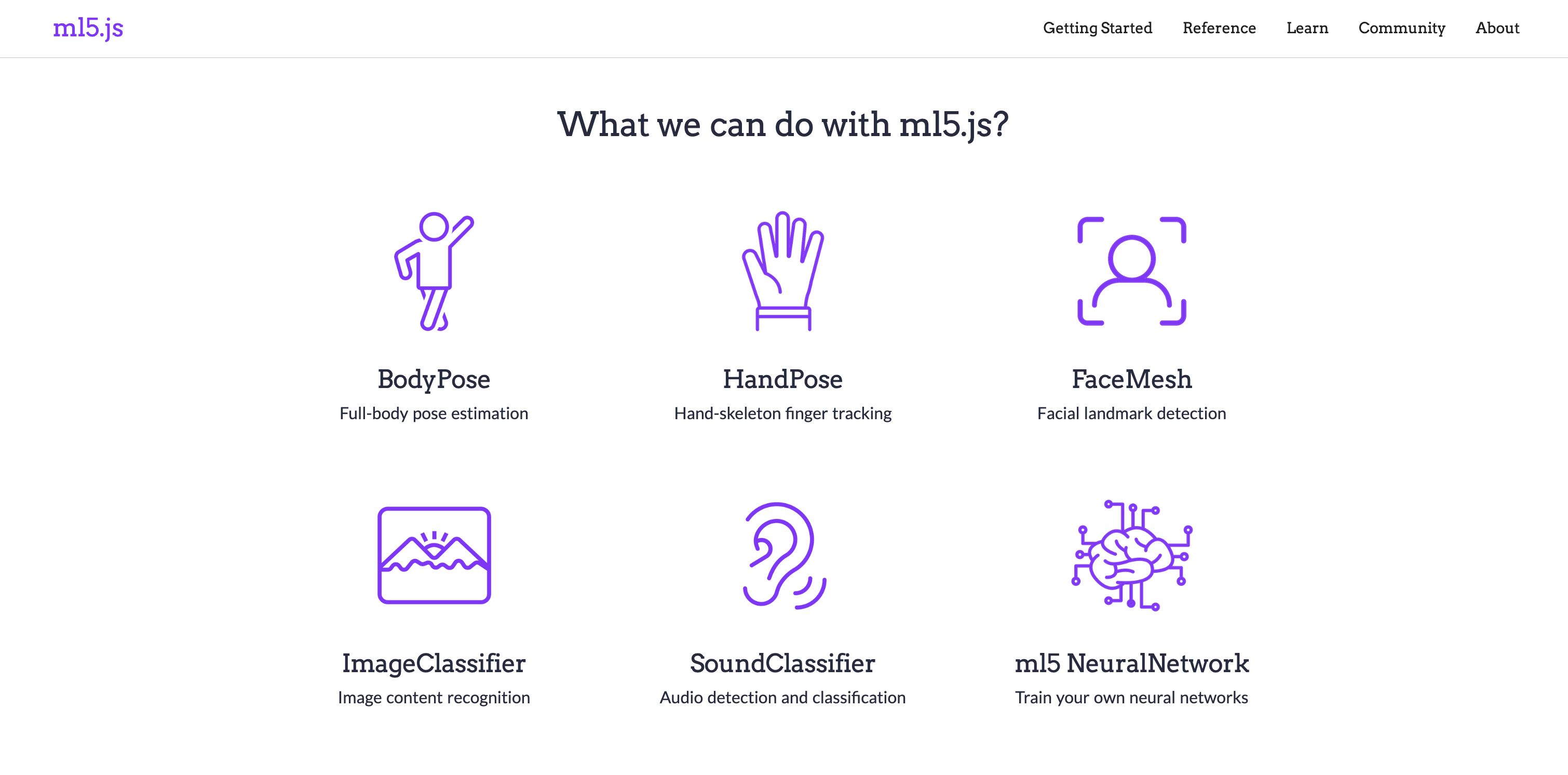
ml5.js is a library that makes pretrained machine learning models available in p5.js. The models in this tutorial look at a webcam image and return data: lists of points (keypoints), boxes and labels, each with x and y positions and often a confidence value. Everything you do in the following sketches builds on this data. Once you understand it, the sketches stop being separate recipes and become variations on one idea.
Body: BodyPose
BodyPose estimates the position of body parts such as the nose, shoulders and wrists in the video image.
01 BodyPose Body Recognition
BodyPose Body Recognition: detect a body in the webcam image with ml5.bodyPose(), draw its keypoints and skeleton, and change the background colour depending on the position of the nose and wrists.
Try: Remove the image(video, ...) lines to see only what the machine reads, a skeleton on a coloured background. What does the machine keep of you, and what does it lose?
02 Nose + Image
Nose + Image: track the nose with BodyPose and show a different image depending on whether it is on the left or the right half of the canvas.
Try: Add a third image that appears when your nose is in the top half of the canvas. Which condition do you need to check first?
03 Nose & Wrists + Image
Nose & Wrists + Image: show one of four images depending on whether the nose is on the left or right half of the canvas, or whether the left or right wrist is raised.
Try: Make the image only change when both wrists are raised. Which operator do you need to combine the two conditions? (Look back at sketch 04.)
04 Nose & Wrists + Sound Play and Volume
Nose & Wrists + Sound Play and Volume: play and pause a sound with the position of the nose and change its volume by raising the left or right wrist.
Try: Use the height of your nose instead of the raised wrists to control the volume: the higher your head, the louder the sound. Look up map() in the p5.js reference.
05 Nose + Distance
Nose + Distance: measure the distance between the nose and an eye to estimate how far you are from the camera, and draw a clown nose that changes size and colour accordingly.
Try: Add a second clown feature, for example a hat above the head or round cheeks, that also scales with the distance between nose and eye. Use the left_eye and right_eye keypoints for positions.
06 Nose + Image + Click
Nose + Image + Click: place an image on each detected face, scale it with the distance from the camera, and switch between two images with a mouse click.
Try: Add a third image and cycle through all three on each click. Hint: use a number instead of a true/false variable, and % (modulo) to jump back to the first image.
Hands: HandPose
HandPose tracks the hand and its fingers (thumb, index finger, middle finger, ring finger and pinky).
07 Hand + Image Size
Hand + Image Size: track the 21 keypoints of a hand with ml5.handPose(), measure the distance between thumb and index finger, and use it to change the size of an image.
Try: Make the image appear only when the fingers are pinched close together (for example when the distance is below 50 pixels). Then use the middle finger tip, hand.middle_finger_tip, instead of the index finger. What does the pinch mean to a machine, and what does it mean to you?
08 Hand + Sound Volume
Hand + Sound Volume: measure the distance between thumb and index finger with HandPose and map it to the volume of a looping sound. Click on the canvas once to start the music if you do not hear anything.
Try: Use the height of the wrist instead of the pinch: map hand.wrist.y to the volume, so raising your hand makes the sound louder. How does the gesture feel different?
Faces: FaceMesh
FaceMesh maps the face as a dense set of points, from which features such as eyes, lips and face outline can be located.
09 Face Tracking
Face Tracking: track a face with ml5.faceMesh(), draw its 468 keypoints on the live video, and show or hide the number of each point with a click.
Try: Click to show the numbers, then find point 1 (the tip of the nose) and colour it red and make it bigger. Which numbers lie on the lips? What could a system read from 468 points on your face?
10 Face Tracking + Image + Sound
Face Tracking + Image + Sound: measure how wide your mouth is open with FaceMesh and use it to show an image in your mouth and set the volume of a sound. Click on the canvas once if you do not hear anything.
Try: Move closer to the camera and further away: what happens, and why? Then show a second image when the mouth is wide open, for example when the opening is above 40 pixels.
Objects and people: ObjectDetection
Unlike the models above, object detection does not look for body keypoints. It draws labelled boxes around whatever it recognises in the image, such as persons, chairs or phones. This is closest to how public and private cameras are used for counting, tracking and monitoring people.
The model used here is COCO-SSD, which was trained on COCO (“Common Objects in Context”), a dataset of photographs in which people have marked objects from about 80 categories. The machine can only see what is on that list: whoever made the dataset decided which things are worth detecting.
All the ml5.js models in this tutorial run on TensorFlow.js, an open-source JavaScript library by Google for running machine learning in the browser. ml5.js is built on top of it and hides its complexity behind a few simple functions. Because TensorFlow.js runs the model on your own computer, the webcam image is processed in your browser and does not need to be sent to a server. This is not the case for most commercial camera systems.
11 Webcam + Object Detection
Webcam + Object Detection: detect people and everyday objects in the webcam image with ml5.objectDetection() and draw a labelled box around each one.
Try: Count the people in the image and write the number on the canvas. Then hold up a phone or a bottle: what does the machine call it, and how sure is it? Who decided that these are the categories worth detecting?
12 Object Detection + Video
Object Detection + Video: play a video only while nobody is in front of the camera. As soon as ml5.objectDetection() finds a person, the video pauses and the webcam image with the detection takes its place.
Try: Change the rule so that the video plays only when a person is detected. Then replace "person" with another label, for example "cup" or "cell phone". What rule would a real camera system use, and who would it be watching?
Teachable Machine
The models in the previous sections were trained by others, on data you did not choose, and they know a fixed list of things: the parts of a body, a face, about 80 kinds of objects. Teachable Machine is a free web tool by Google that lets you train your own model in a few minutes, directly in the browser and without writing code. You show the webcam a few examples of each thing you want it to recognise, the tool trains a classifier on them, and you can then load that model in a p5.js sketch with ml5.js and use it like any other.
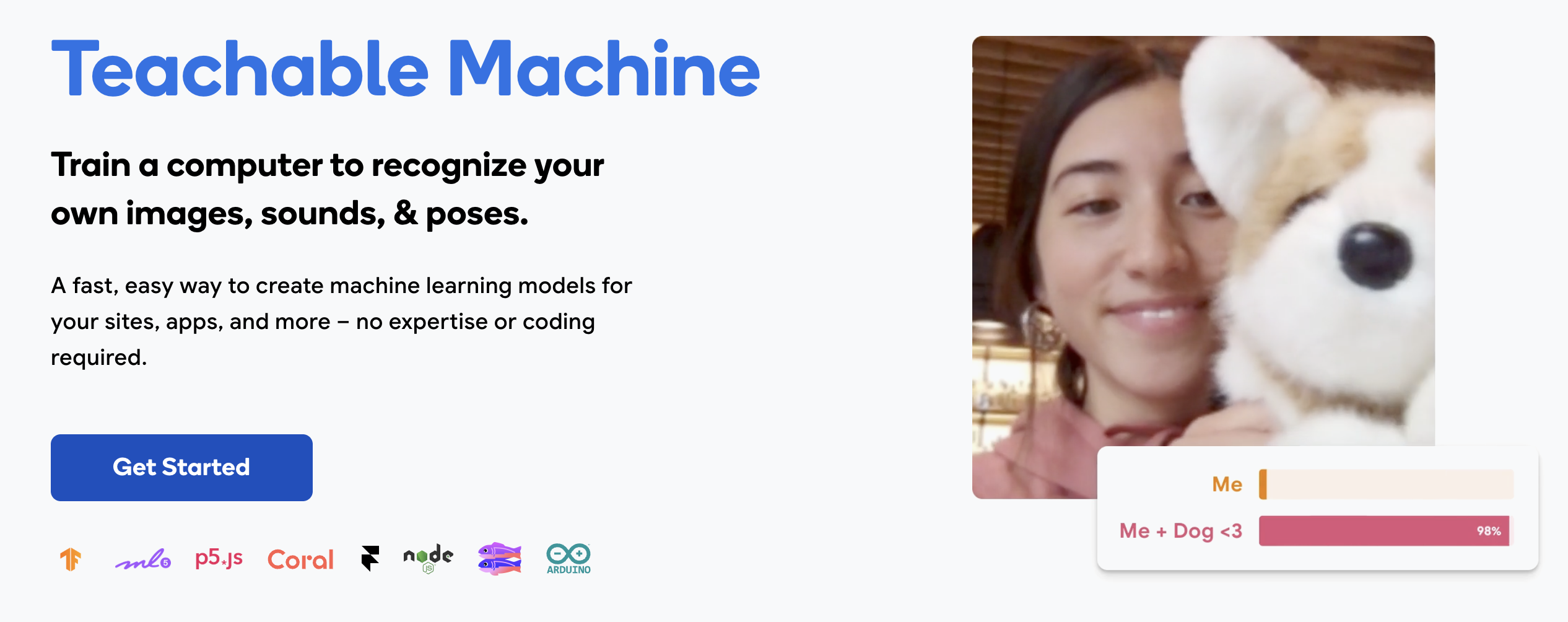
Training your own model changes what you learn from it. A model like this does not know what a mug or a face is: it only knows the examples you gave it. Whatever you put in front of the camera, it will choose one of your categories and attach a confidence to it. Seeing where it is right, where it is wrong, and what makes it change its mind is a good way to understand how the larger systems behind public and private cameras are built.
Teachable Machine can train image, sound and pose models. This tutorial starts with images, because they are the simplest to train and show the whole process.
Train your own model
For a first model, three categories are enough, and they should look very different from each other: nothing (an empty background), and two objects you can hold up to the camera, for example a mug and a phone. This trains in about a minute and works reliably, so you can focus on the process.
- Go to teachablemachine.withgoogle.com, click Get started, and choose Image Project, then Standard image model.
- Name your classes. Click the name of Class 1 and rename it to
Nothing. Rename Class 2 toMug, and use Add a class to create a third one calledPhone. The names you choose here are the labels you will see in the sketch. - Collect examples. In each class, click Webcam and allow camera access. Hold the button Hold to Record while you show the object to the camera and move it a little, closer, further, tilted. For
Nothing, point the camera at the empty background, or step out of the frame. Aim for at least 50 examples per class. - Train the model. Click Train Model and leave the tab open until it is finished. Do not switch to another tab while it trains, or it may stop.
- Test it. In the preview on the right, show your objects to the camera. The bars show how confident the model is for each class. Now show it something it has never seen, for example your keys: the model still has to choose one of your three classes, and it will often do so with high confidence. It cannot say “I don’t know”.
- Export the model. Click Export Model, choose the Tensorflow.js tab, then Upload my model and click Upload. When it is done, copy the shareable link. It looks like
https://teachablemachine.withgoogle.com/models/AbCdEfGhI/.
A few things make a big difference to how well the model works:
- Variety beats quantity. Record the same object at different angles, distances and positions. A model trained on one pose of the mug will only recognise that pose.
- Train in the place where you will use it. The model also learns the background and the light. If you train in your room and test in a classroom, it will probably get confused.
- Always include a class for “nothing”. Without it, the model has to name one of your objects even when the camera sees only a wall.
- The link is public. Anyone who has it can use the model, and it is hosted by Google. Do not train on images you do not want to share.
Sketches
With the shareable link, you can load your model in a p5.js sketch with ml5.imageClassifier(). In the sketches below, replace the model link with your own one.
- Teachable Machine Image: classify the webcam image and print the label and the confidence on the canvas
- Teachable Machine Video: play a video when the model recognises you in front of the camera, and pause it when it does not
- Teachable Machine Pose: train a model on body poses instead of objects
- Teachable Machine Sound: train a model on sounds instead of images