Photogrammetry & Gaussian Splatting Fotogrammetrie & Gaussian Splatting
Overview
Photogrammetry and Gaussian splatting are two ways of turning a series of photographs into a 3D scene you can move around in. In this tutorial you will scan an object and a space with your phone using Scaniverse, compare the two methods, and publish the result on the web with Spline.
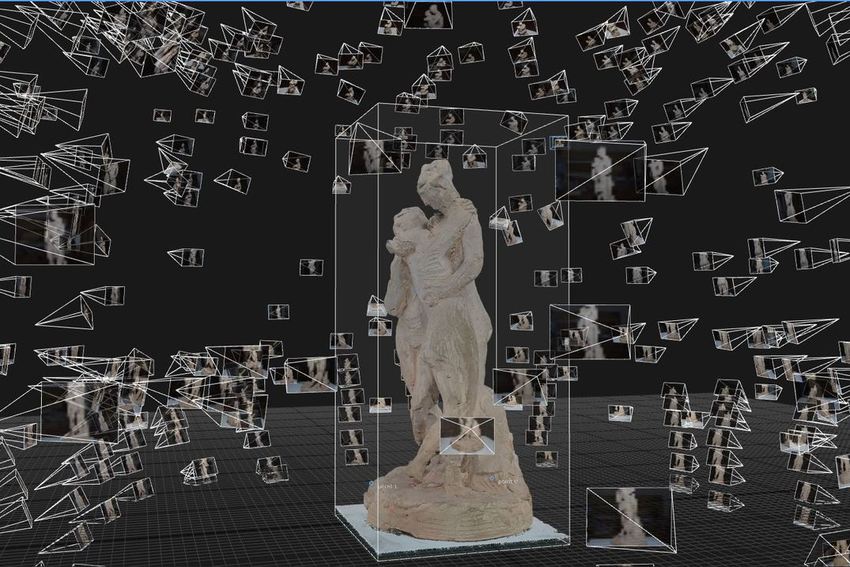
Photogrammetry is the science of creating measurements from many photographs. This process combines photographs to produce information for maps, measurements or 3D models of objects or scenes. While the concept of photogrammetry dates back to Leonardo Da Vinci (1452–1519), the first use of photogrammetry was by French physicist François Arago (1786–1853) in 1840 using daguerreotypes. In 1849 French scientist Aimé Laussedat (1819–1907) was the first person to use photographs to put together topographic maps – earning the title of the “Father of Photogrammetry” – and later experimented with kites and air balloons to take aerial photographs and combine them into maps. Aerial photogrammetry means using images gathered in the air by aircrafts to create detailed maps of an area. The American invention of the aeroplane in 1903 by the brothers Wilbur Wright (1867–1912) and Orville Wright (1871–1948) led to the use of cameras mounted on aircrafts pointing downward and the development of aerial photogrammetry. Currently, many overlapping photographs of the ground are taken along a plane or drone flight path and are later changed into computer-made 2D and 3D maps. Photogrammetric techniques are also used on the ground, in terrestrial, or earthbound, and close-range settings. Instead of creating a map, this kind of photogrammetry can be used to make 3D models of buildings, objects and people. This process can be done using everyday cameras or smartphones. Many images of the desired objects are taken from different angles, in order to get as much photographic information as possible. All the images are then processed by software that stitches the photos together to combine them into a digital 3D model. Applications of terrestrial and close-range photogrammetry are used in different fields: police investigators may use photogrammetry to reconstruct the scene of a crime, architects may use it for understanding building sites and existing structures, artists and curators might employ photogrammetry to create digital copies of important artworks for preservation and computer game designers can use this process to recreate characters and elements in computer games. Source: photographic-flux.ch/photogrammetry
By the end of this tutorial you will be able to:
- choose between a mesh (photogrammetry) and a Gaussian splat for a given subject
- capture a clean scan with your phone
- export your scan in a format other software can open
- embed an interactive 3D scene in a web page
Photogrammetry or Gaussian splatting?
Both methods start from the same raw material: many overlapping photographs (or video frames) of one subject, taken from different positions. The software works out where each photograph was taken and rebuilds the scene in 3D. What differs is what it builds.
Photogrammetry finds points that appear in several photographs and calculates their position in space. The result is a mesh: a surface made of triangles, usually wrapped in a texture taken from your photographs.
Gaussian splatting was introduced for real-time rendering by Bernhard Kerbl, Georgios Kopanas, Thomas Leimkühler and George Drettakis in “3D Gaussian Splatting for Real-Time Radiance Field Rendering” (SIGGRAPH 2023). It describes a scene as millions of small, soft, semi-transparent blobs (3D Gaussians), each with a position, size, orientation and colour. The blobs are adjusted until views rendered from your camera positions match your photographs. The result is a splat: not a surface, but a cloud of coloured points that looks photographic.
| Photogrammetry (mesh) | Gaussian splatting (splat) | |
|---|---|---|
| Result | A textured surface made of triangles | A cloud of soft, coloured points |
| Works well for | Solid, matte, textured objects; clean models for 3D printing, games and measuring | Whole scenes, foliage, hair, fabric, fine detail, reflections, backgrounds and sky |
| Struggles with | Shiny, transparent or featureless surfaces; thin structures | Editing, measuring, 3D printing and physics; stray points around the edges (“floaters”) |
| Typical formats | OBJ, FBX, GLB, USDZ, STL | PLY, SPZ |
| Feels like | A 3D object | A photograph you can walk through |
Scaniverse can produce both from the same phone, so you can try each method on the same subject and compare.
Software
- Scaniverse (iOS, Android)
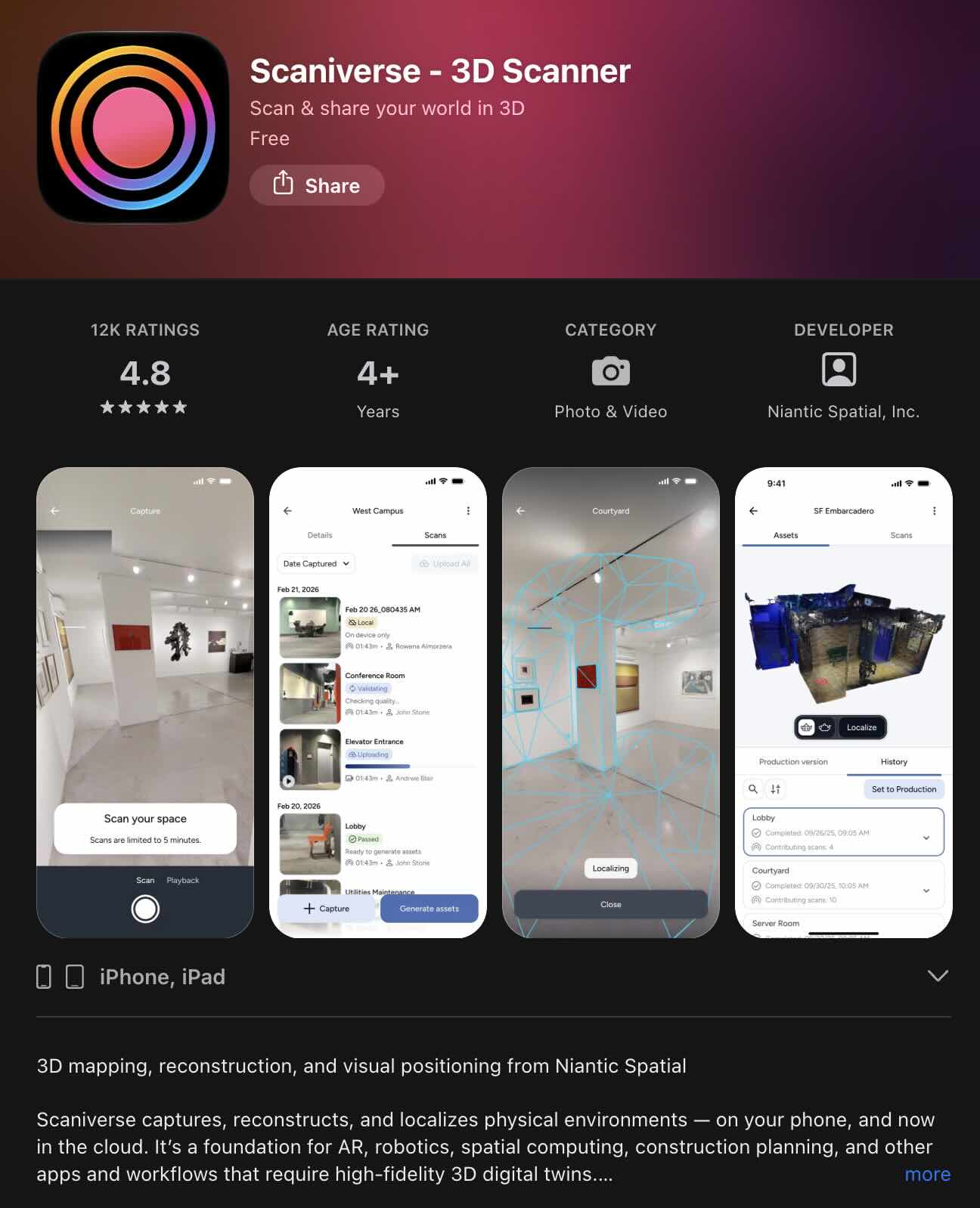
Scaniverse processes scans on your phone. At the time of writing, capturing splats needs an iPhone 12 or newer, or an Android phone with Android 7.0 or later, at least 4 GB of RAM and ARCore with Depth API support. Older phones may only be able to make meshes.
Alternatives:
- MagiScan (iOS, Android): freemium, with free mode 3D object available in 6-12 hours, or 6/week, 20/mo.
- PolyCam (iOS, Android): 7 days free trial, 17.99/mo.
- PhotoCatch (iOS)
- 3DF Zephyr (PC)
For the last part of the tutorial you will also need Spline, a browser-based 3D design tool, to publish your scan on the web.
Before you scan
A good scan is mostly decided before you press record.
- Choose a subject with texture and detail. Wood, fabric, stone, plants and worn objects scan well. Glossy, mirrored, transparent or perfectly uniform surfaces confuse both methods.
- Keep the subject still. The software assumes that nothing moves between photographs. People, pets and swaying branches will blur or double.
- Use soft, even light. Overcast daylight or a bright room works best. Avoid harsh shadows, direct sun and flash, and do not change the lighting during a scan.
- Leave room to move. You need to be able to walk all the way around the subject, or through the space.
- Prepare your phone. Clean the lens, charge the battery and close other apps. Scanning and processing are demanding, and the phone can get warm.
- Ask permission. Get consent before scanning people or private spaces, and check the rules before scanning in museums, exhibitions or other people’s property.
Scanning with photogrammetry
In Scaniverse, photogrammetry produces a mesh. On phones with a LiDAR scanner, the sensor helps build the mesh at close range (about five metres), so mesh mode works best on objects and small spaces. Menu names and options change between versions of the app, so if yours differ from the steps below, look for the option that creates a model rather than a splat.
- Open Scaniverse, start a new scan and choose the mesh mode.
- Place your object on a surface you can walk around, ideally with some contrast to the object. Avoid shiny surfaces.
- Start recording. Move slowly around the object at a steady distance, keeping it in the frame. Aim for 1–3 minutes of scanning.
- Make a second and third circle at different heights: one lower, one higher, looking down onto the top of the object. Make sure every part is seen from several angles and that each view overlaps with the last.
- Avoid fast movements. Motion blur is the most common reason for a poor scan.
- Stop recording and wait for the phone to process the scan. If the app offers a detail or quality setting, start with a medium one: higher settings take longer and make heavier files.
- Review the result. Turn the model around and look for holes, smeared textures and leftover background. If it is not usable, scan again, more slowly and with more overlap.
Scanning with Gaussian Splatting
Splat mode is the better choice for whole scenes, such as a corner of a room, a tree, a shop window or a street, and for subjects with hair, foliage or reflective detail. Splats also capture the background and the sky, so include them.
- Open Scaniverse, start a new scan and choose the splat mode.
- Walk at a slow, natural pace in a smooth arc or circle around your subject, keeping it in view. For a space, walk slowly through it and turn gradually rather than sharply.
- Capture from more than one height, and include some views from further away. The more angles overlap, the more convincing the result is when someone moves away from your camera path.
- For shiny or very detailed surfaces, take extra time and capture them from several angles.
- Scan for roughly 1–3 minutes, then stop. Longer scans take longer to process and do not always look better.
- Wait while the phone processes the scan. Keep the app open and the screen awake.
- Review the result by orbiting around it. Look for blurry areas and floaters, the stray points that hang in the air around the subject. Use the editing options before export (cropping, scaling and adjustments) to remove them.
If something goes wrong:
- Holes or blurry areas: scan again, more slowly, with more overlap and from more angles.
- A warped or doubled subject: something moved or the light changed during the scan. Repeat it with a still subject and steady light.
- Floaters: crop them away before export, or later in an editor.
- Processing fails or the phone gets hot: close other apps, let the phone cool down and try a shorter scan.
- Shiny or transparent surfaces look wrong: this is a limit of both methods, not a mistake on your part.
Exporting your model
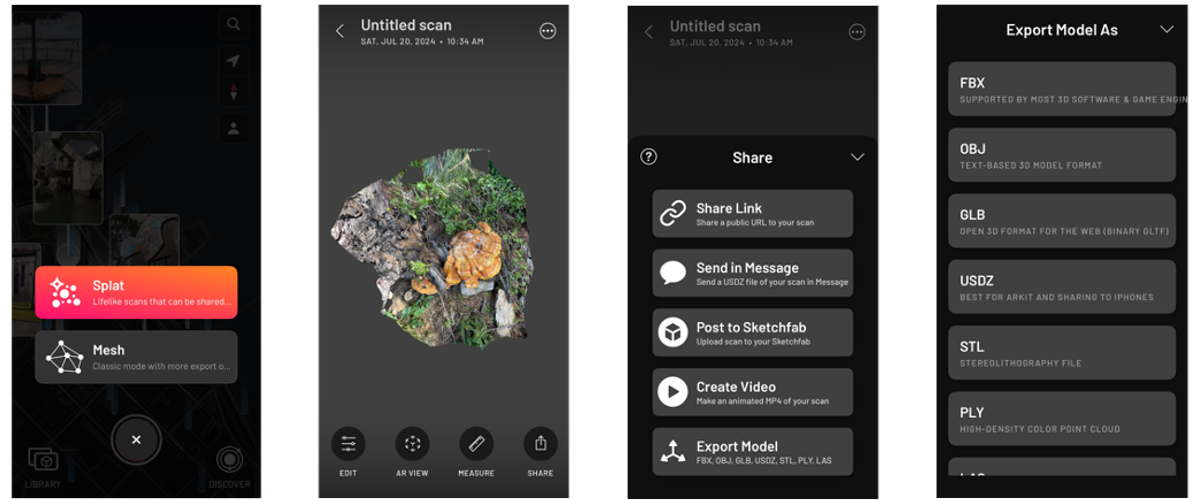
Export your model to your computer
Open your scan in Scaniverse and use the share or export option. Which formats you can choose depends on the type of scan and the version of the app.
For a mesh:
- GLB: one file that includes the textures. The best choice for the web and for Spline.
- OBJ: very widely supported, but textures are stored in separate files.
- FBX: for 3D software and game engines such as Blender, Unity or Unreal Engine.
- USDZ: for viewing in augmented reality on Apple devices.
- STL: for 3D printing. It has no colour or texture.
For a splat:
- PLY: widely supported by splat viewers and editors, but the files are large.
- SPZ: a compressed, open-source splat format developed by Niantic. Niantic states that it reduces file size by about 90%. Support is still growing, so not every program can open it.
Then move the file from your phone to your computer with AirDrop, a cloud service, email or a cable. Large files are easiest to send by AirDrop or a cloud link.
Publish your model on the web with Spline
- Open Spline in your browser, sign in and create a new file.
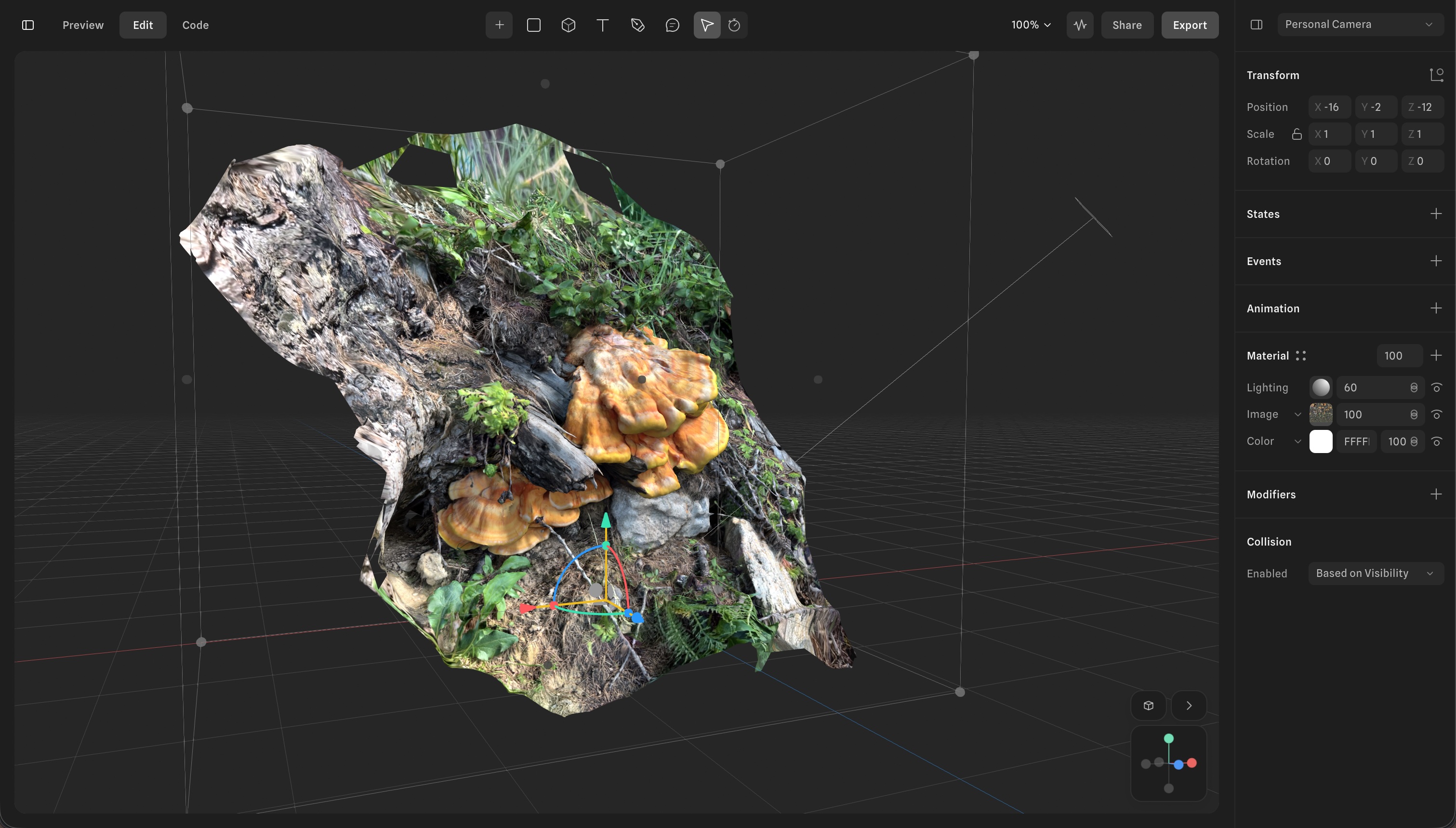
- Import your scan: drag the file into the viewport, press Ctrl+O (Windows) or ⌘+O (Mac), or use the main menu and choose “Open / Import”. Spline reads GLB, OBJ, FBX and STL meshes, and PLY splats. If a SPZ file does not open, export the splat as PLY instead.
- Scale and place the scan in the scene. For a splat, you can crop away stray points. You can also add other 3D objects, or combine several scans in one scene.
- Choose how visitors can look at the scene in Play settings: orbit, pan, zoom, scroll, a turntable rotation and limits on the camera.
- Click Export in the toolbar and choose Public URL. Wait until the notification tells you that the URL is ready.
- Copy the Embed code and paste it into your page. It looks like this:
<iframe src="YOUR-SPLINE-PUBLIC-URL" width="100%" height="500" frameborder="0"></iframe>
Copy the real code from Spline rather than typing it yourself, because the address is unique to your scene.
If you change the scene afterwards, click Update Public URL in Spline. The link does not update by itself. Large scans make slow pages, especially on phones, so crop your splat and check the scene’s performance in Spline before you publish.
Spline also offers a Viewer export, which embeds the scene as a web component instead of an iframe. The iframe is the simpler option for most pages.
Exercise: one subject, two scans
- Choose a single subject that is still and has character: a pair of worn shoes, a plant, a piece of furniture, a corner of a room.
- Scan it twice in the same place and in the same light: once as a mesh and once as a splat.
- Export both scans. Import them into the same Spline scene, side by side.
- Publish the scene with a Public URL.
- Compare the scans: where does each one break down: at edges, on reflections, on the sides you could not see? Does a mesh describe the object’s surface and a splat its appearance? Which of the two would you call a model, and which a photograph?
Optional challenge: glitch it. Scan something these methods are bad at: a mirror, a window, a glass of water, a person who cannot stay still. Make the failure the subject of your work, and decide whether to crop it, exaggerate it or leave it as it is.
Überblick
Fotogrammetrie und Gaussian Splatting sind zwei Verfahren, um aus einer Reihe von Fotografien eine 3D-Szene zu erzeugen, in der ihr euch bewegen könnt. In diesem Tutorial scannt ihr mit Scaniverse ein Objekt und einen Raum mit eurem Smartphone, vergleicht die beiden Verfahren und veröffentlicht das Ergebnis mit Spline im Web.
Als Fotogrammetrie bezeichnet man eine Gruppe von Messmethoden und Verfahren. Dabei wird eine Vielzahl verschiedener Fotografien zusammengefügt, um Informationen für Landkarten, Abmessungen oder 3D-Modelle von Objekten oder Gegenden zu erhalten. Die Idee der Fotogrammetrie geht zwar auf Leonardo Da Vinci (1452–1519) zurück, erstmals eingesetzt wurde das Verfahren aber 1840 vom französischen Physiker François Arago (1786–1853) mit Daguerreotypien. Der französische Wissenschaftler Aimé Laussedat (1819-1907) war 1849 der erste, der Fotografien zur Erstellung topografischer Karten verwendete – was ihm den Titel des ‹Vaters der Fotogrammetrie› einbrachte – und später mit Drachen und Luftballons experimentierte, um Luftbilder aufzunehmen und diese zu Karten zusammenzufügen. Bei der Luftbildfotogrammetrie werden mithilfe von Bildern, die von Flugzeugen aus gemacht werden, detaillierte Karten eines Gebietes erstellt. Die Erfindung des Motorflugzeugs im Jahr 1903 durch die Brüder Wilbur Wright (1867–1912) und Orville Wright (1871–1948) führte zur Verwendung von Kameras, die auf Flugzeuge befestigt und nach unten gerichtet waren, und damit zur Entstehung der Luftbildfotogrammetrie. Gegenwärtig wird die Technologie oft so genutzt, dass aus einem Flugzeug oder von einer Drohne entlang der Flugbahn viele sich überlappende Aufnahmen des Bodens gemacht werden, aus denen der Computer später 2D- und 3D-Karten generiert. Fotogrammetrische Techniken werden auch am Boden eingesetzt, erdgebunden und im Nahbereich. Anstatt von Landkarten können mit diesen Verfahren der Fotogrammetrie 3D-Modelle von Gebäuden, Objekten und Personen hergestellt werden. Es braucht dafür lediglich eine gewöhnliche Kamera oder ein Smartphone. Von dem Objekt von Interesse wird dabei eine Vielzahl von Bildern aus verschiedenen Winkeln aufgenommen, um möglichst viele fotografische Informationen zu erhalten. Die Bilder werden dann von einer Software verarbeitet, die die Fotos zu einem digitalen 3D-Modell zusammenfügt. Die terrestrische Fotogrammetrie und die Nahbereichsfotogrammetrie kommen auf verschiedenen Gebieten zum Einsatz: Polizeiliche Ermittlungsbeamte können die Fotogrammetrie zum Nachbilden eines Tatorts verwenden, Architekt_innen zum besseren Verständnis von Baustellen und bestehenden Strukturen und Gebäuden, Künstler_innen und Kurator_innen zur Anfertigung digitaler Kopien bedeutender Kunstwerke für deren Konservierung und Computerspiel-Entwickler_innen können das Verfahren nutzen, um in Computerspielen Charaktere und Elemente nachzubilden. Quelle: photographic-flux.ch/photogrammetry
Am Ende dieses Tutorials könnt ihr:
- für ein bestimmtes Motiv zwischen einem Mesh (Fotogrammetrie) und einem Gaussian Splat wählen
- mit eurem Smartphone einen sauberen Scan aufnehmen
- euren Scan in einem Format exportieren, das andere Software öffnen kann
- eine interaktive 3D-Szene in eine Webseite einbetten
Fotogrammetrie oder Gaussian Splatting?
Beide Verfahren gehen vom selben Ausgangsmaterial aus: vielen sich überlappenden Fotografien (oder Videobildern) eines Motivs, aufgenommen von verschiedenen Positionen. Die Software berechnet, wo jede Fotografie aufgenommen wurde, und baut die Szene in 3D nach. Der Unterschied liegt darin, was dabei entsteht.
Fotogrammetrie findet Punkte, die auf mehreren Fotografien vorkommen, und berechnet ihre Position im Raum. Das Ergebnis ist ein Mesh: eine Oberfläche aus Dreiecken, in der Regel überzogen mit einer Textur, die aus euren Fotografien stammt.
Gaussian Splatting wurde von Bernhard Kerbl, Georgios Kopanas, Thomas Leimkühler und George Drettakis in „3D Gaussian Splatting for Real-Time Radiance Field Rendering“ (SIGGRAPH 2023) für das Echtzeit-Rendering vorgestellt. Eine Szene wird dabei als Millionen kleiner, weicher, halbtransparenter Flecken (3D-Gaussians) beschrieben, jeweils mit Position, Größe, Ausrichtung und Farbe. Die Flecken werden so lange angepasst, bis Ansichten, die von euren Kamerapositionen aus berechnet werden, euren Fotografien entsprechen. Das Ergebnis ist ein Splat: keine Oberfläche, sondern eine Wolke aus farbigen Punkten, die fotografisch aussieht.
| Fotogrammetrie (Mesh) | Gaussian Splatting (Splat) | |
|---|---|---|
| Ergebnis | Eine texturierte Oberfläche aus Dreiecken | Eine Wolke aus weichen, farbigen Punkten |
| Eignet sich gut für | Feste, matte, texturierte Objekte; saubere Modelle für 3D-Druck, Spiele und Messungen | Ganze Szenen, Laub, Haare, Stoff, feine Details, Spiegelungen, Hintergründe und Himmel |
| Schwierigkeiten mit | Glänzenden, transparenten oder strukturlosen Oberflächen; dünnen Strukturen | Bearbeitung, Vermessung, 3D-Druck und Physik; verstreuten Punkten an den Rändern („Floater“) |
| Typische Formate | OBJ, FBX, GLB, USDZ, STL | PLY, SPZ |
| Wirkt wie | Ein 3D-Objekt | Eine Fotografie, durch die man hindurchgehen kann |
Scaniverse kann beides mit demselben Smartphone erzeugen, sodass ihr beide Verfahren am selben Motiv ausprobieren und vergleichen könnt.
Software
- Scaniverse (iOS, Android)
Scaniverse verarbeitet Scans direkt auf dem Smartphone. Zum Zeitpunkt der Erstellung benötigt die Aufnahme von Splats ein iPhone 12 oder neuer, oder ein Android-Smartphone mit Android 7.0 oder höher, mindestens 4 GB RAM und Unterstützung für ARCore mit Depth API. Ältere Geräte können unter Umständen nur Meshes erstellen.
Alternativen:
- MagiScan (iOS, Android): Freemium. Im kostenlosen Modus ist ein 3D-Objekt nach 6–12 Stunden verfügbar, oder 6/Woche, 20/Monat.
- PolyCam (iOS, Android): 7 Tage kostenlos testen, danach 17.99/Monat.
- PhotoCatch (iOS)
- 3DF Zephyr (PC)
Für den letzten Teil des Tutorials braucht ihr außerdem Spline, ein browserbasiertes 3D-Designtool, um euren Scan im Web zu veröffentlichen.
Vor dem Scannen
Ein guter Scan entscheidet sich größtenteils schon, bevor ihr auf Aufnahme drückt.
- Wählt ein Motiv mit Textur und Detail. Holz, Stoff, Stein, Pflanzen und abgenutzte Objekte lassen sich gut scannen. Glänzende, spiegelnde, transparente oder völlig einheitliche Oberflächen irritieren beide Verfahren.
- Das Motiv muss ruhig bleiben. Die Software geht davon aus, dass sich zwischen den Fotografien nichts bewegt. Personen, Haustiere und schwankende Äste führen zu Unschärfe oder Doppelungen.
- Sorgt für weiches, gleichmäßiges Licht. Bedeckter Himmel oder ein heller Raum eignen sich am besten. Vermeidet harte Schatten, direkte Sonne und Blitz, und verändert das Licht während des Scans nicht.
- Lasst euch Platz zum Bewegen. Ihr müsst ganz um das Motiv herum oder durch den Raum gehen können.
- Bereitet euer Smartphone vor. Reinigt das Objektiv, ladet den Akku und schließt andere Apps. Scannen und Verarbeiten sind rechenintensiv, und das Smartphone kann warm werden.
- Fragt um Erlaubnis. Holt eine Einwilligung ein, bevor ihr Personen oder private Räume scannt, und informiert euch über die Regeln, bevor ihr in Museen, Ausstellungen oder auf fremdem Eigentum scannt.
Scannen mit Fotogrammetrie
In Scaniverse erzeugt die Fotogrammetrie ein Mesh. Bei Smartphones mit LiDAR-Scanner unterstützt der Sensor den Aufbau des Meshes im Nahbereich (etwa fünf Meter), weshalb der Mesh-Modus am besten für Objekte und kleine Räume geeignet ist. Menünamen und Optionen ändern sich zwischen den Versionen der App. Wenn eure Version von den folgenden Schritten abweicht, sucht nach der Option, die ein Modell statt eines Splats erzeugt.
- Öffnet Scaniverse, startet einen neuen Scan und wählt den Mesh-Modus.
- Stellt euer Objekt auf eine Fläche, um die ihr herumgehen könnt, am besten mit etwas Kontrast zum Objekt. Vermeidet glänzende Oberflächen.
- Startet die Aufnahme. Bewegt euch langsam und in gleichbleibendem Abstand um das Objekt und behaltet es im Bild. Plant 1–3 Minuten für den Scan ein.
- Macht eine zweite und dritte Runde in unterschiedlichen Höhen: eine tiefer, eine höher mit Blick von oben auf das Objekt. Achtet darauf, dass jeder Teil aus mehreren Winkeln zu sehen ist und sich jede Ansicht mit der vorherigen überlappt.
- Vermeidet schnelle Bewegungen. Bewegungsunschärfe ist der häufigste Grund für einen schlechten Scan.
- Beendet die Aufnahme und wartet, bis das Smartphone den Scan verarbeitet hat. Wenn die App eine Detail- oder Qualitätseinstellung anbietet, beginnt mit einer mittleren: Höhere Einstellungen dauern länger und erzeugen größere Dateien.
- Prüft das Ergebnis. Dreht das Modell und sucht nach Löchern, verschmierten Texturen und übrig gebliebenem Hintergrund. Wenn es nicht brauchbar ist, scannt noch einmal, langsamer und mit mehr Überlappung.
Scannen mit Gaussian Splatting
Der Splat-Modus ist die bessere Wahl für ganze Szenen, etwa eine Zimmerecke, einen Baum, ein Schaufenster oder eine Straße, und für Motive mit Haaren, Laub oder spiegelnden Details. Splats erfassen auch den Hintergrund und den Himmel, bezieht sie also mit ein.
- Öffnet Scaniverse, startet einen neuen Scan und wählt den Splat-Modus.
- Geht in langsamem, natürlichem Tempo in einem sanften Bogen oder Kreis um euer Motiv und behaltet es im Blick. Durch einen Raum geht ihr langsam hindurch und dreht euch allmählich statt abrupt.
- Nehmt aus mehr als einer Höhe auf und bezieht auch einige Ansichten aus größerer Entfernung ein. Je mehr sich die Blickwinkel überlappen, desto überzeugender wirkt das Ergebnis, wenn sich jemand von eurem Kamerapfad entfernt.
- Nehmt euch bei glänzenden oder sehr detailreichen Oberflächen extra Zeit und erfasst sie aus mehreren Winkeln.
- Scannt etwa 1–3 Minuten und beendet dann die Aufnahme. Längere Scans brauchen länger in der Verarbeitung und sehen nicht immer besser aus.
- Wartet, während das Smartphone den Scan verarbeitet. Lasst die App geöffnet und den Bildschirm eingeschaltet.
- Prüft das Ergebnis, indem ihr es umkreist. Achtet auf unscharfe Bereiche und auf Floater, die verstreuten Punkte, die in der Luft um das Motiv schweben. Nutzt die Bearbeitungsoptionen vor dem Export (Zuschneiden, Skalieren und Anpassungen), um sie zu entfernen.
Wenn etwas schiefgeht:
- Löcher oder unscharfe Bereiche: Scannt noch einmal, langsamer, mit mehr Überlappung und aus mehr Winkeln.
- Ein verzerrtes oder doppeltes Motiv: Etwas hat sich bewegt oder das Licht hat sich während des Scans verändert. Wiederholt den Scan mit ruhigem Motiv und gleichbleibendem Licht.
- Floater: Schneidet sie vor dem Export weg, oder später in einem Editor.
- Die Verarbeitung schlägt fehl oder das Smartphone wird heiß: Schließt andere Apps, lasst das Smartphone abkühlen und versucht einen kürzeren Scan.
- Glänzende oder transparente Oberflächen sehen falsch aus: Das ist eine Grenze beider Verfahren, nicht euer Fehler.
Euer Modell exportieren
Euer Modell auf den Computer exportieren
Öffnet euren Scan in Scaniverse und nutzt die Teilen- oder Exportfunktion. Welche Formate zur Auswahl stehen, hängt von der Art des Scans und von der Version der App ab.
Für ein Mesh:
- GLB: eine Datei, die die Texturen enthält. Die beste Wahl für das Web und für Spline.
- OBJ: sehr breit unterstützt, aber die Texturen liegen in separaten Dateien.
- FBX: für 3D-Software und Game Engines wie Blender, Unity oder Unreal Engine.
- USDZ: zur Ansicht in Augmented Reality auf Apple-Geräten.
- STL: für den 3D-Druck. Enthält keine Farbe und keine Textur.
Für einen Splat:
- PLY: breit unterstützt von Splat-Viewern und Editoren, aber die Dateien sind groß.
- SPZ: ein komprimiertes, quelloffenes Splat-Format, entwickelt von Niantic. Laut Niantic reduziert es die Dateigröße um etwa 90 %. Die Unterstützung wächst noch, daher kann nicht jedes Programm es öffnen.
Übertragt die Datei dann per AirDrop, Cloud-Dienst, E-Mail oder Kabel vom Smartphone auf den Computer. Große Dateien lassen sich am einfachsten per AirDrop oder Cloud-Link senden.
Euer Modell mit Spline im Web veröffentlichen
- Öffnet Spline im Browser, meldet euch an und erstellt eine neue Datei.
- Importiert euren Scan: Zieht die Datei in den Viewport, drückt Ctrl+O (Windows) oder ⌘+O (Mac) oder wählt im Hauptmenü „Open / Import“. Spline liest GLB-, OBJ-, FBX- und STL-Meshes sowie PLY-Splats. Falls sich eine SPZ-Datei nicht öffnen lässt, exportiert den Splat stattdessen als PLY.
- Skaliert und platziert den Scan in der Szene. Bei einem Splat könnt ihr verstreute Punkte wegschneiden. Ihr könnt auch weitere 3D-Objekte hinzufügen oder mehrere Scans in einer Szene kombinieren.
- Legt in den Play settings fest, wie Besucher:innen die Szene betrachten können: Orbit, Pan, Zoom, Scroll, eine Turntable-Rotation und Begrenzungen der Kamera.
- Klickt in der Werkzeugleiste auf Export und wählt Public URL. Wartet, bis euch eine Benachrichtigung mitteilt, dass die URL bereit ist.
- Kopiert den Embed code und fügt ihn in eure Seite ein. Er sieht so aus:
<iframe src="YOUR-SPLINE-PUBLIC-URL" width="100%" height="500" frameborder="0"></iframe>
Kopiert den echten Code aus Spline, anstatt ihn selbst abzutippen, denn die Adresse ist für eure Szene einzigartig.
Wenn ihr die Szene später ändert, klickt in Spline auf Update Public URL. Der Link aktualisiert sich nicht von selbst. Große Scans machen Seiten langsam, besonders auf Smartphones. Schneidet euren Splat daher zu und prüft die Performance der Szene in Spline, bevor ihr veröffentlicht.
Spline bietet auch einen Viewer-Export an, der die Szene als Web Component statt als iframe einbettet. Für die meisten Seiten ist der iframe die einfachere Option.
Übung: ein Motiv, zwei Scans
- Wählt ein einzelnes Motiv, das ruhig ist und Charakter hat: ein Paar abgetragene Schuhe, eine Pflanze, ein Möbelstück, eine Zimmerecke.
- Scannt es zweimal am selben Ort und bei gleichem Licht: einmal als Mesh und einmal als Splat.
- Exportiert beide Scans. Importiert sie nebeneinander in dieselbe Spline-Szene.
- Veröffentlicht die Szene mit einer Public URL.
- Vergleicht die Scans: Wo bricht jeder von ihnen zusammen: an Kanten, bei Spiegelungen, auf den Seiten, die ihr nicht sehen konntet? Beschreibt ein Mesh die Oberfläche des Objekts und ein Splat sein Erscheinungsbild? Welchen der beiden würdet ihr ein Modell nennen, und welchen eine Fotografie?
Optionale Zusatzaufgabe: Glitch it. Scannt etwas, wofür diese Verfahren schlecht geeignet sind: einen Spiegel, ein Fenster, ein Glas Wasser, eine Person, die nicht stillhalten kann. Macht das Scheitern zum Gegenstand eurer Arbeit und entscheidet, ob ihr es zuschneidet, übertreibt oder so belasst, wie es ist.