Steganography Steganografie
Overview
Steganography is the practice of hiding information inside something else, so that nobody suspects it is there. A letter written in invisible ink, a message tucked inside a hollow object and a secret stored in the pixels of a photograph are all examples. In this tutorial you will learn how to hide text inside an image, how to hide an image inside an image, and how to get both back out again.

Steganography is the practice of hiding a message so that nobody suspects it exists. This sets it apart from cryptography, which scrambles a message into a code that only the holder of a key can read. An encrypted message cannot be read, but it still looks like a secret. Steganography hides the message inside something ordinary, such as a picture, so that the act of communicating goes unnoticed. The practice is not solely connected to digital communication but spans thousands of years and encompasses diverse formats and materials. Classical accounts by Greek historian Herodotus in 440 BC tell of a message concealed beneath a servant's regrown hair. In the late fifteenth century Johannes Trithemius wrote Steganographia, a book that reads like a treatise on magic but deals with hidden writing. Art historians have claimed to find concealed letters, numbers and even a musical score in paintings by Leonardo, Michelangelo and Bosch. In the twentieth century spies shrank photographs into microdots, a prisoner of war stitched a Morse code message into the border of an embroidery, and in 1968 the crew of the USS Pueblo, photographed for North Korean propaganda, made rude gestures at the camera that their captors did not recognise at first. In digital images, the most common technique is least significant bit (LSB) substitution, which replaces the least important bit of each colour value with a bit of the hidden message. The change is too small to see. Designers of such methods have to balance four competing demands: capacity, imperceptibility, robustness and security. Improving one usually weakens the others. Researchers are now hiding data in other media too, including the geometry of 3D meshes. In 2025 the musician and YouTuber Benn Jordan went further and used a living animal as the carrier: he "stored an image in a bird." Jordan converted a drawing of a bird into sound with a spectral synthesizer and played it to a European starling, a species known for mimicking what it hears. The bird picked the sound up and sang it back, and the drawing could be recovered from a spectrogram of its song, roughly 176 KB of image data, with some loss of precision. Source: exo.substack.com/p/the-exo-guide-to-data-cloaking. Starling experiment: Benn Jordan on YouTube (c. 30 min)
By the end of this tutorial you will be able to:
- explain the difference between steganography and cryptography
- hide a text message in an image and retrieve it with Steghide
- hide an image in an image and retrieve it
- explain why hidden data can disappear when an image is saved, converted or shared
How information hides in an image
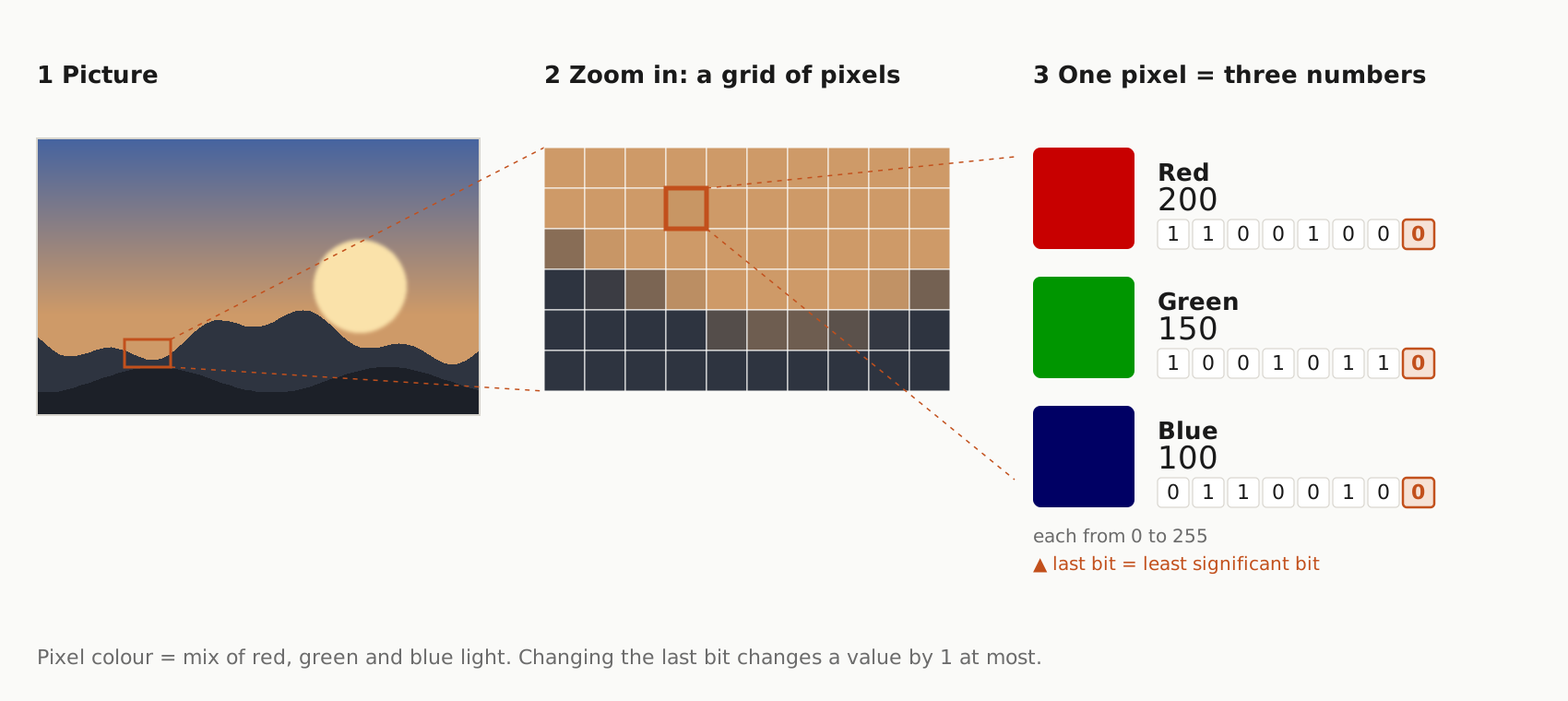
A digital image is a long list of numbers. Every pixel has a red, a green and a blue value between 0 and 255, and each value is stored as eight bits. The last bit, the least significant one, changes the brightness of that colour by at most 1 out of 255, a difference nobody can see. If you replace those last bits with the bits of a message, the picture looks the same but carries hidden data:
- A red value of 200 is stored as
11001000. - To hide the bit
1, the last place is changed and the value becomes11001001, which is 201.
Not every format works like this. A JPEG does not store pixels but compressed values from which the pixels are calculated, so JPEG tools such as Steghide change those stored values instead. Either way, the hidden data lives in the exact numbers of the file. This has three consequences that you will meet again in this tutorial:
- Capacity is limited. A small image has room for only a small secret.
- Fragile files. Resizing, recompressing or converting an image rewrites the numbers, and the hidden data is lost.
- Hidden is not the same as protected. Steganography hides that a message exists, but it does not make the message unreadable. Steghide also encrypts your data with a passphrase, but some tools do not, and hidden data can often be found by specialised analysis (“steganalysis”). Do not use these methods to protect anything truly sensitive.
Software & Tools
- Steghide (macOS, Linux): a free command-line program that hides any file inside a JPEG, BMP, WAV or AU file and protects it with a passphrase. This is the tool used in this tutorial. It does not accept PNG files.
- Steghide manual page: the full list of commands and options.
Alternatives:
- Steganography Online (browser): hides a text message in an image and reads it out again. It needs no installation, but it hides text only and does not encrypt the message.
- Xiao Steganography (PC)
- OpenPuff (PC): It supports a wide range of carrier files, several passwords and “deniable” steganography, where you can reveal a harmless decoy to hide that there is something more.
For hiding an image in an image, this tutorial also uses a short script in Python, a programming language, with the Pillow image library. This part is optional.
Before you start
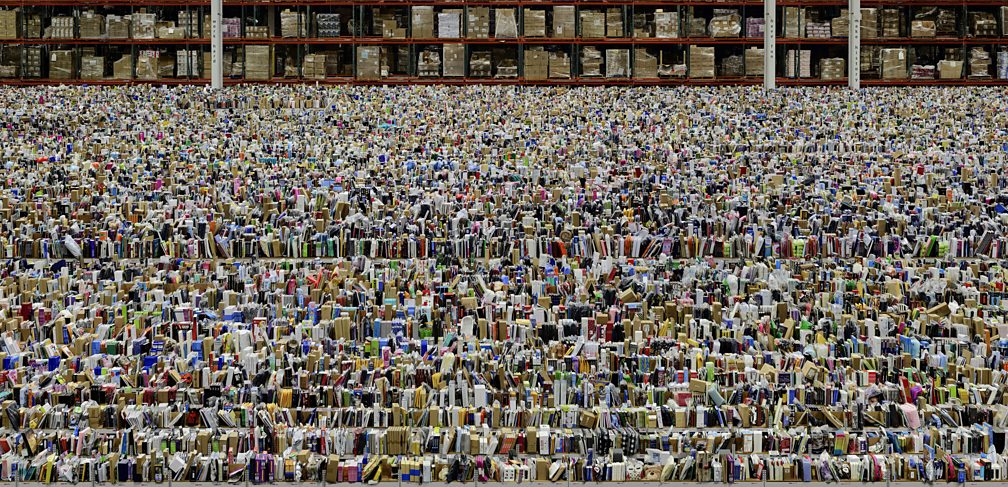
- Choose a busy photograph as the cover image. Photographs with texture, grain and detail hide changes well. Flat graphics, screenshots and smooth gradients show them more easily.
- Use the right format. Steghide works with JPEG and BMP images, not PNG. The Python method in this tutorial needs PNG, because only a lossless format keeps every bit.
- Keep your original. Always save the result as a new file, so that you still have the untouched cover image to compare with.
- Keep the secret small. The larger the secret, the more the cover image has to change. Text takes almost no room, but a photograph is large.
- Choose a passphrase and remember it. Without the passphrase, Steghide cannot retrieve your data, and there is no way to reset it. Do not send the passphrase together with the image.
- Do not recompress. Messaging apps, social platforms, email programs and cloud services often resize and recompress images, which destroys the hidden data. Send your result as a file or inside a zip archive, and test it.
- Use it responsibly. Steganography is used for watermarks, art, privacy and journalism, but also for hiding malware. Only hide things you are allowed to hide, on devices you are allowed to use.
Hiding and retrieving a text message in an image
Steghide first compresses your message and encrypts it with your passphrase. It then scatters the result across the image, so that the image changes only slightly. To get the message back, Steghide needs the same passphrase.
Install Steghide
On a Mac, the easiest way to install Steghide is with MacPorts:
- Install the developer tools from Apple by typing
xcode-select --installinto Terminal (open it from Applications → Utilities) and following the instructions. - Download and run the installer for your macOS version from the MacPorts website. Then close Terminal and open it again.
- In Terminal, type
sudo port install steghideand press Enter. - Enter your Mac password and press Enter. Nothing appears on screen while you type, which is normal.
- If Terminal asks whether to install dependencies, press
Yand then Enter. - When it has finished, check the installation by typing
steghide --version.
On Linux (Debian or Ubuntu), type sudo apt install steghide. Steghide has no official installer for Windows. On a Windows PC use OpenPuff or Xiao Steganography instead (see the software list above).
Hide a message
Put your cover image and a text file with your message in the same folder, for example cover.jpg and secret.txt. Open Terminal in that folder: type cd (with a space after it), drag the folder from Finder into the Terminal window and press Enter. Then type the following command. Commands are case sensitive, so write steghide in lowercase:
steghide embed -cf cover.jpg -ef secret.txt -sf output.jpg
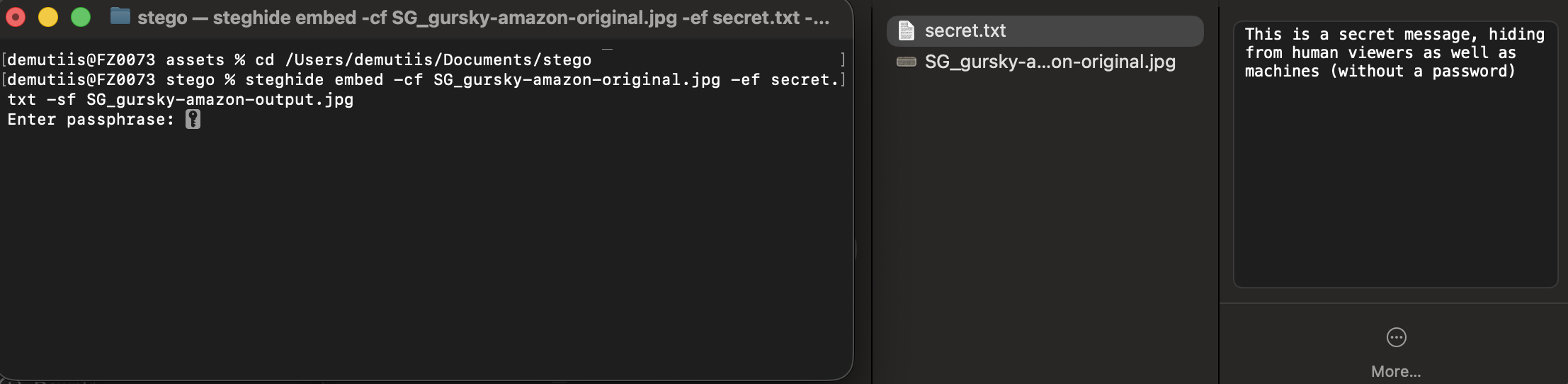
The command embeds the file secret.txt in cover.jpg and writes the result to a new file, output.jpg:
-cfis the cover file, the image that will carry the secret.-efis the file to embed.-sfis the stego file, the new image that Steghide creates. Always include it. Without it, Steghide changes your cover image in place.
Steghide asks you to enter a passphrase and then to repeat it. Nothing appears on screen while you type. When it is finished, open cover.jpg and output.jpg next to each other. You should not be able to see a difference.
Check how much an image can hold
If the message is too long for the image, Steghide stops with an error. To check the room in an image before you start, type:
steghide info cover.jpg
Steghide shows the file format and the capacity, the amount of data the image can carry. It may also ask whether it should try to get information about embedded data. For an untouched cover image, answer n.
Retrieve a message
To get the message back, type:
steghide extract -sf output.jpg -xf retrieved-secret.txt
The command extracts the hidden data from output.jpg and writes it to retrieved-secret.txt. Steghide asks for the passphrase. If it is correct, open retrieved-secret.txt to read your message. If you leave out -xf, Steghide saves the data under the file name it had when it was embedded. If the passphrase is wrong, Steghide reports an error and extracts nothing.
Without the terminal: an online tool
If you cannot install Steghide, the browser tool Steganography Online hides text in an image:
- Open the tool and choose the option to encode a message.
- Select your cover image (a PNG or JPG) and type your message. The longest possible message is limited by the size of the image.
- Save the new image that the tool creates. Keep it as a PNG: saving it as a JPEG would destroy the message.
- To read the message, open the decoder page and select the new image.
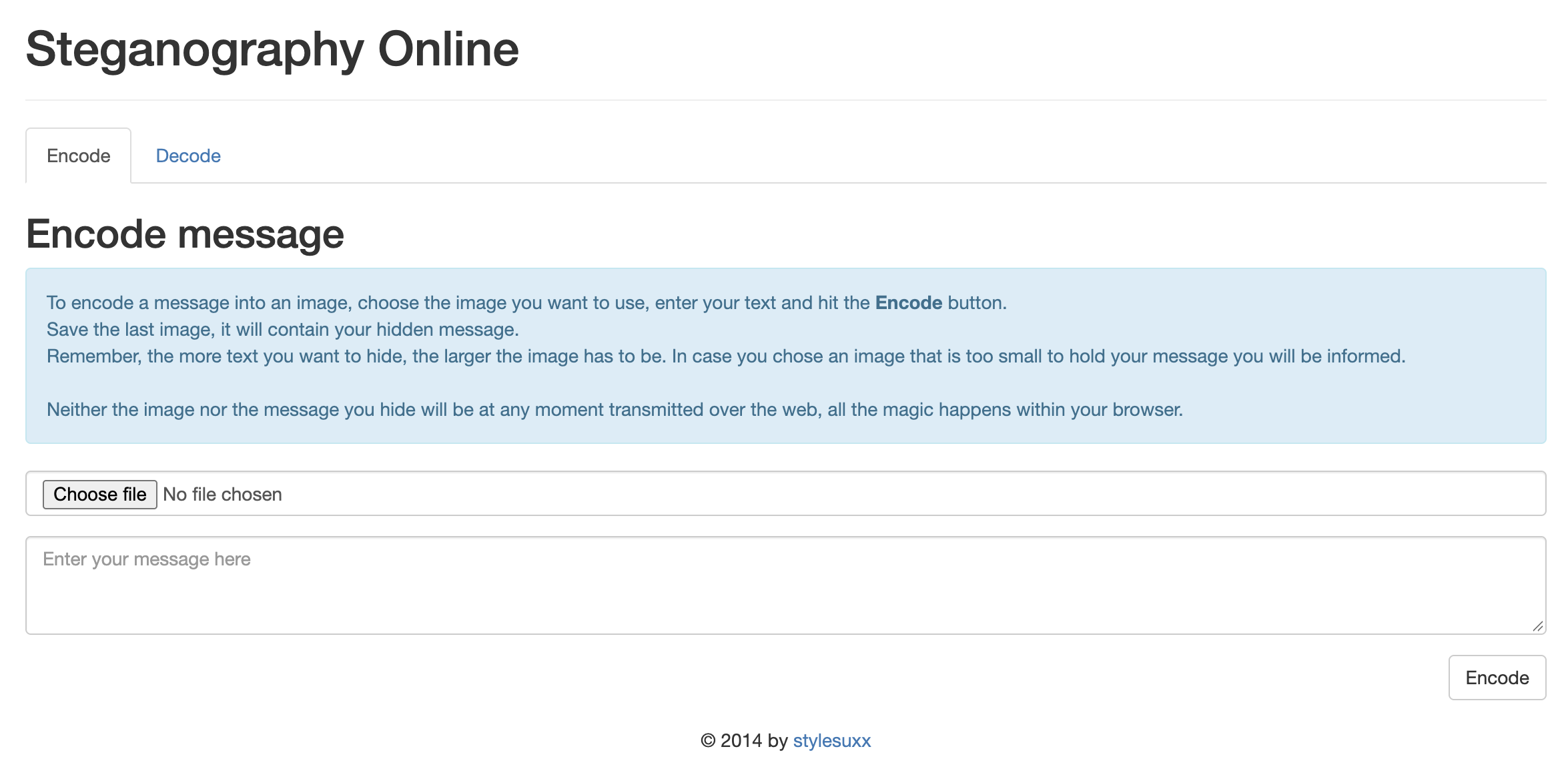
This tool does not encrypt your message. Anyone who puts the image into the decoder can read it, so write something you are happy for others to find.
Hiding and retrieving an image in an image
There are two ways to hide a picture in a picture. You can store the secret image as a file inside the cover image, or you can mix the pixels of the two images. The first is simple and works with the tools you already have. The second is a good way to see how the hiding actually works.
Method 1: embed an image file with Steghide
Steghide can hide any file, and an image is a file. The secret image is stored whole inside the cover image, so you get back exactly the file you put in. The only difficulty is size. An image file is much larger than a text message, so the cover image has to be large and the secret image has to be small.
First, make a small version of your secret image, for example 300 pixels wide, and save it as a JPEG with strong compression. In Preview on a Mac, use Tools → Adjust Size and then File → Export.
Second, check the capacity of your cover image with steghide info cover.jpg and compare it with the file size of the secret image. If the secret does not fit, make it smaller or choose a larger cover image.
Then hide the image, using the same command as for text but with the image as the file to embed:
steghide embed -cf cover.jpg -ef secret.jpg -sf output.jpg
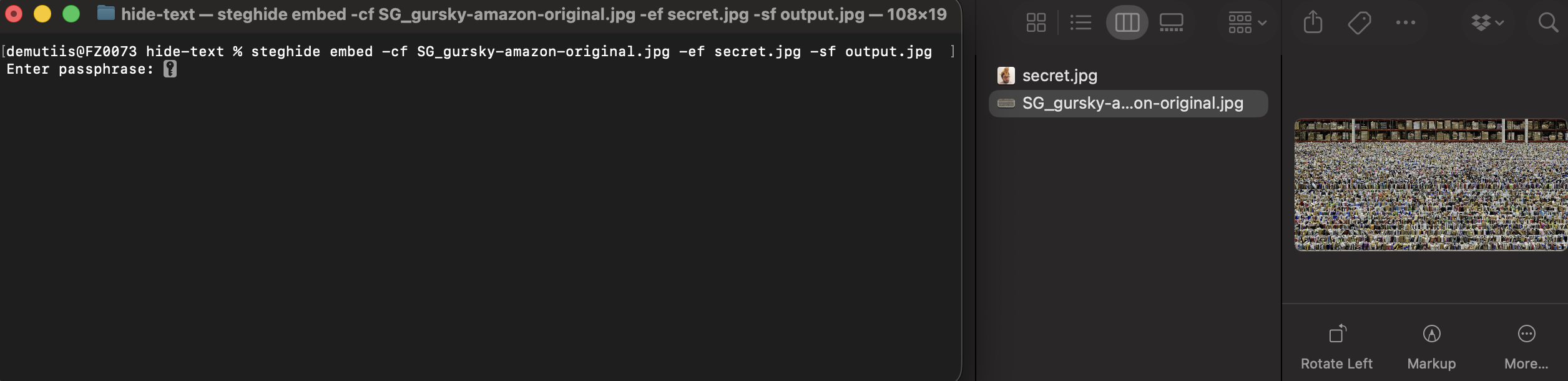
To retrieve it, extract the hidden file and give it an image file name:
steghide extract -sf output.jpg -xf retrieved-secret.jpg
Open retrieved-secret.jpg: it is identical to the file you hid.
Method 2 (optional): mix the pixels with Python
In this method you hide the secret image in the weakest bits of the cover image’s colour values, like the example in the section above. This time you give up four bits per colour value. The four strongest bits of each value stay with the cover image, and the four strongest bits of the secret image take the place of the four weakest ones. The cover image barely changes, and the secret image comes back with fewer shades, but you can recognise it.
First install the Pillow image library: type pip3 install pillow in Terminal. Then save the following script as hide_image.py:
# Hide one image inside another image, and get it back.

# Usage:
#  python3 hide_image.py hide cover.png secret.png output.png
#  python3 hide_image.py reveal output.png revealed.png

import sys
from PIL import Image, ImageChops

BITS = 4  # how many bits per colour value the cover gives up to the secret (1-7)

KEEP = 0xFF & ~((1 << BITS) - 1)  # the cover's strongest bits (kept)
LOW = (1 << BITS) - 1             # the cover's weakest bits (replaced)
SHIFT = 8 - BITS


def hide(cover_path, secret_path, out_path):
    cover = Image.open(cover_path).convert("RGB")
    secret = Image.open(secret_path).convert("RGB").resize(cover.size)
    cover_strong = cover.point(lambda v: v & KEEP)
    secret_strong = secret.point(lambda v: v >> SHIFT)
    ImageChops.add(cover_strong, secret_strong).save(out_path, "PNG")


def reveal(stego_path, out_path):
    stego = Image.open(stego_path).convert("RGB")
    stego.point(lambda v: (v & LOW) << SHIFT).save(out_path, "PNG")


if __name__ == "__main__":
    args = sys.argv[1:]
    if len(args) == 4 and args[0] == "hide":
        hide(args[1], args[2], args[3])
    elif len(args) == 3 and args[0] == "reveal":
        reveal(args[1], args[2])
    else:
        print(__doc__)
Put the script in the same folder as cover.png and secret.png (use two images with the same proportions, because the script stretches the secret to the size of the cover). Then type:
python3 hide_image.py hide cover.png secret.png output.png
python3 hide_image.py reveal output.png revealed.png
The first command creates output.png, which looks like the cover image. The second reads the hidden image out of it and saves it as revealed.png.
Some things to try and to keep in mind:
- Change
BITS. WithBITS = 2the cover image changes even less, but the secret image comes back with only four shades per colour. WithBITS = 6the secret is nearly perfect, but the cover image shows the strain. - Results vary from image to image. How visible the hidden image is depends on the cover: smooth areas such as a plain wall or a sky show the change first, while busy, detailed areas hide it better. The more bits you give up, the more it shows.
- Use PNG only. If
output.pngis converted to a JPEG, resized or sent through a messenger that recompresses it, the secret is lost. - There is no passphrase. Anyone who knows the trick can read the weak bits and see your secret. This method shows how the hiding works, but it does not protect anything.
Troubleshooting
- “command not found”: Terminal cannot find Steghide. Close and reopen Terminal and check the installation with
steghide --version. If you still see the error, install again. - Steghide says the cover image is too small: the secret is bigger than the cover can carry. Check the capacity with
steghide info, then shorten the message, shrink the secret image or use a larger cover image. - Steghide does not accept your image: it only works with JPEG, BMP, WAV and AU files. Convert a PNG to a JPEG first, for example with Export in Preview.
- Nothing comes out when you extract: the passphrase is wrong, or the image was changed after the data was hidden. Check that you are using the stego image itself, not a copy that was sent through a messenger or platform.
- You can see the hidden data in the image: use a busier cover photograph and a smaller secret.
- Python reports an error about
PIL: Pillow is not installed. Typepip3 install pillowand try again.
Exercise: hidden in plain sight
- Choose a cover photograph of your own: a JPEG with plenty of detail, at least 1000 pixels wide. Keep the original.
- Write a short message in a text file: a sentence or a few lines that belong with the picture, such as a caption, a confession, an instruction or a line from a text.
- Hide the message in the photograph with Steghide. Put the cover image and the stego image side by side and compare them. Compare the file sizes as well. Can you tell which is which?
- Hide a small image in a second cover image, with Method 1 or Method 2.
- Test how fragile your images are. Send each stego image to yourself in a messenger, upload it to a platform, take a screenshot of it and save a copy in a different format. After each step, try to retrieve the hidden data. Note what survives and what does not.
- Give a classmate one of the stego images and tell them the passphrase by a different route. Can they retrieve your secret?
Optional challenge: a picture with a secret. Make an image in which the hidden layer and the visible image speak to each other: the secret can contradict, comment on or complete what the picture shows. Decide how a viewer would find out that there is something to find, and how they would get it out. Present the picture together with the instructions.
Überblick
Steganografie ist die Praxis, Informationen in etwas anderem zu verstecken, sodass niemand ahnt, dass sie dort sind. Ein mit unsichtbarer Tinte geschriebener Brief, eine in einem Hohlgegenstand verborgene Nachricht und ein in den Pixeln einer Fotografie gespeichertes Geheimnis sind allesamt Beispiele. In diesem Tutorial lernt ihr, wie ihr Text in einem Bild versteckt, wie ihr ein Bild in einem Bild versteckt und wie ihr beides wieder auslest.
Steganografie ist die Praxis, eine Nachricht so zu verstecken, dass niemand ahnt, dass es sie gibt. Darin unterscheidet sie sich von der Kryptografie, die eine Nachricht in einen Code verwandelt, den nur lesen kann, wer den Schlüssel besitzt. Eine verschlüsselte Nachricht kann nicht gelesen werden, sieht aber trotzdem wie ein Geheimnis aus. Die Steganografie versteckt die Nachricht in etwas Gewöhnlichem, etwa in einem Bild, sodass der Akt des Kommunizierens unbemerkt bleibt. Die Praxis ist nicht allein an digitale Kommunikation gebunden, sondern reicht Tausende von Jahren zurück und umfasst unterschiedliche Formate und Materialien. Klassische Berichte des griechischen Historikers Herodot aus dem Jahr 440 v. Chr. erzählen von einer Nachricht, die unter dem nachgewachsenen Haar eines Dieners verborgen war. Ende des 15. Jahrhunderts schrieb Johannes Trithemius die Steganographia, ein Buch, das wie eine Abhandlung über Magie wirkt, sich aber mit verborgener Schrift befasst. Kunsthistoriker:innen haben behauptet, in Gemälden von Leonardo, Michelangelo und Bosch verborgene Buchstaben, Zahlen und sogar eine Partitur gefunden zu haben. Im 20. Jahrhundert verkleinerten Spion:innen Fotografien zu Mikropunkten, ein Kriegsgefangener stickte eine Botschaft in Morsecode in den Rand einer Stickerei, und 1968 machte die Besatzung der USS Pueblo, die für nordkoreanische Propaganda fotografiert wurde, anstößige Gesten in die Kamera, die ihre Bewacher zunächst nicht erkannten. Bei digitalen Bildern ist die häufigste Technik die Ersetzung des niederwertigsten Bits (Least Significant Bit, LSB), bei der das unwichtigste Bit jedes Farbwerts durch ein Bit der versteckten Nachricht ersetzt wird. Die Veränderung ist zu klein, um sie zu sehen. Wer solche Verfahren entwirft, muss vier konkurrierende Anforderungen ausbalancieren: Kapazität, Unauffälligkeit, Robustheit und Sicherheit. Wird eine davon verbessert, verschlechtern sich meist die anderen. Forschende verstecken Daten inzwischen auch in anderen Medien, etwa in der Geometrie von 3D-Meshes. 2025 ging der Musiker und YouTuber Benn Jordan noch einen Schritt weiter und nutzte ein lebendes Tier als Träger: Er „speicherte ein Bild in einem Vogel“. Jordan wandelte die Zeichnung eines Vogels mit einem Spektralsynthesizer in Klang um und spielte ihn einem Star vor, einer Art, die für das Nachahmen von Gehörtem bekannt ist. Der Vogel nahm den Klang auf und sang ihn nach, und die Zeichnung konnte aus einem Spektrogramm seines Gesangs wiederhergestellt werden, rund 176 KB Bilddaten, allerdings mit etwas Präzisionsverlust. Quelle: exo.substack.com/p/the-exo-guide-to-data-cloaking. Starexperiment: Benn Jordan auf YouTube (ca. 30 Min.)
Am Ende dieses Tutorials könnt ihr:
- den Unterschied zwischen Steganografie und Kryptografie erklären
- eine Textnachricht in einem Bild verstecken und mit Steghide wieder auslesen
- ein Bild in einem Bild verstecken und wieder auslesen
- erklären, warum versteckte Daten verloren gehen können, wenn ein Bild gespeichert, konvertiert oder geteilt wird
Wie sich Informationen in einem Bild verstecken
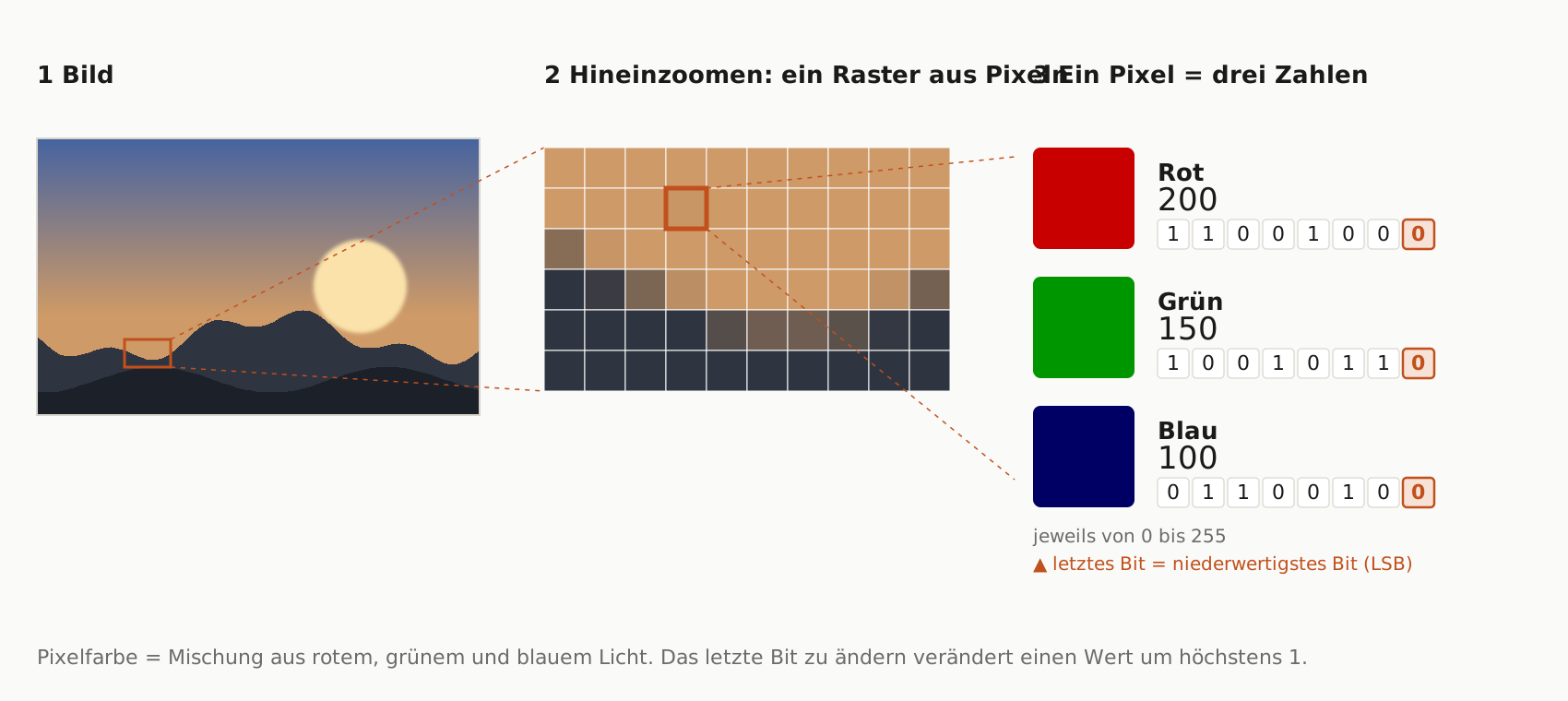
Ein digitales Bild ist eine lange Liste von Zahlen. Jeder Pixel hat einen Rot-, einen Grün- und einen Blauwert zwischen 0 und 255, und jeder Wert wird in acht Bit gespeichert. Das letzte Bit, das niederwertigste (Least Significant Bit), verändert die Helligkeit dieser Farbe um höchstens 1 von 255, ein Unterschied, den niemand sehen kann. Wenn ihr diese letzten Bits durch die Bits einer Nachricht ersetzt, sieht das Bild gleich aus, enthält aber versteckte Daten:
- Ein Rotwert von 200 wird als
11001000gespeichert. - Um das Bit
1zu verstecken, wird die letzte Stelle geändert, und der Wert wird zu11001001, also 201.
Nicht jedes Format funktioniert so. Ein JPEG speichert keine Pixel, sondern komprimierte Werte, aus denen die Pixel berechnet werden. JPEG-Werkzeuge wie Steghide verändern deshalb diese gespeicherten Werte. So oder so liegen die versteckten Daten in den exakten Zahlen der Datei. Daraus ergeben sich drei Konsequenzen, denen ihr in diesem Tutorial wieder begegnen werdet:
- Die Kapazität ist begrenzt. Ein kleines Bild bietet nur Platz für ein kleines Geheimnis.
- Fragile Dateien. Wenn ein Bild skaliert, neu komprimiert oder konvertiert wird, werden die Zahlen neu geschrieben, und die versteckten Daten gehen verloren.
- Versteckt heißt nicht geschützt. Steganografie versteckt, dass eine Nachricht existiert, macht sie aber nicht unlesbar. Steghide verschlüsselt eure Daten zusätzlich mit einer Passphrase, andere Werkzeuge tun das nicht, und versteckte Daten lassen sich oft durch spezialisierte Analysen („Steganalyse“) aufspüren. Verwendet diese Methoden nicht, um wirklich sensible Informationen zu schützen.
Software & Tools
- Steghide (macOS, Linux): ein kostenloses Kommandozeilenprogramm, das beliebige Dateien in einer JPEG-, BMP-, WAV- oder AU-Datei versteckt und mit einer Passphrase schützt. Dieses Werkzeug wird in diesem Tutorial verwendet. PNG-Dateien akzeptiert es nicht.
- Steghide-Manpage (englisch): die vollständige Liste der Befehle und Optionen.
Alternativen:
- Steganography Online (Browser): versteckt eine Textnachricht in einem Bild und liest sie wieder aus. Es braucht keine Installation, versteckt aber nur Text und verschlüsselt die Nachricht nicht.
- Xiao Steganography (PC)
- OpenPuff (PC): Es unterstützt eine breite Palette von Trägerdateien, mehrere Passwörter und „abstreitbare“ Steganografie („deniable“), bei der ihr einen harmlosen Köder (Decoy) preisgeben könnt, um zu verbergen, dass es noch mehr gibt.
Für das Verstecken eines Bildes in einem Bild verwendet dieses Tutorial außerdem ein kurzes Skript in Python, einer Programmiersprache, mit der Bildbibliothek Pillow. Dieser Teil ist optional.
Vor dem Start
- Wählt als Trägerbild ein detailreiches Foto. Fotografien mit Textur, Korn und Details verbergen Veränderungen gut. Flache Grafiken, Screenshots und glatte Farbverläufe verraten sie leichter.
- Verwendet das richtige Format. Steghide arbeitet mit JPEG- und BMP-Bildern, nicht mit PNG. Die Python-Methode in diesem Tutorial braucht PNG, weil nur ein verlustfreies Format jedes Bit erhält.
- Behaltet das Original. Speichert das Ergebnis immer als neue Datei, damit ihr das unveränderte Trägerbild zum Vergleich behaltet.
- Haltet das Geheimnis klein. Je größer das Geheimnis, desto stärker muss sich das Trägerbild verändern. Text braucht fast keinen Platz, eine Fotografie dagegen sehr viel.
- Wählt eine Passphrase und merkt sie euch. Ohne die Passphrase kann Steghide eure Daten nicht auslesen, und sie lässt sich nicht zurücksetzen. Schickt die Passphrase nicht zusammen mit dem Bild.
- Nicht neu komprimieren. Messenger, soziale Plattformen, E-Mail-Programme und Cloud-Dienste skalieren und komprimieren Bilder oft neu, wodurch die versteckten Daten zerstört werden. Schickt euer Ergebnis als Datei oder in einem Zip-Archiv, und testet es.
- Geht verantwortungsvoll damit um. Steganografie wird für Wasserzeichen, Kunst, Privatsphäre und Journalismus eingesetzt, aber auch, um Schadsoftware zu verstecken. Versteckt nur, was ihr verstecken dürft, und nur auf Geräten, die ihr nutzen dürft.
Eine Textnachricht in einem Bild verstecken und wieder auslesen
Steghide komprimiert eure Nachricht zuerst und verschlüsselt sie mit eurer Passphrase. Danach verteilt es das Ergebnis über das Bild, sodass sich das Bild nur geringfügig verändert. Um die Nachricht zurückzubekommen, braucht Steghide dieselbe Passphrase.
Steghide installieren
Auf einem Mac lässt sich Steghide am einfachsten mit MacPorts installieren:
- Installiert die Entwicklerwerkzeuge von Apple, indem ihr
xcode-select --installins Terminal eingebt (ihr findet es unter Programme → Dienstprogramme) und den Anweisungen folgt. - Ladet den Installer für eure macOS-Version von der MacPorts-Website herunter und führt ihn aus. Schließt danach das Terminal und öffnet es erneut.
- Gebt im Terminal
sudo port install steghideein und drückt die Eingabetaste. - Gebt euer Mac-Passwort ein und drückt die Eingabetaste. Während der Eingabe erscheint nichts auf dem Bildschirm, das ist normal.
- Wenn das Terminal fragt, ob Abhängigkeiten installiert werden sollen, drückt
Yund dann die Eingabetaste. - Prüft die Installation nach Abschluss mit
steghide --version.
Unter Linux (Debian oder Ubuntu) gebt ihr sudo apt install steghide ein. Für Windows gibt es keinen offiziellen Steghide-Installer. Verwendet auf einem Windows-PC stattdessen OpenPuff oder Xiao Steganography (siehe die Softwareliste oben).
Eine Nachricht verstecken
Legt euer Trägerbild und eine Textdatei mit eurer Nachricht in denselben Ordner, zum Beispiel cover.jpg und secret.txt. Öffnet das Terminal in diesem Ordner: Tippt cd (mit einem Leerzeichen danach), zieht den Ordner aus dem Finder in das Terminalfenster und drückt die Eingabetaste. Gebt dann den folgenden Befehl ein. Bei Befehlen kommt es auf Groß- und Kleinschreibung an, schreibt steghide also klein:
steghide embed -cf cover.jpg -ef secret.txt -sf output.jpg
Der Befehl bettet die Datei secret.txt in cover.jpg ein und schreibt das Ergebnis in eine neue Datei, output.jpg:
-cfist die Trägerdatei (cover file), das Bild, das das Geheimnis tragen soll.-efist die einzubettende Datei (embed file).-sfist die Stego-Datei (stego file), das neue Bild, das Steghide erzeugt. Gebt sie immer an. Ohne sie verändert Steghide euer Trägerbild direkt.
Steghide bittet euch, eine Passphrase einzugeben und sie zu wiederholen. Während der Eingabe erscheint nichts auf dem Bildschirm. Wenn Steghide fertig ist, öffnet cover.jpg und output.jpg nebeneinander. Ihr solltet keinen Unterschied erkennen.
Prüfen, wie viel ein Bild aufnehmen kann
Wenn die Nachricht für das Bild zu lang ist, bricht Steghide mit einer Fehlermeldung ab. Um den Platz in einem Bild vorher zu prüfen, gebt Folgendes ein:
steghide info cover.jpg
Steghide zeigt das Dateiformat und die Kapazität an, also die Datenmenge, die das Bild tragen kann. Möglicherweise fragt es auch, ob es versuchen soll, Informationen über eingebettete Daten abzurufen. Antwortet bei einem unveränderten Trägerbild mit n.
Eine Nachricht auslesen
Um die Nachricht zurückzubekommen, gebt Folgendes ein:
steghide extract -sf output.jpg -xf retrieved-secret.txt
Der Befehl extrahiert die versteckten Daten aus output.jpg und schreibt sie in retrieved-secret.txt. Steghide fragt nach der Passphrase. Wenn sie stimmt, öffnet retrieved-secret.txt, um eure Nachricht zu lesen. Wenn ihr -xf weglasst, speichert Steghide die Daten unter dem Dateinamen, den sie beim Einbetten hatten. Bei einer falschen Passphrase meldet Steghide einen Fehler und extrahiert nichts.
Ohne Terminal: ein Online-Werkzeug
Wenn ihr Steghide nicht installieren könnt, versteckt das Browser-Werkzeug Steganography Online Text in einem Bild:
- Öffnet das Werkzeug und wählt die Option, eine Nachricht zu kodieren.
- Wählt euer Trägerbild (ein PNG oder JPG) aus und tippt eure Nachricht ein. Die maximale Länge der Nachricht wird durch die Größe des Bildes begrenzt.
- Speichert das neue Bild, das das Werkzeug erzeugt. Behaltet es als PNG: Würdet ihr es als JPEG speichern, ginge die Nachricht verloren.
- Um die Nachricht zu lesen, öffnet die Decoder-Seite und wählt das neue Bild aus.
Dieses Werkzeug verschlüsselt eure Nachricht nicht. Alle, die das Bild in den Decoder laden, können sie lesen. Schreibt also etwas, das ruhig andere finden dürfen.
Ein Bild in einem Bild verstecken und wieder auslesen
Es gibt zwei Möglichkeiten, ein Bild in einem Bild zu verstecken. Ihr könnt das geheime Bild als Datei im Trägerbild ablegen, oder ihr mischt die Pixel der beiden Bilder. Die erste Möglichkeit ist einfach und funktioniert mit den Werkzeugen, die ihr schon habt. Die zweite zeigt gut, wie das Verstecken tatsächlich funktioniert.
Methode 1: eine Bilddatei mit Steghide einbetten
Steghide kann jede Datei verstecken, und ein Bild ist eine Datei. Das geheime Bild wird vollständig im Trägerbild gespeichert, ihr bekommt also genau die Datei zurück, die ihr hineingelegt habt. Die einzige Schwierigkeit ist die Größe. Eine Bilddatei ist viel größer als eine Textnachricht, deshalb muss das Trägerbild groß und das geheime Bild klein sein.
Erstellt zuerst eine kleine Version eures geheimen Bildes, zum Beispiel 300 Pixel breit, und speichert sie als stark komprimiertes JPEG. In Vorschau auf dem Mac verwendet ihr dazu Werkzeuge → Größe anpassen und dann Ablage → Exportieren.
Prüft danach die Kapazität eures Trägerbildes mit steghide info cover.jpg und vergleicht sie mit der Dateigröße des geheimen Bildes. Passt das Geheimnis nicht hinein, verkleinert es oder wählt ein größeres Trägerbild.
Versteckt dann das Bild. Verwendet denselben Befehl wie für Text, bettet aber das Bild als Datei ein:
steghide embed -cf cover.jpg -ef secret.jpg -sf output.jpg
Um es auszulesen, extrahiert die versteckte Datei und gebt ihr einen Bilddateinamen:
steghide extract -sf output.jpg -xf retrieved-secret.jpg
Öffnet retrieved-secret.jpg: Die Datei ist identisch mit der, die ihr versteckt habt.
Methode 2 (optional): Pixel mit Python mischen
Bei dieser Methode versteckt ihr das geheime Bild in den schwächsten Bits der Farbwerte des Trägerbildes, wie im Beispiel im Abschnitt oben. Diesmal gebt ihr vier Bits pro Farbwert ab. Die vier stärksten Bits jedes Werts bleiben beim Trägerbild, und die vier stärksten Bits des geheimen Bildes treten an die Stelle der vier schwächsten. Das Trägerbild verändert sich kaum, und das geheime Bild kommt mit weniger Farbabstufungen zurück, ist aber erkennbar.
Installiert zuerst die Bildbibliothek Pillow: Gebt pip3 install pillow im Terminal ein. Speichert dann das folgende Skript als hide_image.py:
# Versteckt ein Bild in einem anderen Bild und holt es wieder heraus.

# Aufruf:
#  python3 hide_image.py hide cover.png secret.png output.png
#  python3 hide_image.py reveal output.png revealed.png

import sys
from PIL import Image, ImageChops

BITS = 4  # wie viele Bits pro Farbwert das Trägerbild an das Geheimnis abgibt (1-7)

KEEP = 0xFF & ~((1 << BITS) - 1)  # die stärksten Bits des Trägerbildes (bleiben erhalten)
LOW = (1 << BITS) - 1             # die schwächsten Bits des Trägerbildes (werden ersetzt)
SHIFT = 8 - BITS


def hide(cover_path, secret_path, out_path):
    cover = Image.open(cover_path).convert("RGB")
    secret = Image.open(secret_path).convert("RGB").resize(cover.size)
    cover_strong = cover.point(lambda v: v & KEEP)
    secret_strong = secret.point(lambda v: v >> SHIFT)
    ImageChops.add(cover_strong, secret_strong).save(out_path, "PNG")


def reveal(stego_path, out_path):
    stego = Image.open(stego_path).convert("RGB")
    stego.point(lambda v: (v & LOW) << SHIFT).save(out_path, "PNG")


if __name__ == "__main__":
    args = sys.argv[1:]
    if len(args) == 4 and args[0] == "hide":
        hide(args[1], args[2], args[3])
    elif len(args) == 3 and args[0] == "reveal":
        reveal(args[1], args[2])
    else:
        print(__doc__)
Legt das Skript in denselben Ordner wie cover.png und secret.png (verwendet zwei Bilder mit denselben Proportionen, denn das Skript streckt das geheime Bild auf die Größe des Trägerbildes). Gebt dann Folgendes ein:
python3 hide_image.py hide cover.png secret.png output.png
python3 hide_image.py reveal output.png revealed.png
Der erste Befehl erzeugt output.png, das wie das Trägerbild aussieht. Der zweite liest das versteckte Bild daraus aus und speichert es als revealed.png.
Einiges zum Ausprobieren und Beachten:
- Ändert
BITS. MitBITS = 2verändert sich das Trägerbild noch weniger, aber das geheime Bild kommt nur mit vier Abstufungen pro Farbe zurück. MitBITS = 6ist das Geheimnis fast perfekt, aber dem Trägerbild sieht man die Belastung an. - Die Ergebnisse variieren von Bild zu Bild. Wie sichtbar das versteckte Bild ist, hängt vom Trägerbild ab: Glatte Flächen wie eine einfarbige Wand oder ein Himmel verraten die Veränderung zuerst, während detailreiche Bereiche sie besser verbergen. Je mehr Bits ihr abgebt, desto stärker fällt es auf.
- Nur PNG verwenden. Wird
output.pngin ein JPEG umgewandelt, skaliert oder über einen Messenger verschickt, der es neu komprimiert, geht das Geheimnis verloren. - Es gibt keine Passphrase. Alle, die den Trick kennen, können die schwächsten Bits auslesen und euer Geheimnis sehen. Diese Methode zeigt, wie das Verstecken funktioniert, schützt aber nichts.
Fehlerbehebung
- „command not found“: Das Terminal findet Steghide nicht. Schließt das Terminal, öffnet es erneut und prüft die Installation mit
steghide --version. Wenn der Fehler weiter erscheint, installiert Steghide noch einmal. - Steghide meldet, dass das Trägerbild zu klein ist: Das Geheimnis ist größer, als das Trägerbild tragen kann. Prüft die Kapazität mit
steghide info, kürzt dann die Nachricht, verkleinert das geheime Bild oder verwendet ein größeres Trägerbild. - Steghide akzeptiert euer Bild nicht: Es funktioniert nur mit JPEG-, BMP-, WAV- und AU-Dateien. Wandelt ein PNG zuerst in ein JPEG um, zum Beispiel mit Exportieren in Vorschau.
- Beim Extrahieren kommt nichts heraus: Die Passphrase ist falsch, oder das Bild wurde verändert, nachdem die Daten versteckt wurden. Prüft, dass ihr das Stego-Bild selbst verwendet und keine Kopie, die über einen Messenger oder eine Plattform geschickt wurde.
- Die versteckten Daten sind im Bild zu sehen: Verwendet ein detailreicheres Trägerfoto und ein kleineres Geheimnis.
- Python meldet einen Fehler zu
PIL: Pillow ist nicht installiert. Gebtpip3 install pillowein und versucht es erneut.
Übung: versteckt vor aller Augen
- Wählt ein eigenes Trägerfoto: ein JPEG mit vielen Details, mindestens 1000 Pixel breit. Behaltet das Original.
- Schreibt eine kurze Nachricht in eine Textdatei: einen Satz oder einige Zeilen, die zum Bild passen, etwa eine Bildunterschrift, ein Geständnis, eine Anweisung oder eine Zeile aus einem Text.
- Versteckt die Nachricht mit Steghide im Foto. Legt Trägerbild und Stego-Bild nebeneinander und vergleicht sie. Vergleicht auch die Dateigrößen. Könnt ihr sagen, welches welches ist?
- Versteckt ein kleines Bild in einem zweiten Trägerbild, mit Methode 1 oder Methode 2.
- Testet, wie fragil eure Bilder sind. Schickt jedes Stego-Bild per Messenger an euch selbst, ladet es auf eine Plattform hoch, macht einen Screenshot davon und speichert eine Kopie in einem anderen Format. Versucht nach jedem Schritt, die versteckten Daten auszulesen. Notiert, was erhalten bleibt und was nicht.
- Gebt eines der Stego-Bilder an Kommiliton:innen weiter und nennt ihnen die Passphrase auf einem anderen Weg. Können sie euer Geheimnis auslesen?
Optionale Zusatzaufgabe: ein Bild mit einem Geheimnis. Gestaltet ein Bild, in dem die versteckte Ebene und das sichtbare Bild miteinander sprechen: Das Geheimnis kann dem widersprechen, was das Bild zeigt, es kommentieren oder vervollständigen. Entscheidet, wie Betrachter:innen herausfinden, dass es etwas zu finden gibt, und wie sie es herausholen. Präsentiert das Bild zusammen mit der Anleitung.